Zone profiles
Zones divide a facility into areas with a purpose, such as receiving, bulk storage, picking or a chilled room. A zone profile is one complete set of zones for a facility. You can keep several profiles, such as a normal layout and a peak-season layout, but only one is active at a time.
Each zone holds a set of locations: the storage positions from the storage topology and the equipment from the equipment layout.
Before you start
Section titled “Before you start”- Viewing zone profiles and zones needs
warehouseconfig.zones.read. Creating, changing, activating and deleting them, and assigning locations, needswarehouseconfig.zones.manage. - Finding locations to assign also needs
warehouseconfig.topology.read. - Tenant Admin and Warehouse Manager hold all of these. Operator and Read-Only API Client can view only.
- The facility must exist. See Facilities.
Every button is shown to everyone who can open the page, but changes are refused for users without
warehouseconfig.zones.manage.
Open a facility’s zone profiles
Section titled “Open a facility’s zone profiles”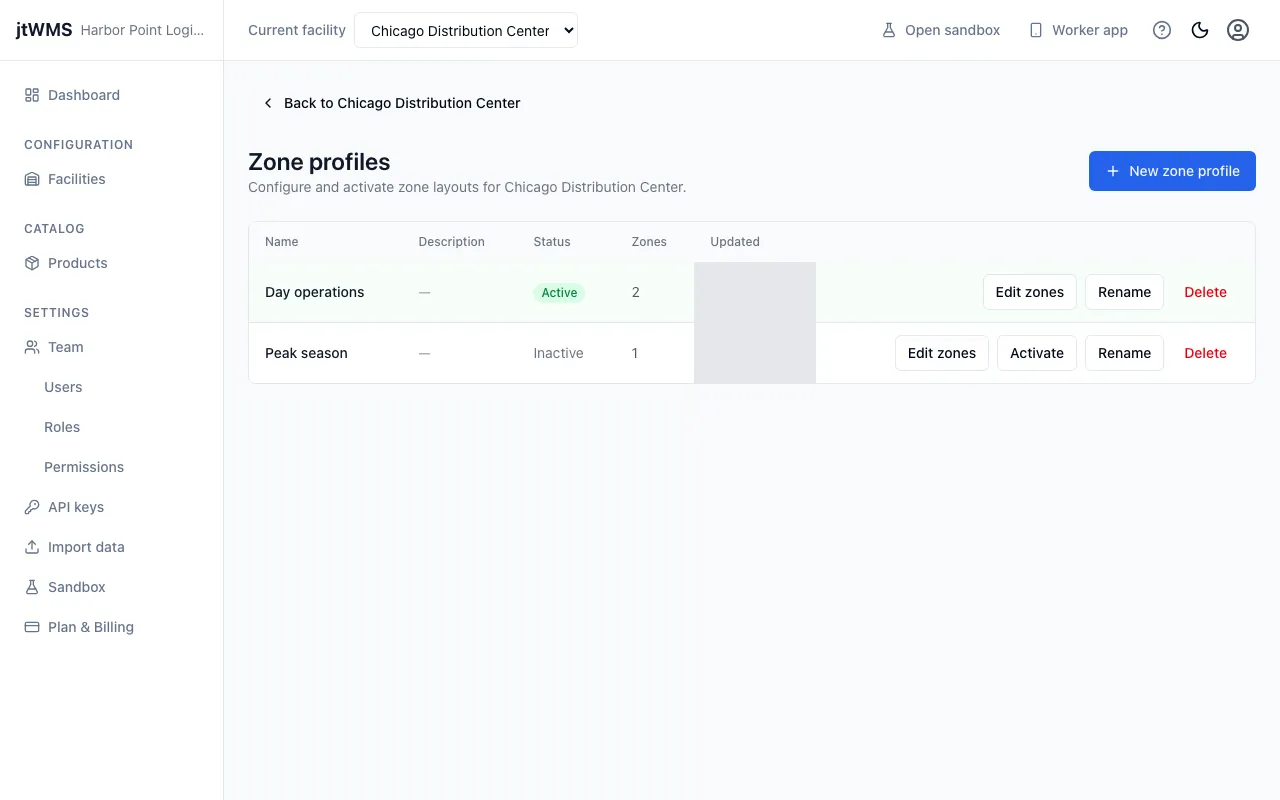
- In the sidebar, under Configuration, click Facilities.
- Click the facility’s name.
- In the Topology card, click Manage zone profiles.
The list shows each profile’s Name, Description, Status (an Active badge, or Inactive), the number of Zones it has, and when it was last Updated.
Create a zone profile
Section titled “Create a zone profile”- Click New zone profile. If the facility has none yet, click Create your first zone profile.
- Enter a Name: required, up to 200 characters, and unique within the facility.
- Optionally, enter a Description of up to 500 characters, such as why the profile exists.
- Click Create zone profile.
A new profile is inactive, and has one zone to start with: Default (code DEFAULT, type
Functional). Rename it or add more zones in the zone editor.
Rename a zone profile
Section titled “Rename a zone profile”- Click Rename on the profile’s row.
- Change the Name or Description.
- Click Save changes.
Renaming doesn’t change the profile’s zones or whether it’s active.
Activate a zone profile
Section titled “Activate a zone profile”- Click Activate on the profile’s row. Only inactive profiles have this button.
- The Activate zone profile dialog names the profile that’s active now, if there is one. Click Activate.
The profile becomes active, and the one that was active becomes inactive, in one step.
Delete a zone profile
Section titled “Delete a zone profile”- Click Delete on the profile’s row.
- In the Delete zone profile dialog, click Delete zone profile.
The profile is removed from the app, and deleting it can’t be undone. You can’t delete the active profile: activate another profile first.
Add a zone
Section titled “Add a zone”- Click Edit zones on the profile’s row. The page lists the profile’s zones.
- Click Add zone.
- Fill in:
- Zone name — required, up to 200 characters.
- Zone code — letters, digits and hyphens, up to 50 characters, unique within the profile.
- Zone type — Storage, Functional, Temperature or Custom.
- Click Add zone.
Each zone card shows its code, name, zone type and how many locations it holds.
Edit or delete a zone
Section titled “Edit or delete a zone”- To edit a zone, click its pencil button (Edit zone), change its name, code or type, and click Save changes.
- To delete a zone, click its bin button (Delete zone), then click Delete zone in the dialog. Its locations stay in the facility, but are no longer in this zone.
Assign locations to a zone
Section titled “Assign locations to a zone”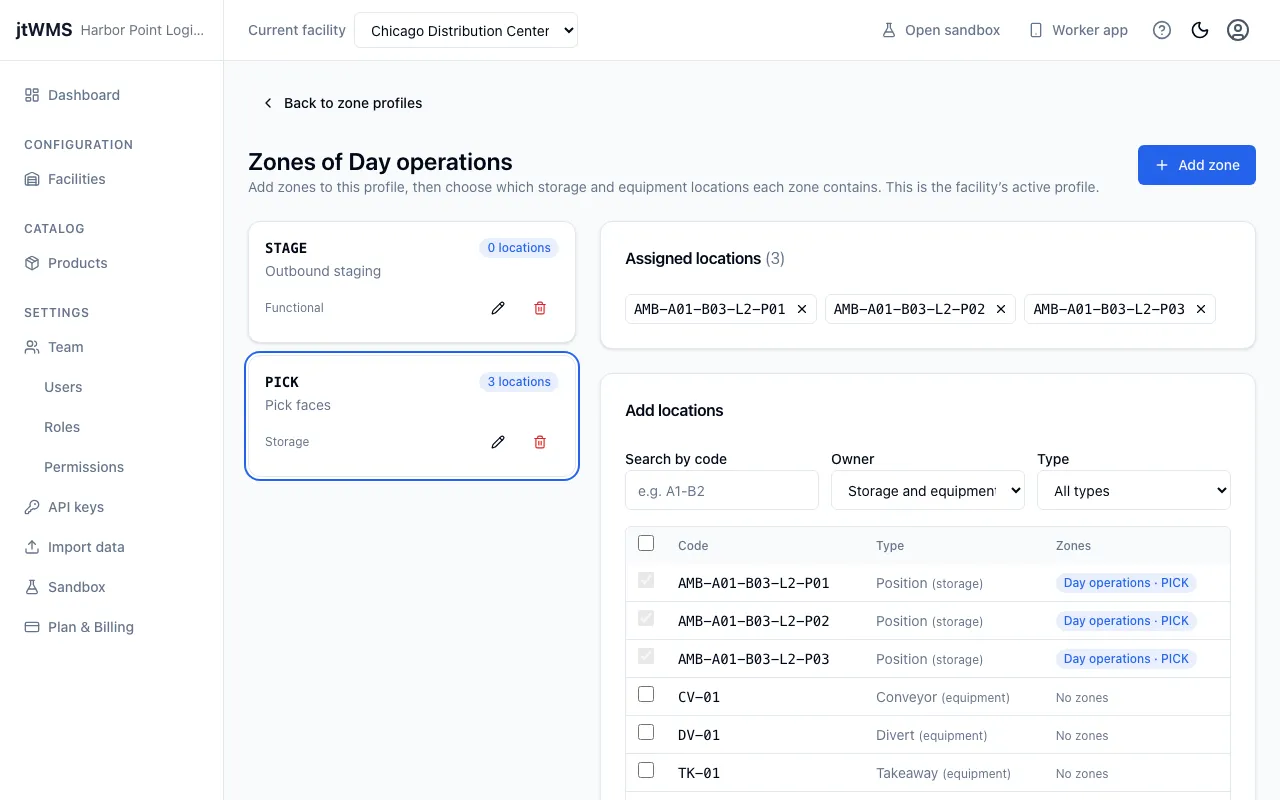
- In the zone editor, click the zone’s card to select it. Its locations show on the right.
- Under Add locations, narrow the list if you need to:
- Search by code — part of a location code, such as
A1-B2. - Owner — Storage and equipment, Storage or Equipment.
- Type — All types, Position, or one equipment type.
- Purpose — All purposes, Storage, Dock or Staging: what each location is for (see Location purpose). Use it to put your receiving docks and staging lanes in a zone of their own.
- Search by code — part of a location code, such as
- Tick the locations to add, or tick Select all shown locations.
- Click Assign (the button shows how many locations you’ve ticked).
The Purpose column shows what each location is for. The Zones column shows which zones each location is already in, in every profile of the facility, as profile · zone. Locations already in the selected zone are ticked and can’t be changed.
Remove a location from a zone
Section titled “Remove a location from a zone”- Select the zone.
- Under Assigned locations, click the remove button on the location.
The location is removed from the zone straight away. It stays in the facility.