Orders
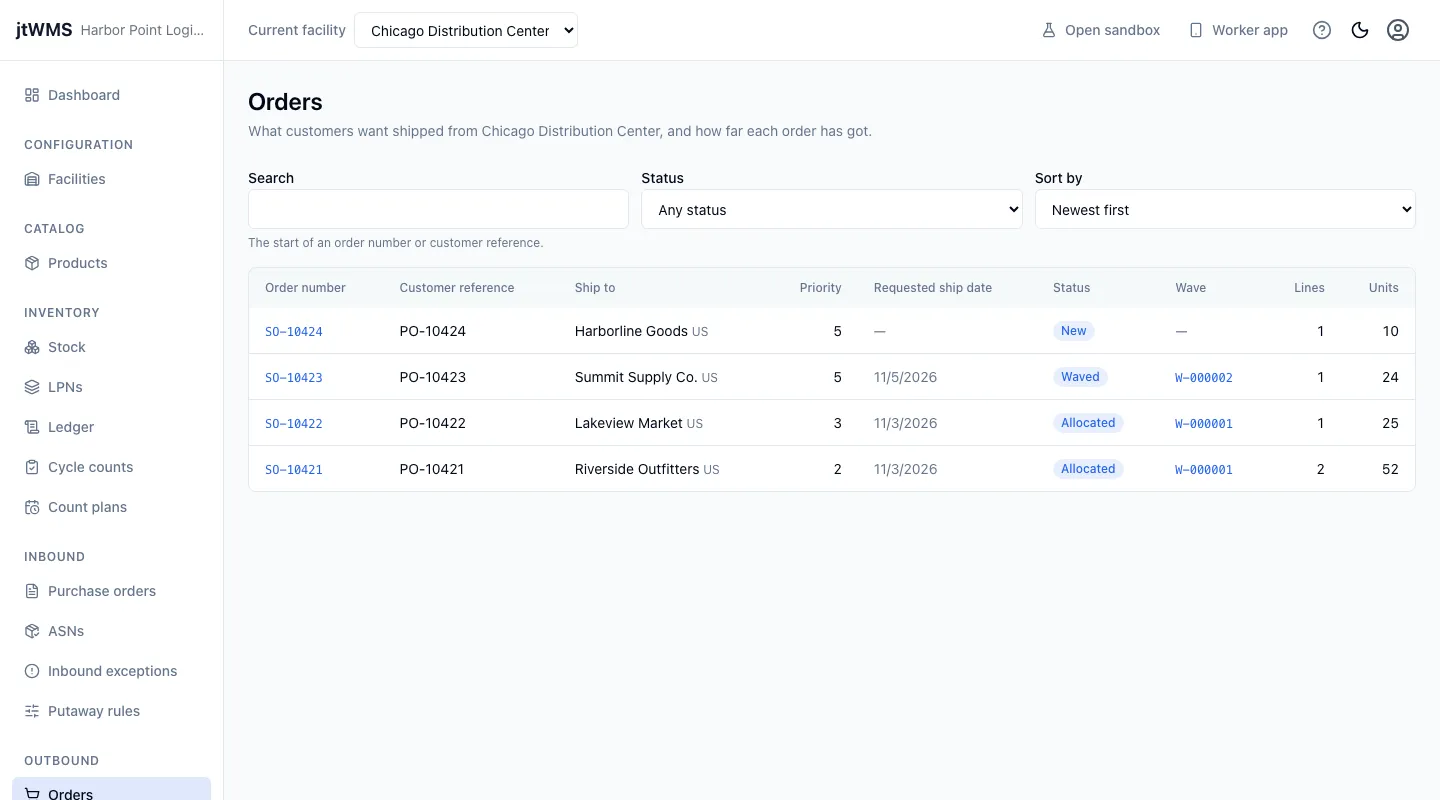
An order is what a customer wants shipped from one facility: an order number, a priority, the date it should ship, where it goes, and a line for each product with the quantity wanted. Orders reach jtWMS through the API, from your store, ERP or order management system. In the web app you find them, follow how far each has got, and cancel one that is no longer wanted. Orders are shipped in waves. Open them from Orders under Outbound in the sidebar.
Before you start
Section titled “Before you start”- Orders come with the Outbound feature, on the Pro plan and above. On a plan without it, Outbound is hidden from the sidebar and the page reads “Your plan doesn’t include Outbound”. A Tenant Admin can change the plan under Plan & Billing.
- To see orders you need
outbound.orders.readoroutbound.orders.manage. Every standard role holds the first. To cancel an order you needoutbound.orders.manage, held by Tenant Admin and Warehouse Manager. Without it the Cancel order button is hidden. - Orders are kept per facility: the page shows the facility chosen in Current facility at the top of the page.
Find orders
Section titled “Find orders”- Click Orders in the sidebar. The list shows each order’s Order number, Customer reference, who it ships to, its Priority, Requested ship date, Status and Wave, how many lines it has and how many units, in base units.
- Narrow it with Search (the start of an order number or customer reference, ignoring case) and Status, and choose how it is sorted with Sort by: newest first (the default), oldest first, by order number, most urgent first, or by requested ship date.
- Click an order’s number to open its page, or its wave’s number to open the wave.
Priority runs from 1, the most urgent, to 9; an order sent without one is 5.
How an order moves
Section titled “How an order moves”| Status | What it means |
|---|---|
| New | Received, and in no wave yet. |
| Waved | In a wave that is still being planned. |
| Allocating | Its wave was released: stock is being reserved for each line. |
| Allocated | Stock is reserved for every line, and pick tasks are ready. |
| Allocation exception | Stock could not be reserved for at least one line. |
| Picking | A picker is working on it. |
| Picked | Everything that could be picked is in a tote. |
| Packed | Everything picked is in closed shipping containers. |
| Shipped | The shipment left the building. |
| Cancelled | Called off before it was picked. |
Read an order
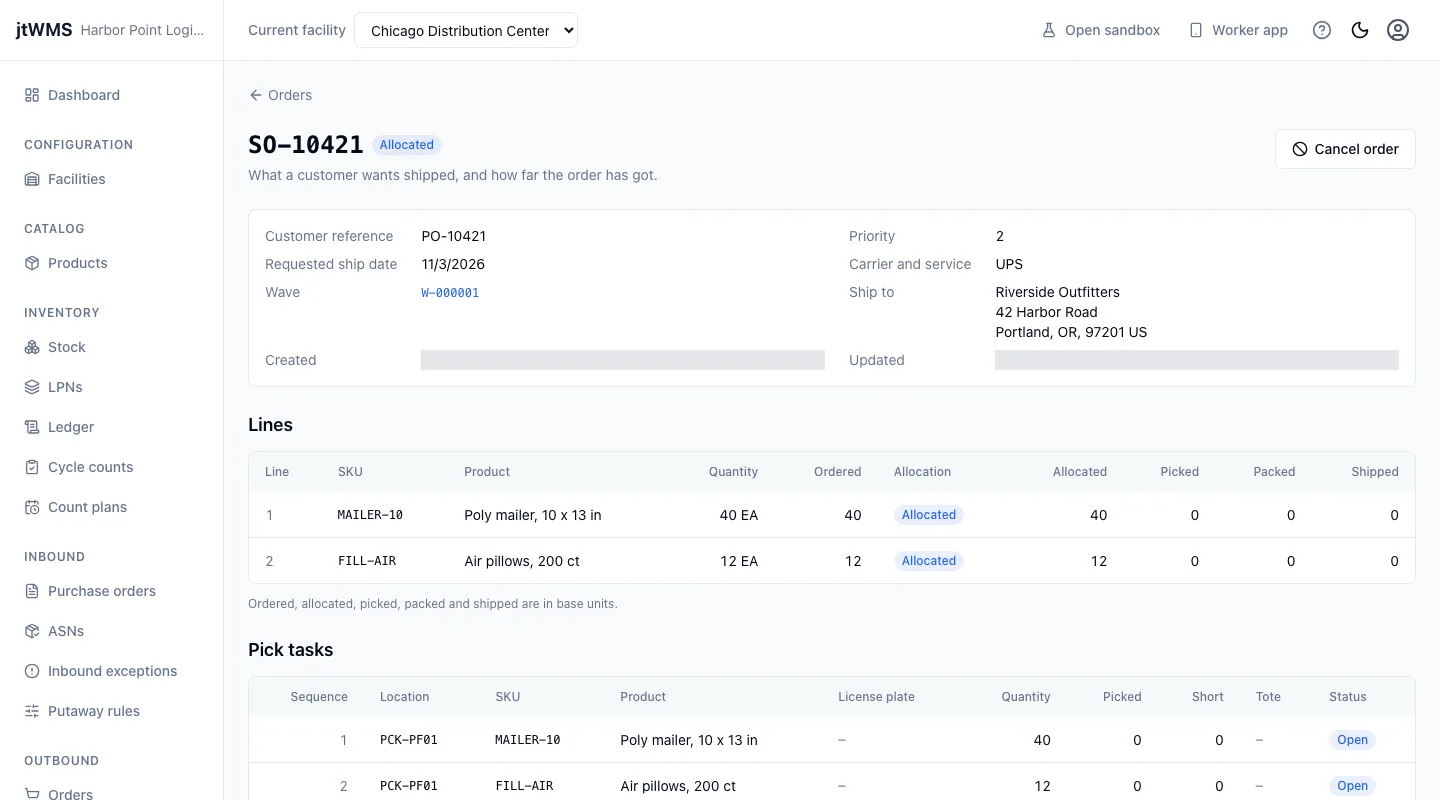
Section titled “Read an order”An order’s page shows its customer reference, priority, requested ship date, carrier and service, its wave, the ship-to address, and when it was created and last changed. Below them:
- Lines: each product with the quantity as ordered, the same in base units, the line’s Allocation (not requested, requested, allocated, rejected with the reason, released or issued) and how much is Allocated, Picked, Packed and Shipped, in base units.
- Pick tasks, once the order’s wave is released: each pick in path order, with the location, product, license plate, quantity, how much was picked or short, the tote and the task’s status.
- Containers, once the order is picked: each shipping container with its carton, status, units packed, weight and when it was closed.
- Shipment, once the order is packed: the carrier and service, the rate, tracking numbers and when it was labelled and shipped.
While the order is allocating, the page reads it again every few seconds, so the lines and pick tasks fill in as stock is reserved.
Cancel an order
Section titled “Cancel an order”With outbound.orders.manage, Cancel order calls an order off after you confirm. It leaves its
wave, and any stock reserved for it is released. An order can be cancelled until picking starts: in
New, Waved, Allocating, Allocated or Allocation exception, and when Picked
with nothing picked at all. Once anything is picked it can’t be cancelled.
The button is unavailable while the order is being read, and when that read failed. Read it again first.