Simulator
The Simulator plays out a warehouse scenario against your own jtWMS: it builds the facility the scenario describes, then simulated operators receive, pick, pack and ship through the same public API any integration uses. Use it to demonstrate jtWMS, to try a layout or a way of working before you build it, or to see how your organisation’s setup holds up under load. Open it from the Simulator section of the sidebar: Scenarios, Runs and Simulator API key.
Before you start
Section titled “Before you start”- The Simulator comes with the Enterprise plan, and with your organisation’s sandbox, whose 1,000 API requests a day suit small trial scenarios. On another plan the Simulator section is hidden, and its pages read “Your plan doesn’t include the Simulator”, with a link to Plan & Billing.
- Viewing scenarios needs
simulator.scenarios.read, and viewing runssimulator.runs.read; the Operator and Read-Only API Client roles hold both. Creating, editing and deleting scenarios needssimulator.scenarios.manage, and starting and controlling runssimulator.runs.manage. Registering the API key needssimulator.credential.manage. Of the standard roles, only Tenant Admin holds all of them. A page you can’t open reads “You don’t have access to …”. - A run calls jtWMS with an API key you create and register (see The API key). Its calls count against your plan’s daily request limit like any other integration’s.
Scenarios
Section titled “Scenarios”A scenario is a document, in YAML or JSON, that describes everything a run plays out: the
facility and its layout (storage aisles, staging, pack stations, a conveyor, dock doors), its
products and starting stock, the purchase orders to receive and the orders to ship, the operators
who do the work, and the exceptions to inject, such as short picks, scan misses and damaged
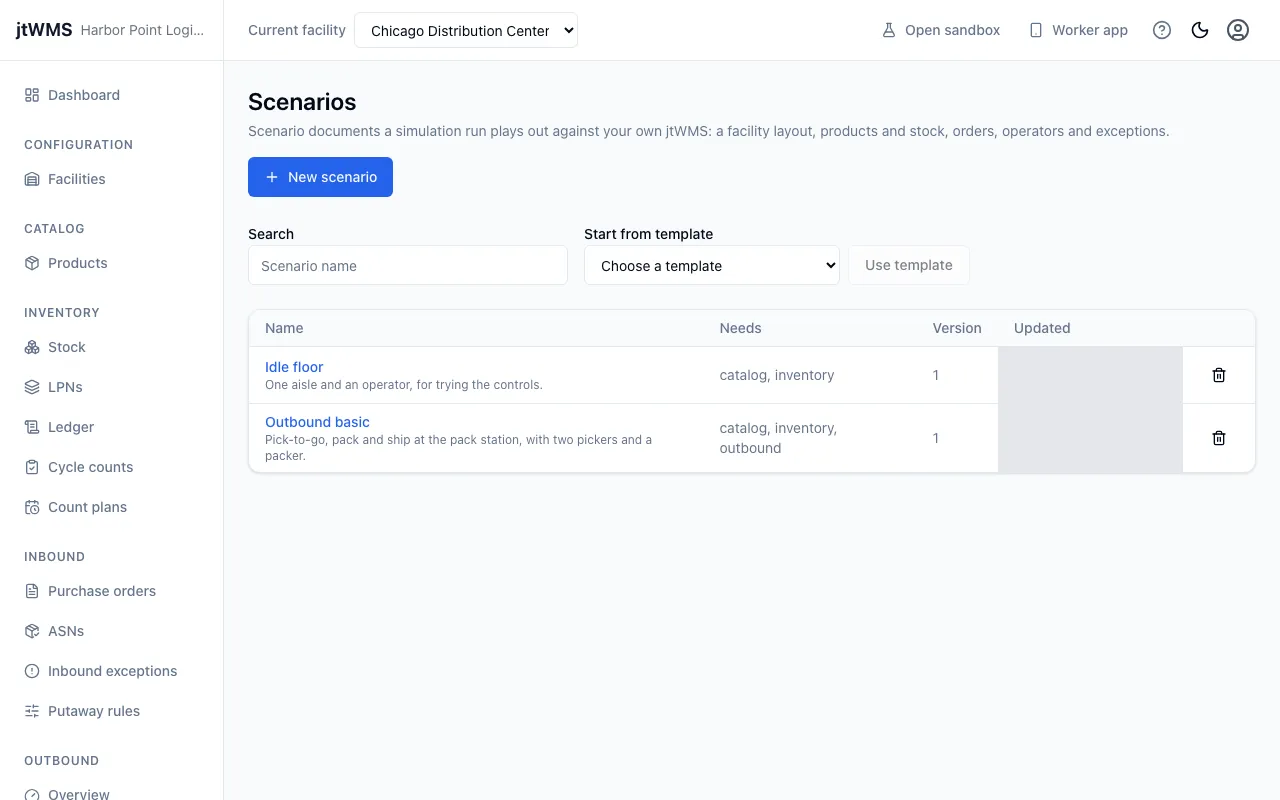
pallets. The Scenarios page lists your organisation’s scenarios with what each one needs
(such as outbound or routing, modules your plan must include), its version and when it was last
changed. Search by name above the list. Without simulator.scenarios.manage, the list is
read-only.
Start from a template
Section titled “Start from a template”jtWMS comes with four templates: Outbound basic (pick, pack and ship with two pickers and a packer), Conveyor sortation (cartons diverted to ship sort lanes and a dock door, with scan misses and unknown containers), Receive and ship (purchase orders received and put away, then shipped from) and Full demo. Choose one under Start from template and click Use template: the editor opens with the template’s name, description and definition, ready to change and save as your own scenario.
Write or edit a scenario
Section titled “Write or edit a scenario”Click New scenario, or a scenario’s name to edit it. Give it a Name (unique in your
organisation) and, optionally, a Description. Then type or paste the definition, or use Upload
a file to read a .yaml, .yml or .json file; its extension sets the Format.
Click Validate to check the definition without saving it. A valid one reads “The definition is
valid.” Otherwise, and when a save is refused, the editor lists each problem at its path in the
document (such as $.layout.storage[0].bays) and, where it can tell, its line and column, so you can
find it. Click Create scenario or Save to keep it: each save raises its version.
Deleting a scenario (the bin at the end of its row) asks you to confirm. Runs already started from it keep the definition they ran; it can no longer be started.
The Runs page lists every run, newest first, with its scenario, status, speed, how far it has got in simulated time, the facility it built and when it started. Filter by Status. While a run is still going, the list updates itself every few seconds.
Start a run
Section titled “Start a run”Click Start run and choose:
- Scenario: the saved scenario to run;
- Run name: optional; without one, the run takes the name inside its scenario’s definition. Runs are numbered either way;
- Speed: Paced runs at a multiple of real time (Times real time, from 0.1 to 100; 1 is real time, 10 is ten times faster), and As fast as possible runs as fast as jtWMS answers, which is how you load-test it;
- Seed: leave it empty to use the scenario’s. The same seed makes the same orders, the same operator decisions and the same injected exceptions, so you can repeat a run;
- Start paused, to resume it yourself once you’re ready.
Your organisation runs one simulation at a time. Each run builds a facility of its own, named after
the scenario’s facility code with the run’s number (SIMOB-R1), so runs never share orders, stock or
locations, and a finished run’s facility stays for you to look at. Products are shared: a run adds
those its scenario lists by SKU, and reuses them next time.
Follow and control a run
Section titled “Follow and control a run”Click a run to open it. It shows the run’s status (Queued, Provisioning while it builds its facility, Running, Paused, then Completed, Failed or Cancelled), its speed, simulated time, seed and facility, when it started and ended, how far a paced run has fallen behind its schedule, and, for a failed run, why. A run fails when its API key is refused, lacks a module or a permission it needs, or your plan’s daily request limit runs out.
While the run is going, Pause holds it and Resume carries on from where it stopped. Cancel run asks you to confirm, then ends it; what it has done in jtWMS stays.
Results
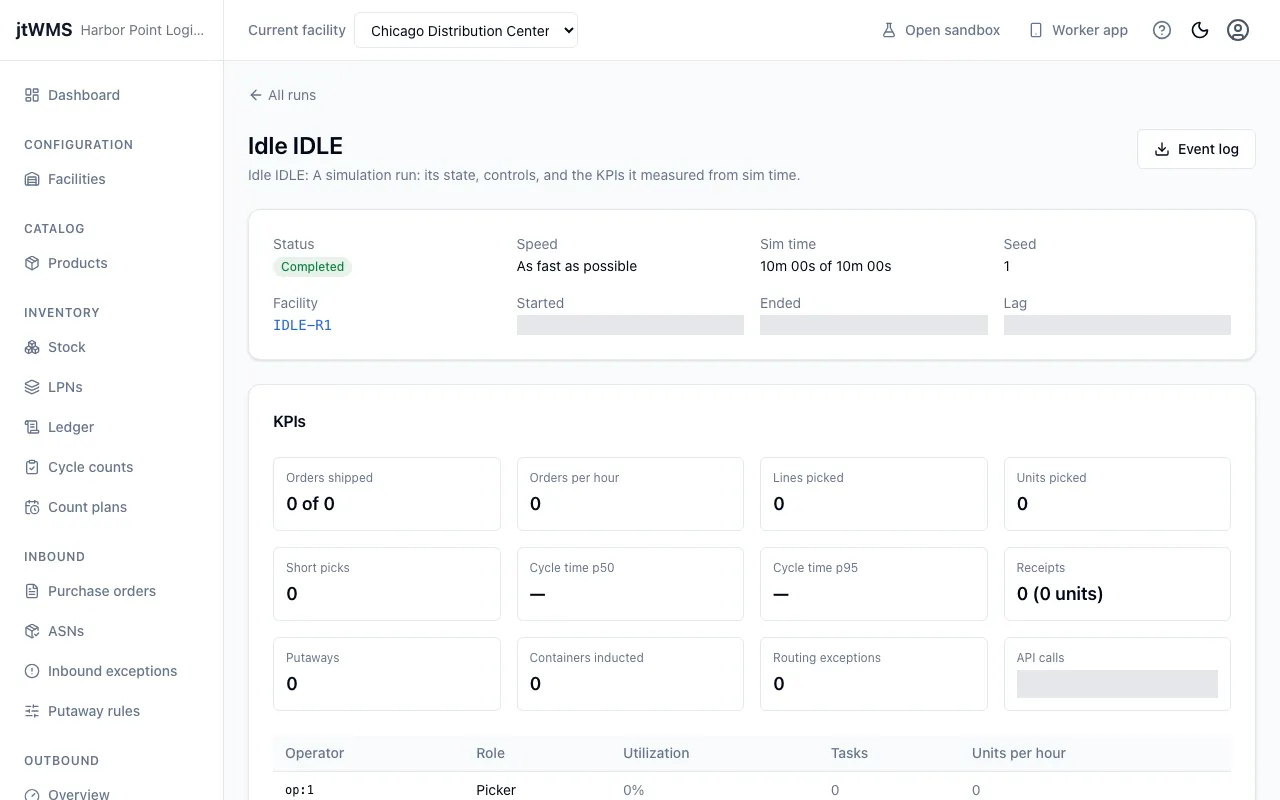
Section titled “Results”Below the run, its results update while it runs (“so far”) and are final once it ends:
- orders released and shipped, and orders shipped per simulated hour;
- lines and units picked, and short picks;
- order cycle time, from release to ship, as the median and the 95th percentile;
- receipts and putaways;
- containers inducted onto the conveyor, and routing exceptions;
- the API calls the run made and how many were refused;
- each operator’s tasks and how busy they were;
- the exceptions the scenario injected, apart from real ones, and the refusals by error code.
Event log downloads every event of the run as a file (run-1-events.ndjson), one JSON object
per line in order, for your own analysis.
Watch a run
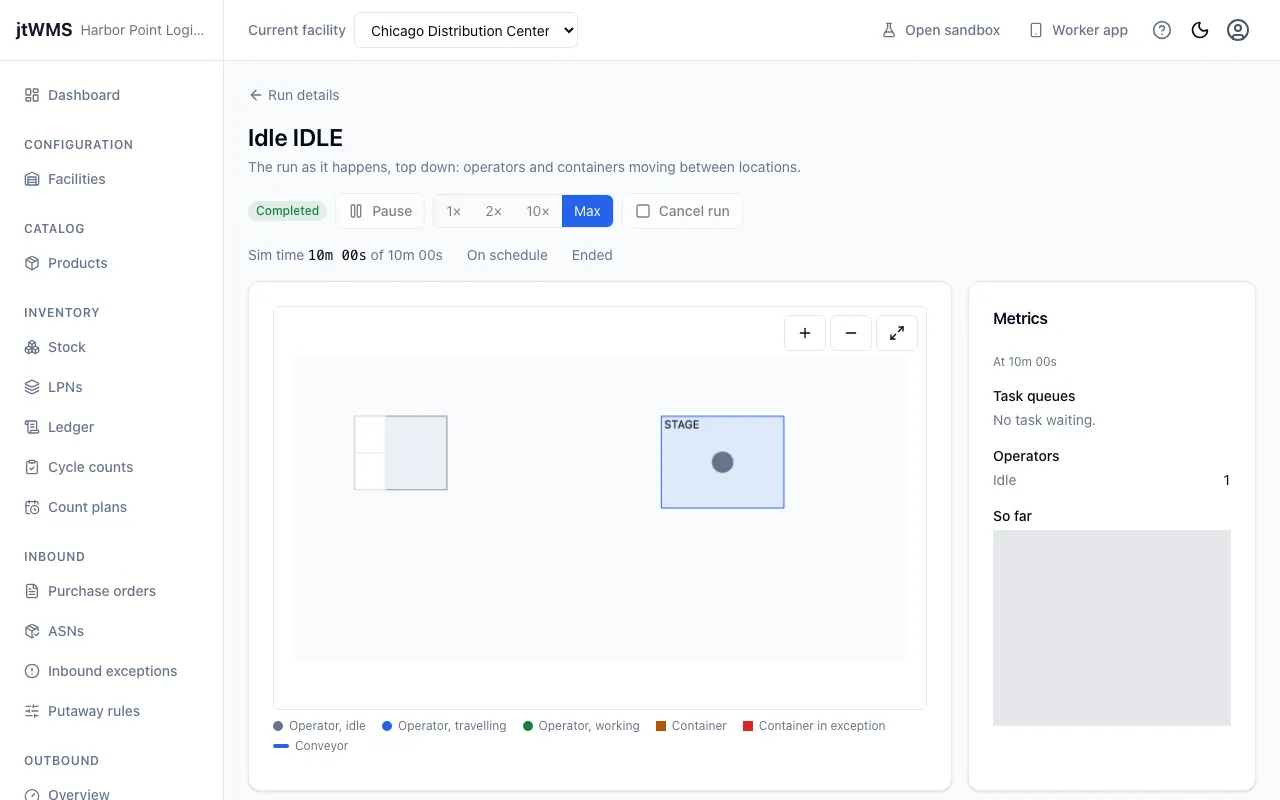
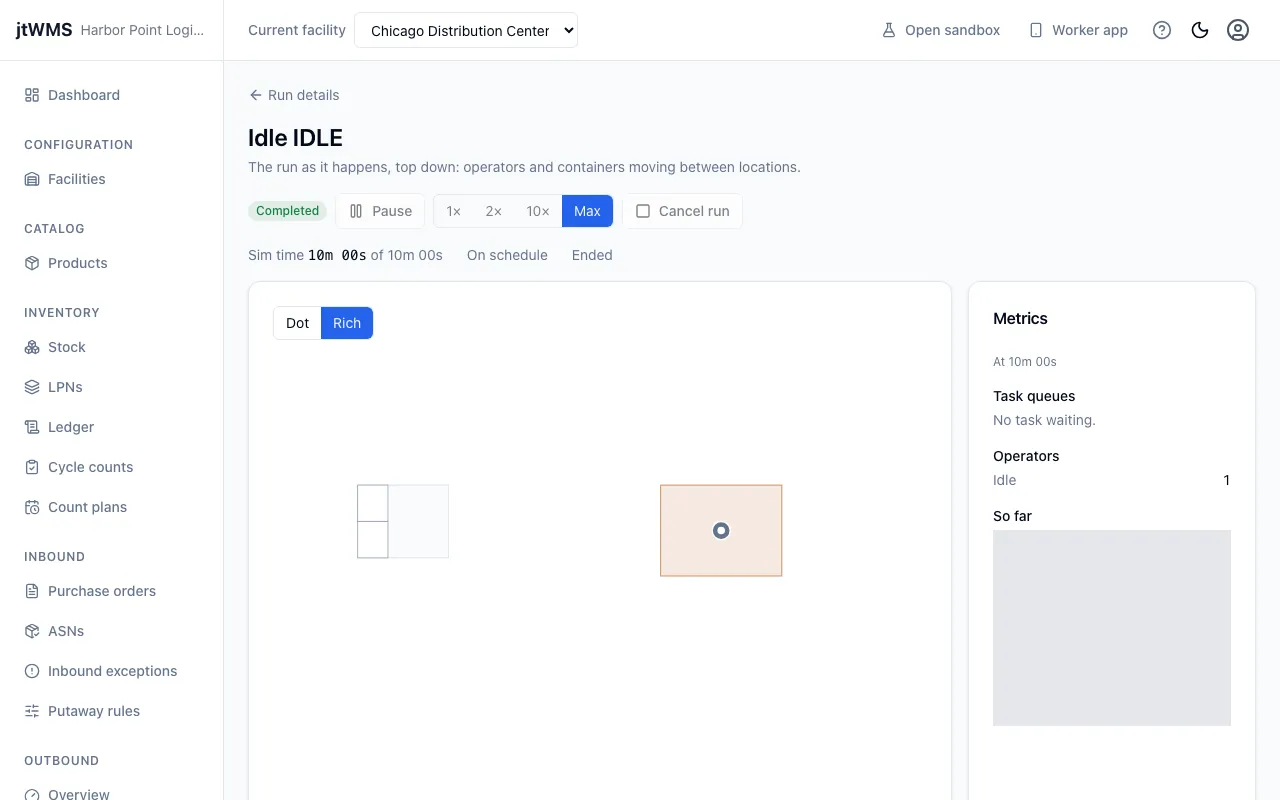
Section titled “Watch a run”Click Live view on a run to watch it from above, as it happens. The facility is drawn to scale: its storage areas, aisles and locations, staging and pack stations, dock doors, conveyors and their scanners and diverts. On it, each operator is a dot and each tote, carton or pallet a square, coloured by what it is doing (the legend under the view lists the colours). Operators walk between locations and containers ride the conveyor smoothly at whatever speed the run goes. You can open the view at any point of a run, or after it has ended, to see where everything stands.
- Pan by dragging the view or with the arrow keys, and zoom with the mouse wheel, the + and − keys or the buttons in its corner; the last button fits the whole facility again.
- Above the view, Pause and Resume hold and continue the run, 1×, 2× and 10× set
how many times faster than real time it goes, and Max runs it as fast as jtWMS answers.
Cancel run ends it, as on the run’s page. These need
simulator.runs.manage; without it the view shows the run’s status only. - The Sim time shows how far the run has got, and whether a paced run is on schedule or how many seconds it has fallen behind (when jtWMS takes longer to answer than the pace allows).
- Metrics, beside the view, is the run’s latest sample, taken every 60 simulated seconds: the tasks waiting by type, how many operators are in each state, and the totals so far.
- A scenario’s cues (short captions it shows at a moment of the run, for a demo) appear above the view as they come; close one with its ×.
If the connection drops, the view reconnects on its own and carries on from where it left off.
The rich view
Section titled “The rich view”The live view opens in the Rich view: the same facility and run, drawn as a picture of the floor rather than dots and squares. Operators walk and turn as they go, a cart rides ahead of the operator pushing it with its totes on board, and totes, cartons and pallets each have their own shape. Conveyors show their direction of flow, a divert’s arm swings towards the lane a container takes, put wall cubbies fill as orders are put to them, and an open trailer at a dock door fills with cartons as they are loaded. A container that jtWMS did not expect is outlined in red.
Switch between Rich and Dot with the buttons above the view. jtWMS remembers your choice for the next run you watch. The rich view fits the whole facility in its frame, and people and containers keep a size you can still see on a large facility. You can pan, zoom and follow an operator in it, as described below. The rich view follows your light or dark theme, and with your device’s reduced motion setting it leaves out decorative movement.
Moving around and following someone
Section titled “Moving around and following someone”- Pan by dragging the view, or click it and use the arrow keys. Zoom with the buttons in the view’s top right corner, by pinching on a touch screen (or, in most browsers, a trackpad), or click the view and use the + and − keys. The mouse wheel zooms once you have clicked the view, or while you hold Ctrl (Cmd on a Mac); otherwise it scrolls the page past the view. Zoom goes in as far as a single tote and out as far as a whole site.
- Fit (the last button, or the 0 key) shows the whole facility again. Until you move the view, it keeps the whole facility in frame as the window changes size; once you have moved it, it stays where you put it until you fit it again.
- To follow an operator, pick them in Operators at the view’s top left, which lists each one with what they are doing, or click them in the view. The view glides along to keep them in the middle (with reduced motion it jumps instead), and Operators says who you are following.
- To stop following, drag the view, fit it, pick the same operator again, or press Esc in the view or in Operators. Zooming or pinching keeps following. Following also stops by itself when the operator leaves the floor.
- Operators folds away to its header when you click it; on a phone it starts folded, to leave the floor in view.
Overlays
Section titled “Overlays”Three overlays tell the run’s operations story on top of the rich view. Turn each one on or off with its button above the floor plan: Heatmap, Queue depth and Utilization. Each works on its own, none is shown until you turn it on, and jtWMS remembers which ones you turned on for the next run you watch.
Their details (a legend, percentages and numbers, so colour is never the only cue) appear in a panel beside the floor plan, or below it on a narrow screen.
- Heatmap shades each storage location by how often a pick or a putaway touched it: the more touches, the deeper the shade. Its legend gives the counts each shade stands for, from none to the busiest location’s.
- Queue depth lists the tasks waiting by type in the latest metrics sample, the same sample the Metrics panel beside the view shows, with a small line beside each type tracing its queue over the run so far.
- Utilization puts a ring round each operator that fills clockwise with the share of sim time they have spent busy rather than idle, and gives the team’s average share and the busiest operator’s as percentages. The Operators list then shows each operator’s share too.
The overlays count what the view has seen. When you open the view on a run already under way, or switch back to it from the dot view, they count from that moment, and the legend and panels say so: “since 1m 40s” rather than “since the run started”.
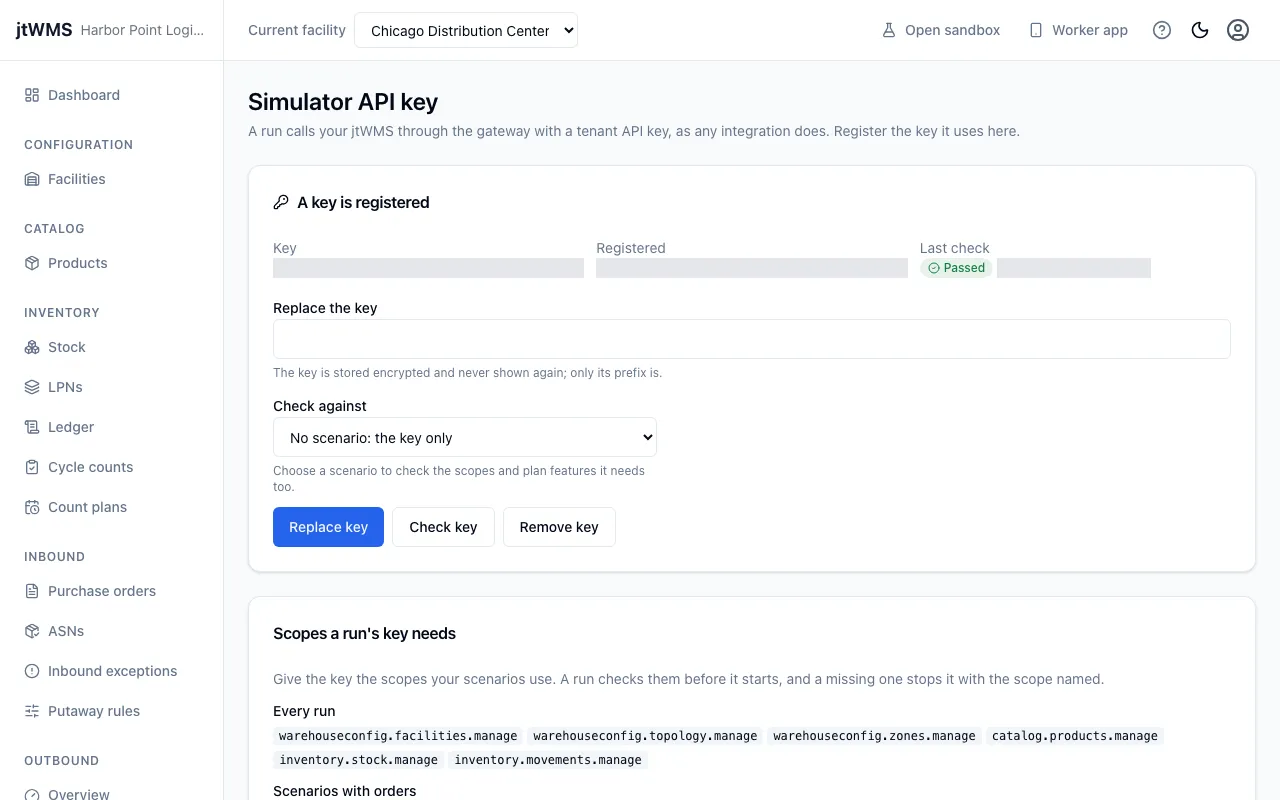
The API key
Section titled “The API key”A run calls jtWMS through the public API with one of your organisation’s API keys, exactly as an integration does. On Simulator API key:
- Create a key under API keys, with the permissions listed under Scopes a run’s key needs: every run needs the facility, storage, product and stock permissions, and scenarios with orders (batch picking to a put wall among them), purchase orders or a conveyor need those modules’ too.
- Paste the key into API key and click Register key. jtWMS checks that the key is valid and belongs to your organisation before keeping it.
The key is stored encrypted and is never shown again: the page shows only its first 16 characters, when it was registered and its last check. To change it, paste another into Replace the key. Check key checks it again: that it is still valid and belongs to your organisation. To check it for a scenario too, choose the scenario under Check against first: the check then lists each permission the key lacks and each module your plan lacks for that scenario. Every run checks its key for its own scenario that way before it starts. Remove key forgets it; the key itself stays valid under API keys until you revoke it there, and runs can’t start until a key is registered again.