Routing topology
The routing topology tells the conveyor where to send each container. It builds on the facility’s equipment layout, adding three things:
- Destinations are the places containers leave the conveyor: pack stations, put wall inductions, ship sort lanes and the exception destination. Each one is bound to one equipment node.
- Settings name the exception destination, where picked totes go, and the default ship sort lane.
- Publishing compiles the equipment and destinations into a numbered version, and makes it the active one.
Devices route containers on the active version. A container keeps the version it was inducted on, so publishing never changes the route of a container already on the conveyor.
Before you start
Section titled “Before you start”- Routing needs a plan that includes Routing & Sortation (the Enterprise plan). Without it the page says so, with a link to Plan and billing.
- Viewing the topology needs
routing.config.read. Adding destinations, saving the settings and publishing needsrouting.config.manage. Tenant Admin and Warehouse Manager hold both. Operator can view only. - Showing the equipment needs
warehouseconfig.topology.read. - The facility needs its conveyors, scanners and diverts in its equipment layout. Each divert, and any other node with two or more exits, needs a scanner just before it to read the containers it decides for.
Open the routing topology
Section titled “Open the routing topology”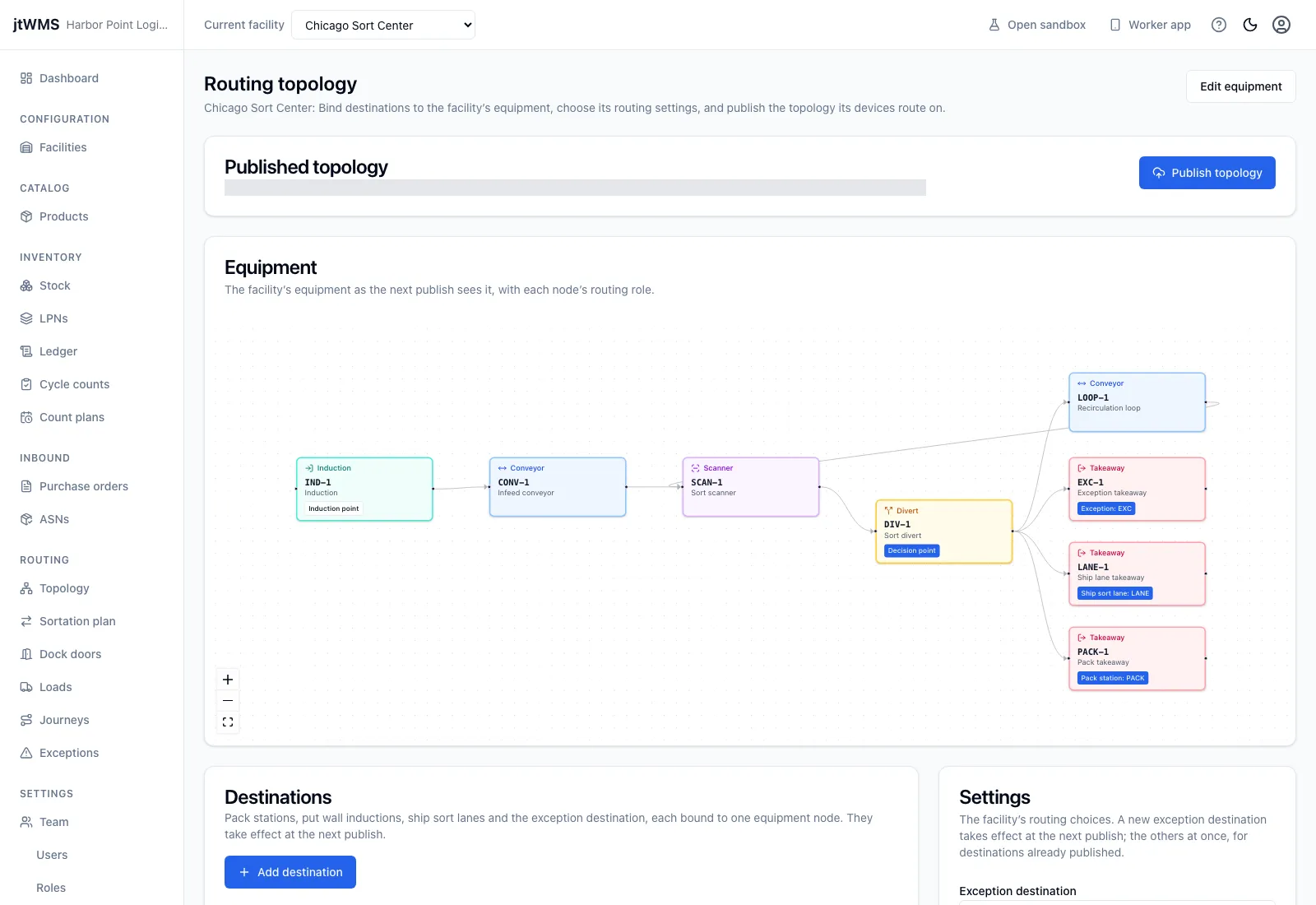
- Choose the facility with Current facility at the top of the page.
- In the sidebar, under Routing, click Topology.
You can also open a facility’s page and click View routing topology in its Topology card.
The Equipment diagram shows the facility’s equipment as the next publish sees it, and labels each node with its routing role:
- Induction point: where containers enter the conveyor.
- Decision point: a node with two or more exits, where the conveyor decides which exit a container takes. The scanner just before it reads the container.
- A destination’s type and code, such as Exception: EXC, for the node it’s bound to.
To change the equipment itself, click Edit equipment.
Add a destination
Section titled “Add a destination”- In Destinations, click Add destination.
- Fill in:
- Code: letters, digits,
-and_, up to 32 characters, unique in the facility, ignoring case. - Name: up to 100 characters.
- Type: Pack station, Put wall induction, Ship sort lane or Exception. A destination’s type can’t be changed after it’s created.
- Equipment node: the node where containers leave the conveyor for it, usually a takeaway. A node takes one destination.
- Put wall, for a put wall induction: the put wall it feeds, chosen from the facility’s put
walls when the plan includes Outbound and you can view put walls (
outbound.putwalls.read), else typed as its code. Batch totes bound for that wall are routed to it. A wall with no induction sends its totes to the exception destination.
- Code: letters, digits,
- Click Add destination.
To change a destination, click its pencil icon. To delete one, click its bin icon. You can’t delete a destination while the settings, a sortation rule or a dock door name it. A deleted destination stays in the published version until the next publish.
Destinations take effect at the next publish.
Choose the settings
Section titled “Choose the settings”In Settings, choose:
- Exception destination: where containers that can’t be read, aren’t known or can’t be routed go. Publishing needs one.
- Pick tote destination: the pack station picked totes go to.
- Default ship sort lane: where labelled cartons go when no sortation rule matches them.
Click Save settings. When the settings take effect depends on the setting:
- A new Exception destination takes effect at the next publish, because each published version keeps the exception destination it was published with.
- The Pick tote destination and Default ship sort lane take effect at once, for containers inducted from then on. A destination added since the last publish isn’t in the published version yet, so publish before pointing either setting at it.
While the page is refreshing its data, or after a refresh failed, its changes wait until the data loads again.
Publish the topology
Section titled “Publish the topology”Click Publish topology. A new version is published and becomes active, and Published versions lists it with its node and destination counts.
If the topology can’t be published, the page lists each problem with the node or destination it
concerns, or with settings. Common problems:
- No exception destination is chosen in the settings.
- A destination’s equipment node was deleted or deactivated.
- A decision point has no scanner just before it.
- A destination can’t be reached from any induction point.
- Two put wall inductions feed the same put wall.
Fix them in the equipment layout, the destinations or the settings, and publish again.