Put walls
A put wall is a rack of cubbies where a batch of orders is sorted. A batch wave is picked in one trip into shared totes. The totes are then brought to the wave’s put wall, and each item goes into the cubby of the order it belongs to. An order takes a cubby at its first item. Once everything picked for it is in the cubby, the cubby is ready for pack. Packing the order frees the cubby for the next one. Open put walls from Put walls under Outbound in the sidebar.
Before you start
Section titled “Before you start”- Put walls come with the Outbound feature, on the Pro plan and above. On a plan without it, Put walls is hidden from the sidebar and the pages read “Your plan doesn’t include Outbound”.
- To see put walls you need
outbound.putwalls.readoroutbound.putwalls.manage. Every standard role holds the first. To create, change and delete walls you needoutbound.putwalls.manage, held by Tenant Admin and Warehouse Manager. Without it those buttons are hidden. - A wall stands at one of the facility’s locations. The stock
sorted into each cubby is kept at that location, in a tote named after the wall and the cubby
(
PW-A-A01for cubby A01 of wall PW-A). - Put walls are kept per facility: the pages show the facility chosen in Current facility at the top of the page.
Find put walls
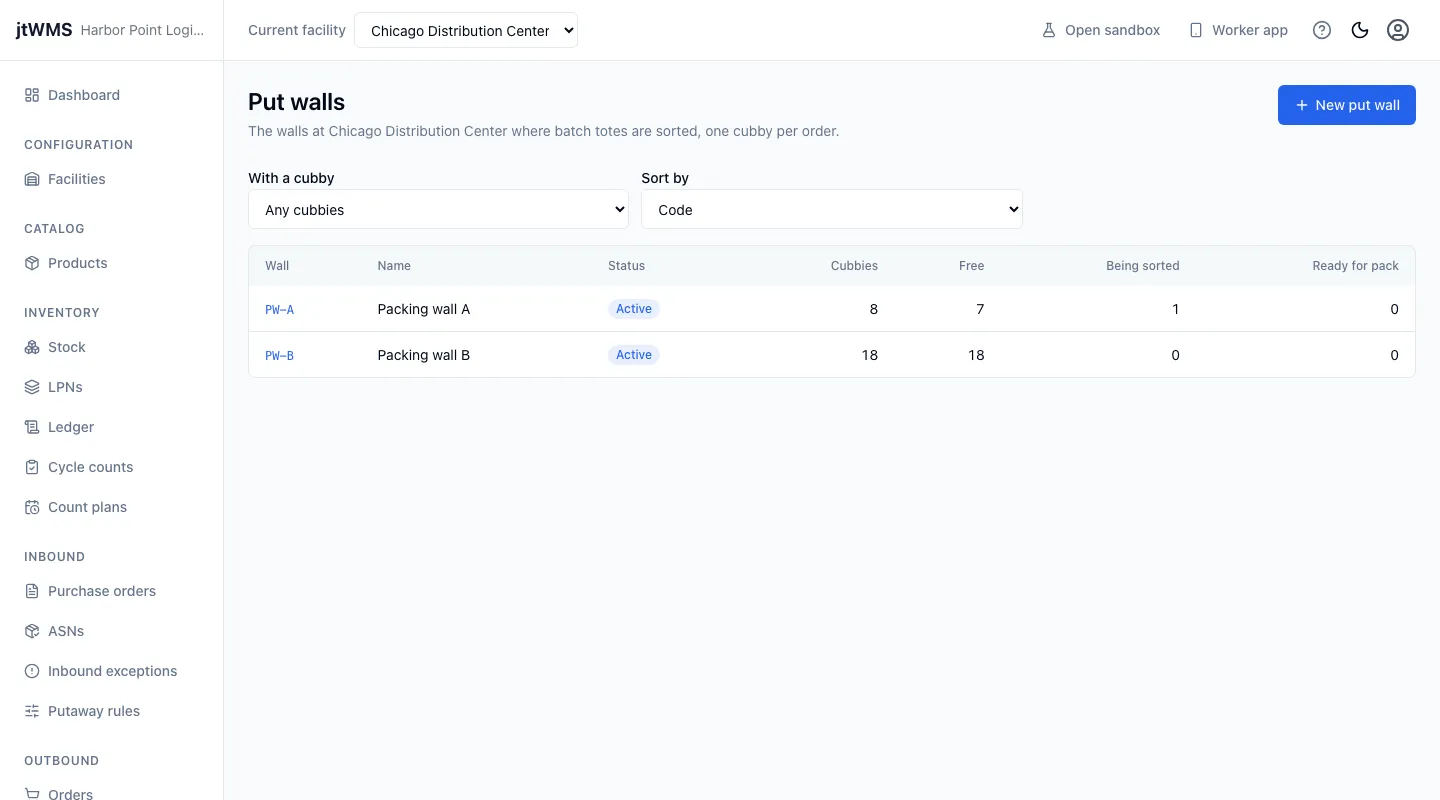
Section titled “Find put walls”Click Put walls in the sidebar. The list shows each wall’s code, name, status, and how many of its enabled cubbies there are. It also shows how many cubbies are free, how many are being sorted (they hold an order whose items are still arriving), and how many are ready for pack. Narrow it with With a cubby to the walls that have a cubby in that state, and choose the order with Sort by. Click a wall’s code to open its page.
The dashboard’s Put walls tile links here.
Create a put wall
Section titled “Create a put wall”- Click New put wall.
- Give it a Code: up to 32 letters, digits, dots, underscores or hyphens, which no other wall of the facility has, whatever its upper or lower case. It is printed on the wall.
- Give it a Name, up to 100 characters.
- Find its Location: type part of the location’s code in Find location and choose it.
- Set its Rows (1 to 26, lettered A to Z) and Columns (1 to 99). The drawer shows how many cubbies that makes. A wall of 2 rows of 4 has cubbies A01 to A04 and B01 to B04.
- Click Create put wall. The wall’s page opens, with every cubby free.
A wall’s cubbies
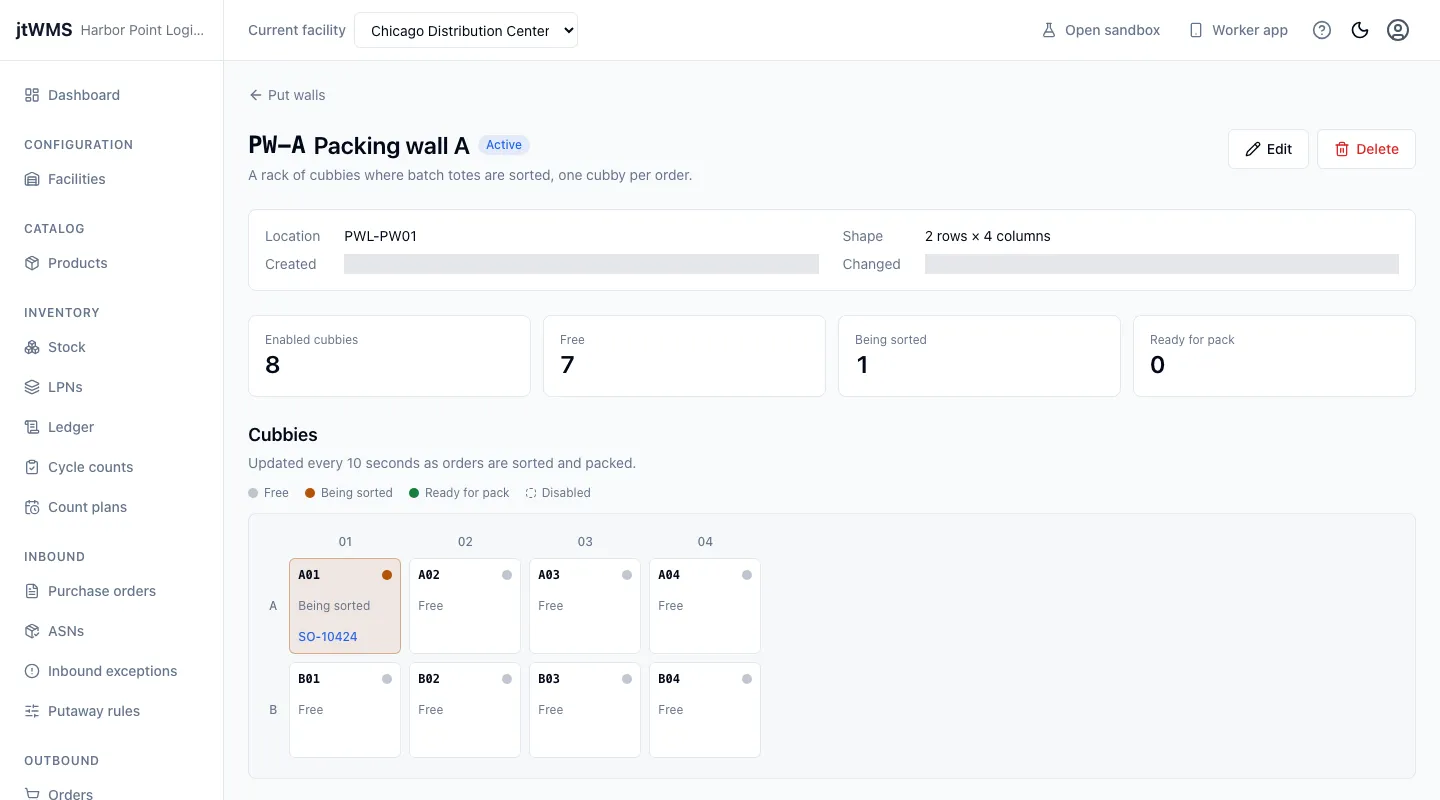
Section titled “A wall’s cubbies”A wall’s page shows its location, its shape, when it was created and last changed, and its counts. Below them its cubbies are laid out as the wall stands, a row per letter. Each cubby shows its code and its state, by colour and in words, and the order it holds. Click the order’s number to open it. A cubby outlined with a dashed line is disabled. The page reads the cubbies again every few seconds, so it follows the wall as orders are sorted and packed.
| State | What it means |
|---|---|
| Free | Holds no order. A batch order takes the first free enabled cubby at its first item. |
| Being sorted | Holds an order whose items are still arriving from the batch’s totes. |
| Ready for pack | Everything picked for its order is in it. The order is Picked, ready to pack. |
Opened from the list with With a cubby set, the page highlights the cubbies in that state.
Change or delete a put wall
Section titled “Change or delete a put wall”With outbound.putwalls.manage, click Edit on a wall’s page to change it:
- its Name;
- its location: tick Move the wall to another location, then choose the new one;
- its Rows and Columns;
- its Status: an Inactive wall takes no new batch waves, but finishes the ones it has;
- its Disabled cubbies: a disabled cubby takes no new order. One that holds an order keeps it until the order is packed.
A wall can move or change shape only while every cubby is free. While a cubby holds an order, the drawer says so and the change is refused.
Delete removes a wall after you confirm. It can be deleted only when every cubby is free, once every order sorted into it is packed.
Batch waves at a wall
Section titled “Batch waves at a wall”When you make a batch wave, or a template whose waves are batches, you choose its put wall (see Waves). A batch wave is released only when the wall has a free enabled cubby for each of its orders, after the orders of the wall’s other batch waves still being sorted. So once released, a batch always fits its wall.
Sorting itself happens in the worker app: see Sort at a put wall.