Sandbox
The sandbox is a practice copy of your organisation where you can try things out: set up a warehouse, receive and move stock, and see how the worker app behaves, without changing anything real. It is a separate organisation that belongs to yours. Nothing you do there appears in your organisation, and nothing in your organisation appears there. Open it from Sandbox under Settings in the sidebar, or with Open sandbox in the header.
Before you start
Section titled “Before you start”- You need
identity.sandbox.manage, which of the standard roles only Tenant Admin holds. Without it, the Sandbox entry and the Open sandbox button are hidden, and the page reads “You don’t have access to the sandbox”. - Your organisation has at most one sandbox. It is on the sandbox plan, which includes the catalog, inventory, inbound, outbound and routing modules and the Simulator whatever your own plan, with room for 5 users, 1 API key and 1,000 API requests a day.
Create the sandbox
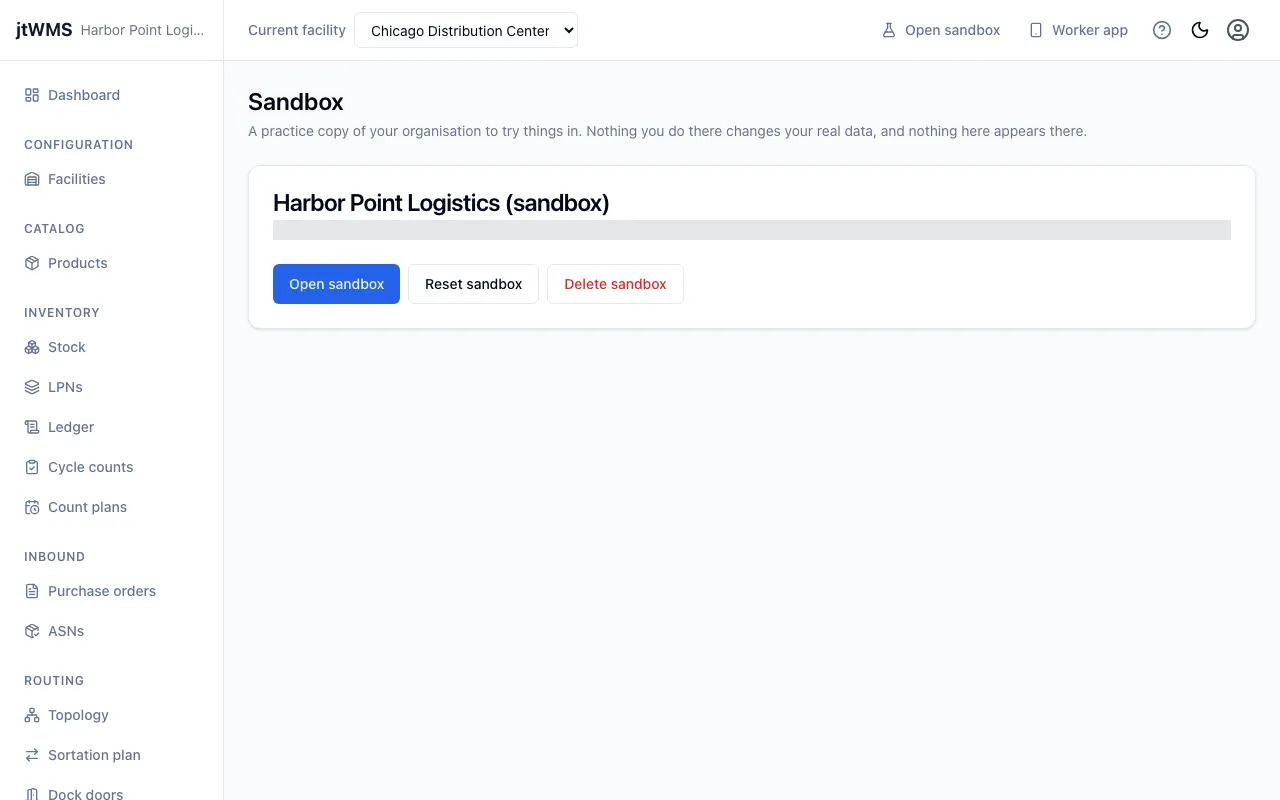
Section titled “Create the sandbox”On Sandbox, click Create sandbox. The page then shows the sandbox, named after your organisation with “(sandbox)” after it, and when it was created.
Open the sandbox and go back
Section titled “Open the sandbox and go back”Click Open sandbox, on the page or in the header. You stay signed in, as yourself, with full access to the sandbox, and jtWMS opens its dashboard. If your organisation has no sandbox yet, the header’s Open sandbox says so and takes you to the Sandbox page to create one.
While you’re in the sandbox, a banner across the top of every page, in the admin app and the worker app, reads “You’re in the sandbox”, with a Back to button naming your organisation. Click it to return to your organisation, again without signing in. Reloading the page keeps you where you are.
A few things only make sense in your organisation, so they are not offered in the sandbox:
- inviting people, one by one or by importing a file: invite them to
your organisation instead. To open the sandbox they need
identity.sandbox.managethere, as you do; - changing plan: Plan & Billing is not in the sidebar, and the sandbox stays on the sandbox plan;
- managing the sandbox itself: the Sandbox page only leads back to your organisation.
Load the sample data
Section titled “Load the sample data”A new sandbox is empty. To have something to explore straight away, open its Dashboard and click Load sample data on the Sample data card. It builds a demo warehouse, showing each step as it goes:
- Demo facility: Demo Distribution Center (
DEMO-01). - Locations, dock, conveyor and zones: a reserve area of six pallet positions, a pick aisle of
eight shelves, a receiving area with a dock door (
RCV-D01) and a staging lane, an overflow area of four empty pallet positions, a conveyor line from an induction point through a scanner and a sort divert to two takeaways, and an active zone profile, Demo zones, with Pick, Reserve and Conveyor zones. - 25 products: widgets, hardware, packaging and more, with case packs and barcodes. Some track lots, some expiry dates (first-expiring, first-out) and two track serial numbers.
- Starting stock: eaches on the pick shelves, cases on four pallets in reserve, and stock with lots, expiry dates and serial numbers.
- A purchase order and its delivery: purchase order
PO-DEMO-01from Sample Supplies Co. for 48 green widgets and 36 rolls of packing tape, and an open ASN,ASN-DEMO-01, announcing its delivery at the dock. - A customer order to pick: order
ORD-DEMO-01for 3 steel brackets (DEMO-004) and 2 small shipping boxes (DEMO-008), both stocked only on their pick shelves. The staging laneRCV-S01becomes the facility’s outbound staging location, where picks are taken, unless one is already set.
It takes a minute or so, mostly while the stock is received. When it finishes, the card links to the demo facility, the products, the stock, the ASNs and the orders, and the header selects the demo facility.
Loading the sample data again adds only what is missing, so if a load stops part way (a dropped connection, say), click Load sample data again to finish it. What you changed is kept: a demo product you edited stays as you left it, and so does the demo layout. If you deleted parts of the demo warehouse, loading again may not be able to put them back, and says so: reset the sandbox to start again from an empty one. Sample data is only offered in a sandbox, never in your organisation.
Try it out
Section titled “Try it out”Below the sample data, the sandbox’s dashboard shows Try it out: a short path from exploring the sample warehouse to doing real work on the worker app. Each step is marked Done once you’ve done it:
- Explore the sample warehouse: done once the sample data is loaded. Open the demo facility shows its storage, conveyor and zones.
- Look up stock on the worker app: open Lookup and scan or type a bin code, such as
PCK-PA-P01, or a pallet code, such asPAL-DEMO-01. A lookup changes nothing, so this step is marked done in the browser you looked up from. - Move stock: open Move on the worker app and move a pallet, or a few items, to another bin. Done once the move is in the demo facility’s stock ledger. A put-away moves stock too, but doesn’t count for this step.
- Receive a delivery: open Receive on the worker app, scan
ASN-DEMO-01, the dockRCV-D01and a new license plate code, such asPAL-IN-01, then add the widgets or the tape (see Receive deliveries). Done once the receipt has posted to stock. - Put it away: open Put away, scan the license plate you received, take it to the location jtWMS directs it to (every sample bin holds stock, so it is an empty overflow position) and scan that location (see Put stock away). Done once the put-away is complete.
- Release the demo order: click Release it. It releases
ORD-DEMO-01in a wave of its own, and Inventory reserves its stock at the pick faces (see Waves). Done once the order is released. - Pick it: open Pick on the worker app and scan a tote label, such as
TOTE-01. jtWMS hands youORD-DEMO-01and leads you to each pick face: scan the bin, the product and the quantity, and confirm into the tote (see Pick orders). Done once the order is picked: your first successful pick.
Reset or delete the sandbox
Section titled “Reset or delete the sandbox”From your organisation, on Sandbox:
- Reset sandbox replaces the sandbox with a new, empty one, to start again from scratch.
- Delete sandbox removes it. You can create a new one later.
Both delete everything in the sandbox, so each asks you to tick “I understand everything in the sandbox is deleted” before it goes ahead. Anyone working in the sandbox at the time is signed out of it. You can create or reset a sandbox up to 6 times a day.
From the API
Section titled “From the API”The sandbox’s endpoints, and the token exchange that switches a session into it, are described in Authentication.