Equipment layout
The equipment layout records a facility’s material-handling equipment, such as conveyors, diverts and scanners, and how product flows between them. Each piece of equipment is a node, and each connection is an edge that runs in one direction, from a source node to a target node. The page draws the layout as a flow diagram.
Before you start
Section titled “Before you start”- Viewing the equipment layout needs
warehouseconfig.topology.read. Adding, editing and deleting nodes and edges needswarehouseconfig.topology.manage. - Tenant Admin and Warehouse Manager hold both. Operator and Read-Only API Client can view only.
- The facility must exist. See Facilities.
Every button is shown to everyone who can open the page, but changes are refused for users without
warehouseconfig.topology.manage.
Open the equipment layout
Section titled “Open the equipment layout”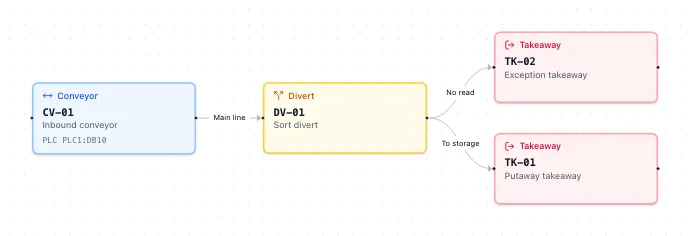
- In the sidebar, under Configuration, click Facilities.
- Click the facility’s name.
- In the Topology card, click View equipment layout.
Add an equipment node
Section titled “Add an equipment node”- Click Add node.
- Choose the Type. See Node types for what each one needs.
- Fill in:
- Code — letters, digits and hyphens, up to 50 characters, unique within the facility. It’s also the node’s location code.
- Name — required, up to 200 characters.
- PLC address — optional, up to 200 characters: the address of the controller that runs the equipment.
- Fill in the Configuration fields for the type.
- Click Add node.
Each node is also a location, so you can assign it to zones. See Zone profiles.
Node types
Section titled “Node types”Every configuration field is required. Text fields take up to 50 characters.
| Type | Configuration fields |
|---|---|
| Conveyor | Speed (m/s), greater than 0; Direction, such as Forward, Reverse or Bidirectional; Width (mm) and Length (mm), each greater than 0 |
| Divert | Divert angle (°), greater than 0 and at most 180; Number of outputs, a whole number of at least 1; Divert strategy, such as RoundRobin |
| Scanner | Scanner type, such as Barcode or RFID; Read rate (per minute), a whole number greater than 0; Reads multiple sides, a checkbox |
| Induction | Induction rate (per hour), a whole number greater than 0; Induction method, such as Manual |
| Goods-to-person | System type; Pod capacity and Pick window slots, each a whole number of at least 1 |
| Transfer, Merge, Takeaway | None |
Edit or delete a node
Section titled “Edit or delete a node”- Click the node in the diagram. The Node details panel shows its Type, Status, PLC address, Connections (how many edges come in and go out), its Configuration, and when it was created and updated.
- To change it, click Edit, change the fields, and click Save changes. A node’s type can’t be changed after it’s created.
- To delete it, click Delete, then Delete node in the dialog.
Connect two nodes
Section titled “Connect two nodes”You need at least two nodes before you can add an edge.
- Click Add edge.
- Choose the Source node and the Target node. Product flows from the source to the target.
- Optionally, enter a Label of up to 200 characters, such as
Main line. - Click Add edge.
You can also draw an edge in the diagram: drag from the handle on a node’s right-hand side to another node’s left-hand side. An edge drawn this way has no label.
An edge can’t connect a node to itself, and two nodes can be connected only once in each direction. To connect them both ways, add an edge in each direction.
Add several edges at once
Section titled “Add several edges at once”- Click Bulk add edges.
- For each edge, choose the Source node and Target node, and optionally a Label.
- Click Add row for each further edge. Click a row’s remove button to drop it.
- Click the Add button, which shows how many edges you’re adding, such as Add 4 edges.
The edges are added all together or not at all. If any pair is already connected, nothing is added, and the form lists the pairs.
Delete an edge
Section titled “Delete an edge”- Click the edge in the diagram. The panel shows where it runs From and To, and its Label.
- Click Delete edge, then Delete edge in the dialog.
The nodes at each end aren’t changed. An edge’s label can’t be changed after it’s created: delete the edge and add it again.
Find your way around the diagram
Section titled “Find your way around the diagram”The diagram lays the nodes out automatically, left to right in the direction of flow. Use the controls in its corner to zoom and fit it to the view, drag the background to pan, and use the overview map to see where you are.