Stock ledger
The stock ledger records every change to a facility’s stock as a transaction: what happened, when, why, and exactly which stock went where. Nothing changes stock without a transaction, and transactions are never edited or removed, so the ledger is a complete history. Open it from Ledger under Inventory in the sidebar.
Before you start
Section titled “Before you start”- The ledger comes with the Inventory feature, like Stock: on a plan without it the Inventory section is hidden, and the page reads “Your plan doesn’t include Inventory”.
- To see the ledger you need
inventory.stock.readorinventory.stock.manage, which every standard role holds. Filtering by a product also needscatalog.products.read, and by a locationwarehouseconfig.topology.read. - The ledger is kept per facility: the page shows the facility chosen in Current facility at the top of the page.
Transaction types
Section titled “Transaction types”| Type | What it records |
|---|---|
| Receipt | Stock received into a location or license plate |
| Adjustment | Stock taken out or put in with a reason, such as Shrinkage or Found |
| Move | Stock, or a license plate with everything in it, moved within the facility |
| Hold | Available stock put on hold as Quarantine or Damaged |
| Release | Held stock made Available again |
| Pick | Stock set aside for an order, picked to a location or license plate |
| Issue | Picked stock shipped out of the building with its order |
Find transactions
Section titled “Find transactions”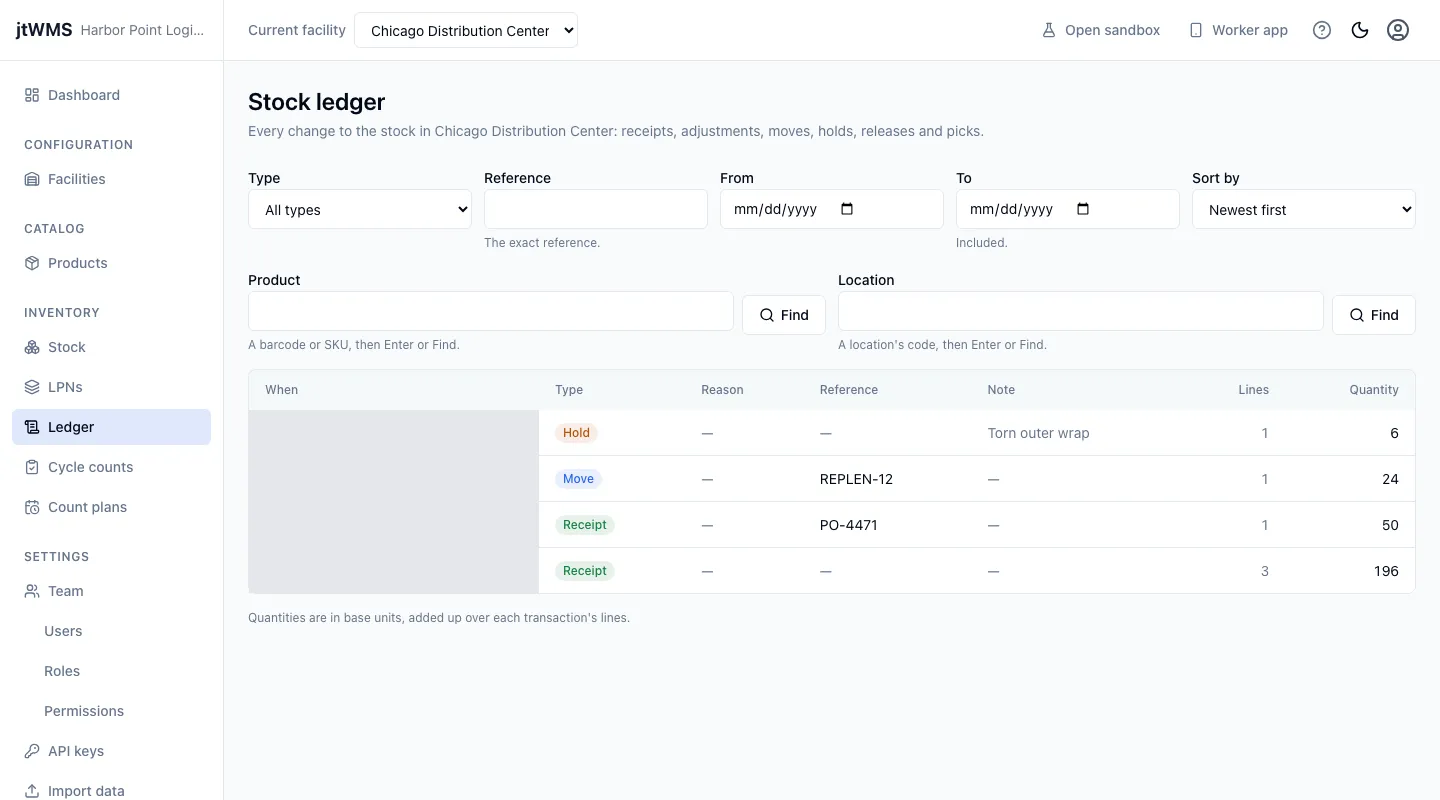
- Click Ledger in the sidebar. The newest transactions are listed first, each with When it happened, its Type, the Reason (for an adjustment), its Reference and Note, how many Lines it has and the Quantity they add up to, in base units.
- Narrow the list with the filters above it:
- Type — one transaction type.
- Reference — the exact reference, such as a purchase order or an order number. A pick carries the reference the stock was set aside under.
- From and To — the first and last day to include, in your own time zone. To can’t be before From.
- Sort by — Newest first (the default) or Oldest first.
- To see only the transactions of one product, scan or type its barcode or SKU in Product, then press Enter or click Find. To see only those at one location (stock leaving it or arriving there), type its code in Location the same way. Each filter appears above the list as Product: SKU or Location: code; click the cross beside it to remove it.
- Page through a long ledger with Previous page and Next page. Changing a filter takes you back to the first page.
If nothing matches, the page reads “No transactions match”. Click Clear filters to see the whole ledger again.
A dashboard tile’s link opens the ledger already filtered: its Type, and the facility’s day as a filter above the list, From time to time, in your own time zone. Remove it with its cross, or pick From and To dates, which replace it.
See a transaction
Section titled “See a transaction”Click a transaction’s time to open it. Its page shows its type and time, the Reason for an adjustment, its Reference and Note, and its Lines. Each line is an amount of one product’s stock, with:
- From — where the stock was: its location, the license plate it was in (a link to the plate) and its status. A receipt or stock adjusted in has no From side.
- To — where it went, likewise. Stock adjusted out has no To side.
- Quantity in base units, and the stock’s Lot, Serial, Expiry and the date it was first Received.
For example, a move has a line per position it took stock from, with the old place in From and the new one in To; a hold’s line has the same place on both sides, with Available in From and Quarantine or Damaged in To. A serial-tracked receipt has a line per serial. A license plate taken off or put on a pallet where it stands moves no stock, so its move has no lines.
Related
Section titled “Related”- Stock: receive, adjust, move, hold and release stock
- License plates: create and move pallets, cases and totes