Import and export
Import and export moves a facility’s whole topology in or out as a single file: its storage tree, equipment layout and zone profiles. Use it to copy a layout from one facility to another, to keep a copy before a big change, or to build a layout outside jtWMS and load it in one go.
Before you start
Section titled “Before you start”- Exporting needs
warehouseconfig.topology.read. Importing needswarehouseconfig.topology.manage. - Tenant Admin and Warehouse Manager can do both. Operator and Read-Only API Client can export only.
- The facility must exist. See Facilities.
The import controls are shown to everyone who can open the page, but an import is refused for
users without warehouseconfig.topology.manage.
Open import and export
Section titled “Open import and export”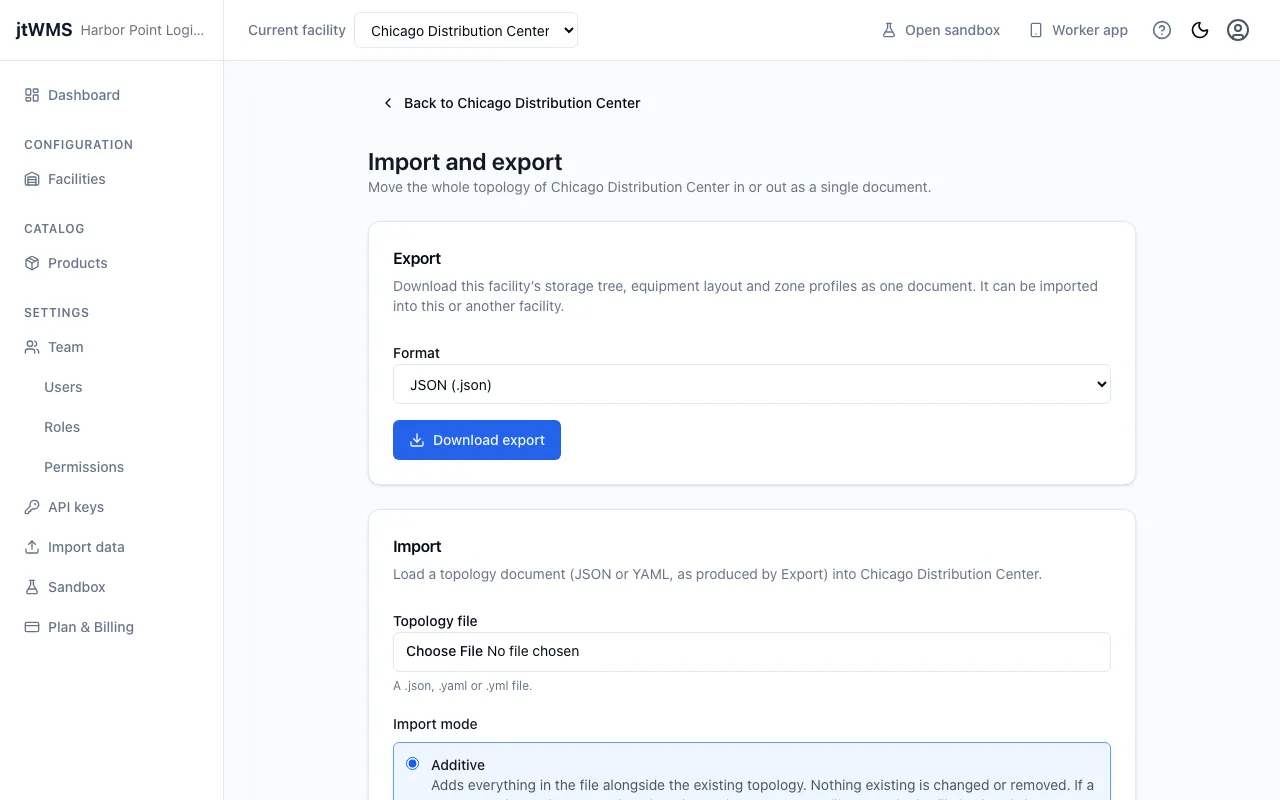
- In the sidebar, under Configuration, click Facilities.
- Click the facility’s name.
- In the Topology card, click Import or export.
Export a facility’s topology
Section titled “Export a facility’s topology”- In the Export card, choose a Format: JSON (.json) or YAML (.yaml).
- Click Download export.
The file is named after the facility’s code and today’s date, such as
topology-LON-01-20261019.json. It holds the facility’s storage tree with each position’s
location attributes, its equipment nodes and edges, and its zone profiles with their zones and
the locations in each zone.
Import a topology
Section titled “Import a topology”- In the Import card, choose a Topology file: a
.json,.yamlor.ymlfile, in the format that export produces. - Choose the Import mode, Additive or Replace (see below).
- Click Import. In Replace mode the button reads Replace topology, and a dialog asks you to confirm: tick the box, then click Replace topology.
An import is all or nothing. If anything in the file is wrong, nothing is imported, and the page lists the problems.
Additive
Section titled “Additive”Additive is the standard mode. It adds everything in the file alongside the facility’s current topology, and changes or removes nothing that’s already there.
Nothing is imported, and the conflicts are listed, if the file:
- uses a storage node code, equipment node code or location code that’s already in use in the facility;
- uses a zone profile name that’s already in use in the facility; or
- makes a zone profile active while another profile is active.
Replace
Section titled “Replace”Replace removes the facility’s entire current topology, then creates it again from the file.
Read the import result
Section titled “Read the import result”After a successful import, the page shows whether the topology was imported alongside the existing one or replaced, and how many of each were created: Storage nodes, Locations, Equipment nodes, Equipment edges, Zone profiles, Zones and Zone memberships.
An import only ever creates records. It never updates one that already exists.
If the import fails, the page says Import failed. See the problems listed. and lists each conflicting code or problem in the file. Fix the file, or the facility, and import again.