License plates
A license plate (LPN) is a labelled container that holds stock and moves as one: a pallet, a case or a tote. Its code is the one printed on its label. The license plates page lists a facility’s plates, and each plate’s page shows where it is, what is on it and the stock in it. Open it from LPNs under Inventory in the sidebar.
Before you start
Section titled “Before you start”- License plates come with the Inventory feature, like Stock: on a plan without it the Inventory section is hidden, and the page reads “Your plan doesn’t include Inventory”.
- To see license plates you need
inventory.stock.readorinventory.stock.manage, which every standard role holds. - To create, move and delete license plates, and to move stock, you need
inventory.movements.manage, held by Tenant Admin, Warehouse Manager and Operator. Without it, the Create license plate, Move and Delete buttons are hidden. Finding a location by its code also needswarehouseconfig.topology.read, which those roles hold. - License plates are kept per facility: the page shows the facility chosen in Current facility at the top of the page.
How license plates fit together
Section titled “How license plates fit together”- A pallet always stands at a location. It never sits on another plate.
- A case or tote stands at a location on its own, or sits on a pallet. A plate on a pallet is always at the pallet’s location.
- So plates go at most two deep: a pallet, the cases and totes on it, and the stock in them.
- A code is unique in the facility, whatever its upper or lower case:
PAL-1andpal-1are the same code. Another facility can use the same code, and a deleted plate’s code can be used again.
Find license plates
Section titled “Find license plates”- Click LPNs in the sidebar. The list shows each plate’s Code, Type, Location, the pallet it is On (if any), how many Plates on it, and its Contents: Empty, or Holds stock when it or a plate on it holds stock.
- Narrow the list with the filters above it:
- Search — type part of a code (upper or lower case doesn’t matter).
- Type — Pallet, Case or Tote.
- Contents — Empty only or Holding stock.
- Sort by — Code (the default), Type, Newest first, or Recently changed.
- To see only the plates at one location, click its code in the Location column. The filter appears above the list as Location: code; click the cross beside it to remove it. Cases and totes on a pallet there are listed too.
- Page through a long list with Previous page and Next page. Changing a filter takes you back to the first page.
Click a plate’s code to open it.
Create a license plate
Section titled “Create a license plate”- Click Create license plate.
- Enter its Code: up to 64 letters A to Z, digits, dots, underscores and hyphens.
- Choose its Type.
- Choose where it is:
- At a location — type part of the location’s code in Find location, then choose it in Location. A pallet is always at a location.
- On a pallet (a case or tote) — scan or type the pallet’s code in Pallet, then press Enter or click Find. The pallet found is shown below; the new plate is at its location.
- Click Create. The app confirms with “Created code at location.” or “Created code on pallet.”, and the plate appears in the list, empty.
The drawer tells you, on the field concerned, when the plate can’t be created: the code is already used in the facility, the location is not active, or the plate you named isn’t a pallet.
To put stock in a new plate, move stock into it from the stock page.
See a license plate
Section titled “See a license plate”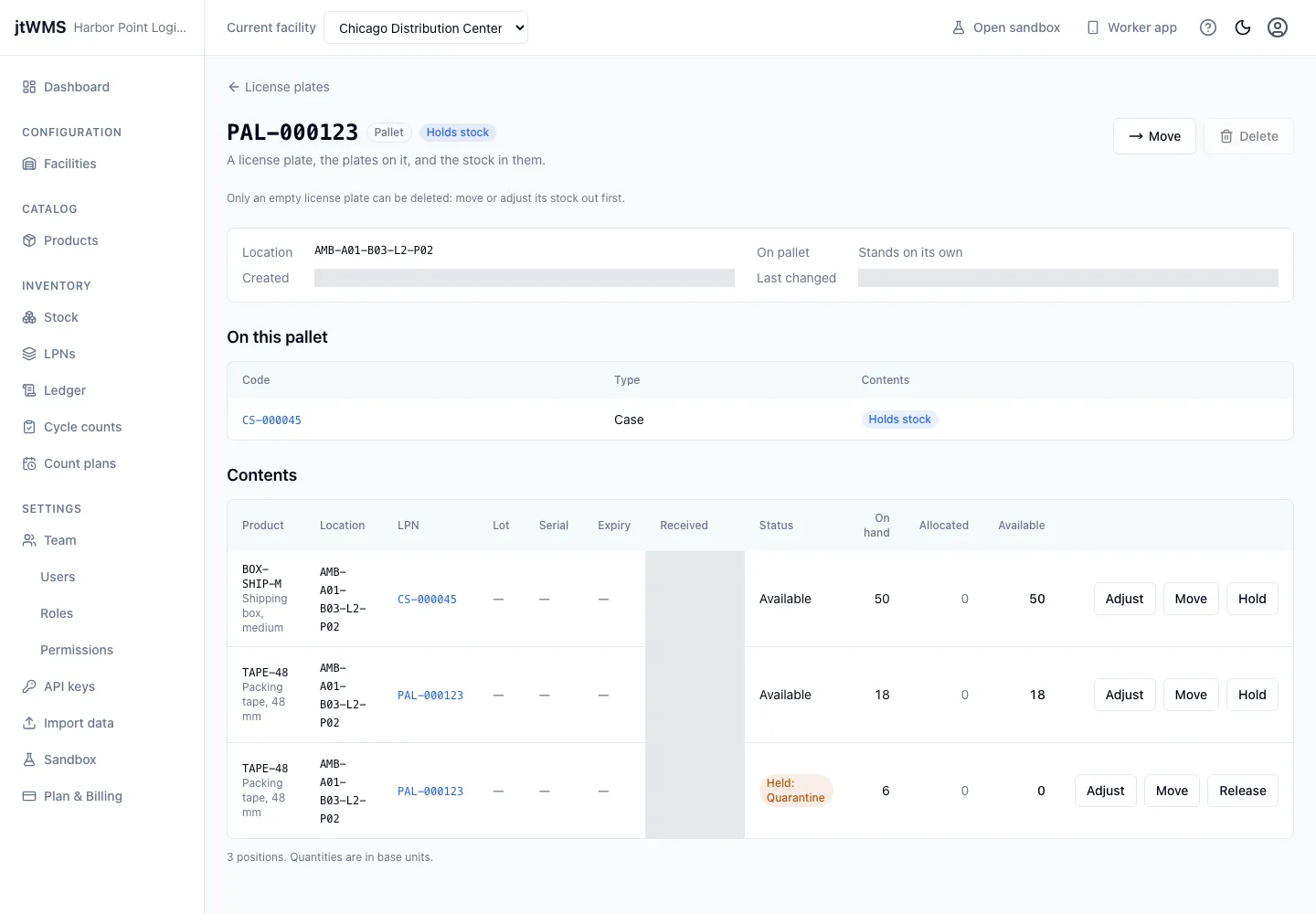
A plate’s page shows:
- its code, type and whether it is empty;
- its Location, the pallet it is On (a link to the pallet), when it was created and last changed;
- for a pallet, the cases and totes On this pallet, each a link to its own page;
- its Contents: the stock in it and in the plates on it, listed like the stock page’s positions. The first 100 positions are shown, with the total when there are more.
From the contents you can adjust, move, hold and release stock as on the stock page, with the same permissions.
Move a license plate
Section titled “Move a license plate”Moving a plate moves everything on it and in it: the plates on a pallet, and all their stock.
- On the plate’s page, click Move.
- Choose where it goes:
- To a location — find and choose the location. A case or tote on a pallet comes off the pallet and stands there on its own.
- Onto a pallet (a case or tote) — scan or type the pallet’s code, then press Enter or click Find. It goes to the pallet’s location.
- Off pallet (a case or tote on a pallet) — it stays where it is, standing on its own.
- Optionally fill in Reference and Note.
- Click Move. The page shows the plate’s new location, and its stock is there too.
A move is refused, with the reason in the drawer, when the plate is already there, the target location is not active, or the plate named isn’t a pallet.
Delete a license plate
Section titled “Delete a license plate”Only an empty license plate can be deleted: while it, or a plate on it, holds stock, Delete is unavailable. Move or adjust the stock out first.
- On the plate’s page, click Delete.
- Deleting a pallet deletes the plates on it too: tick the box that names them.
- Click Delete. The app confirms with “Deleted code.” and returns to the list.
If stock was put into the plate while you were confirming, the delete is refused with the reason, and the page shows the plate’s contents.
Related
Section titled “Related”- Stock: see stock, and move it into and out of license plates
- Stock ledger: every move of stock and license plates, line by line
- Storage topology: create the locations plates stand at
- Worker app: scan a license plate to see what it holds, or to move it