Inbound exceptions
An exception records a way a delivery departed from its ASN: more arrived than expected, less, something damaged, a product the ASN didn’t list, or a receipt that couldn’t be put into stock. jtWMS raises them on its own as goods are received and ASNs are closed, and keeps them in one queue per facility for someone to look at and resolve. Open it from Inbound exceptions under Inbound in the sidebar.
Before you start
Section titled “Before you start”- Exceptions come with the Inbound feature, on the Pro plan and above.
- Seeing them needs
inbound.orders.read, the permission that shows purchase orders and ASNs; resolving them needsinbound.orders.manage. Tenant Admin and Warehouse Manager hold both, and Operator and Read-Only API Client can see them. - Exceptions are kept per facility: the page shows the facility chosen in Current facility at the top of the page.
Types of exception
Section titled “Types of exception”| Type | Raised when | Quantity |
|---|---|---|
| Overage | A license plate posts and takes an ASN line beyond what it expected. | The units beyond it. |
| Shortage | An ASN is closed and a line received less than it expected. | What it still lacked. |
| Damaged | A license plate posts with goods received as damaged. They are held as damaged stock. | The damaged units. |
| Unexpected product | A license plate posts with a product the ASN didn’t list. | The units received. |
| Posting failed | Stock refused a receipt, for the reason shown under the type. | All of the receipt’s units. |
Quantities are in base units. Each cause raises one exception: a damaged line received beyond what was expected raises both Damaged and Overage.
A Posting failed exception follows its receipt. When the receipt is retried from its ASN’s page and posts, the exception resolves itself, with the note The receipt posted on retry. If the retry fails again, the exception opens again with stock’s new reason.
Review the queue
Section titled “Review the queue”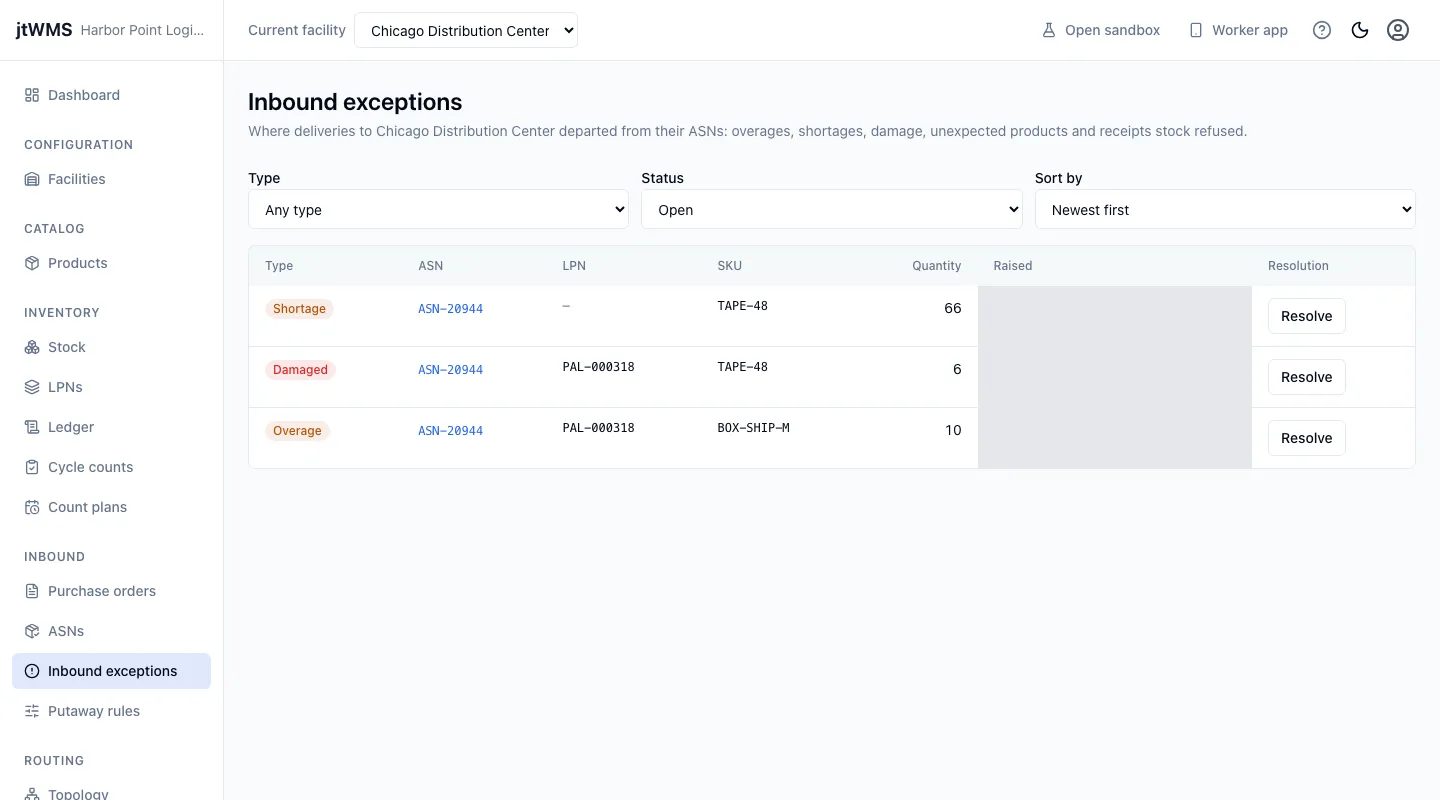
- Click Inbound exceptions in the sidebar. The queue opens on the Open exceptions, newest first. Each row shows the Type, the ASN (click it to open the ASN), the LPN received, the SKU, the Quantity and when it was Raised.
- Narrow it with Type and Status (Open, Resolved, or any), and choose the order with Sort by: newest or oldest first, by type, or the largest quantity first.
- To see one ASN’s exceptions, click See this ASN’s exceptions on the ASN’s page. The queue shows an ASN filter; remove it to see every ASN’s exceptions again.
Resolve an exception
Section titled “Resolve an exception”With inbound.orders.manage:
- Click Resolve on the exception’s row.
- Check the type, ASN, license plate, SKU and quantity it concerns.
- In Note, say what was done about it, for example Supplier credited the 2 extra units. A note is required, up to 1,000 characters.
- Click Resolve.
The exception leaves the open queue. With Status set to Resolved or any status, its Resolution shows the note, who resolved it (You, someone else, or Automatically for a receipt that posted on retry) and when.
If someone else resolved the exception while you had it open, it isn’t resolved twice: the drawer says so, and the queue is read again to show it as it is now. Resolving acts only on what the queue shows after a successful read; while it is being read again, Resolve is unavailable.
Related
Section titled “Related”- ASNs — receive against an ASN, retry a receipt that failed, and close it.
- Putaway rules — choose where received license plates are put away.