Products
The product catalog lists what can be stocked, how it is packed and how it is identified. Each product has a SKU, tracking and rotation rules, and up to five units of measure, from the base unit (such as each) up to larger packs (such as cases or pallets), each with its own barcodes. Open it from Products under Catalog in the sidebar.
Before you start
Section titled “Before you start”- To see products you need
catalog.products.readorcatalog.products.manage. Every standard role holds one of them: Tenant Admin and Warehouse Manager hold both, and Operator and Read-Only API Client holdcatalog.products.read. - To create, edit, activate, deactivate or delete products you need
catalog.products.manage, held by Tenant Admin and Warehouse Manager. Without it, the New product button and the row actions are hidden. - Without either permission, the Products entry is hidden from the sidebar, and the page reads “You don’t have access to products”.
Find a product
Section titled “Find a product”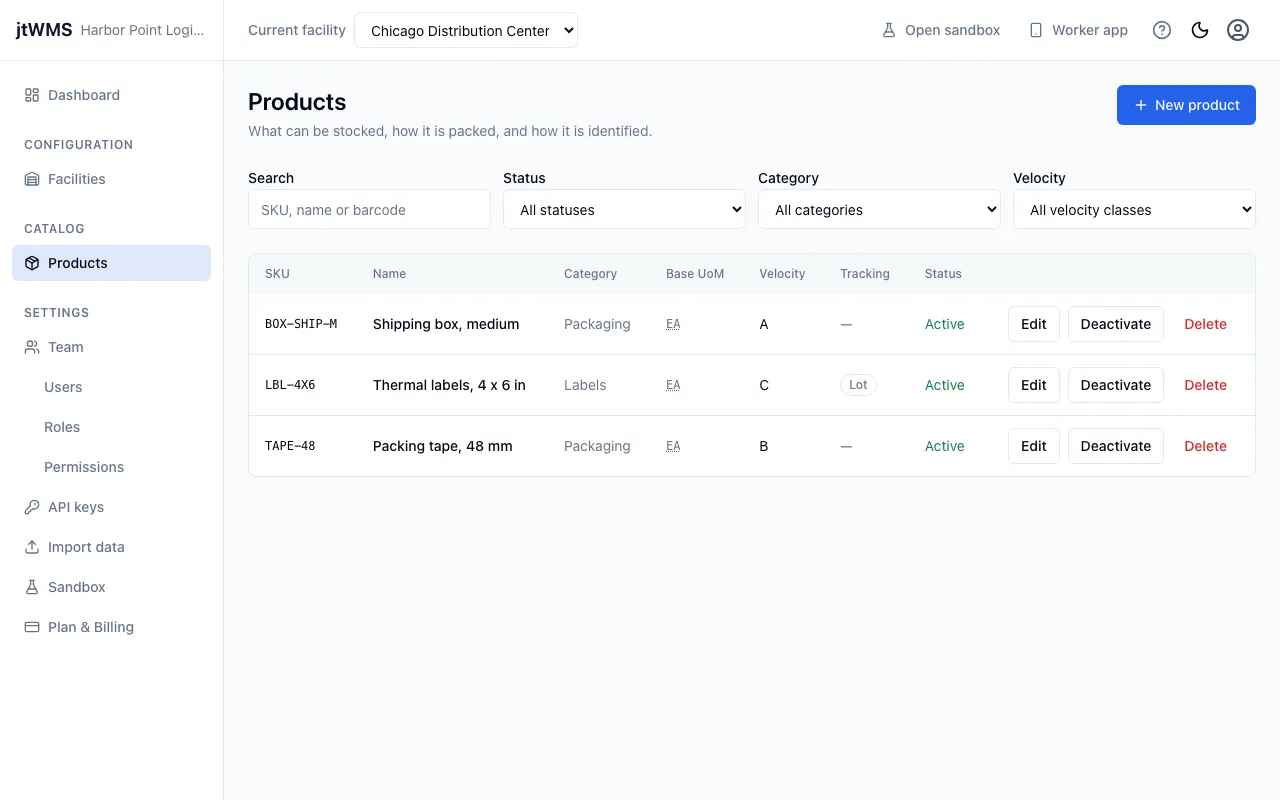
- Click Products in the sidebar.
- Narrow the list with the filters above it:
- Search — type part of a SKU or name (upper or lower case doesn’t matter), or a whole barcode.
- Status — All statuses, Active or Inactive.
- Category — All categories, or one of the categories your products use.
- Velocity — All velocity classes, A, B or C.
- When there are more matches than fit on one page, page through them with Previous page and Next page. Changing a filter takes you back to the first page.
The list shows each product’s SKU, Name, Category, Base UoM (the code of its base unit), Velocity, Tracking (Lot, Serial and Expiry badges) and Status.
If nothing matches, the page reads “No products match”. Click Clear filters to see every product again.
Create a product
Section titled “Create a product”- Click New product. The New product drawer opens.
- Fill in Details:
- SKU — 1 to 64 letters, digits,
.,_,/or-. It must be unique (ignoring upper and lower case), and it can’t be changed later. - Name — required, up to 200 characters.
- Description — optional, up to 2,000 characters.
- Category — optional, up to 100 characters. Pick an existing category or type a new one.
- SKU — 1 to 64 letters, digits,
- Fill in Tracking and rotation:
- Tick Track lots, Track serial numbers and Track expiry dates as needed.
- Shelf life (days) — appears only while expiry dates are tracked. Optional, a whole number from 1 to 3,650.
- Rotation — FIFO: first in, first out (the default), LIFO: last in, first out or FEFO: first expired, first out. FEFO needs Track expiry dates ticked.
- Velocity class — Unclassified, A, B or C.
- Set up Units of measure (see the next section). A new product starts with one level, EA / Each.
- Click Create product. The app confirms with “Created SKU.”
If the SKU or a barcode is already used by another product, the message appears on that field.
Units of measure and barcodes
Section titled “Units of measure and barcodes”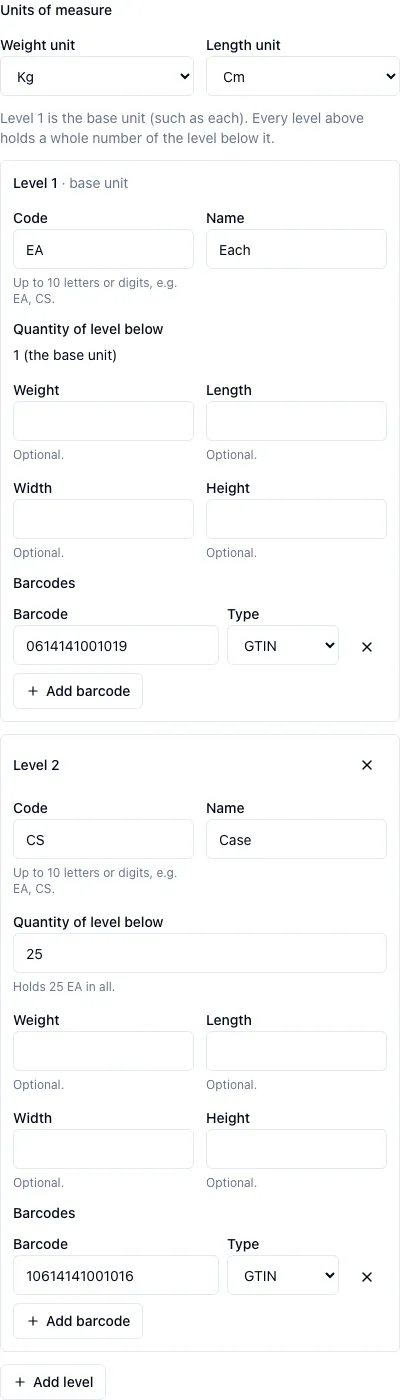
Level 1 is the base unit, such as each. Every level above it holds a whole number of the level below it: for example, a case (level 2) of 12 each, and a pallet (level 3) of 40 cases.
-
Choose the Weight unit (Kg, G, Lb or Oz; Kg by default) and the Length unit (Cm, Mm, M or In; Cm by default). They apply to every level.
-
For each level, fill in:
- Code — up to 10 letters or digits, such as EA or CS. It is shown in capitals and must be unique within the product.
- Name — required, up to 50 characters.
- Quantity of level below — fixed at 1 for the base unit. For any other level, a whole number from 2 to 100,000. The hint shows how many base units the level holds in all, which can’t exceed 1,000,000,000.
- Weight, Length, Width and Height — optional. Each must be greater than 0, with at most 3 decimal places and at most 9 digits before the decimal point.
-
To add a barcode to a level, click Add barcode under it, then fill in:
- Barcode — the code itself.
- Type — GTIN or Other. A GTIN is 8, 12, 13 or 14 digits with a valid check digit. Any other barcode is up to 64 printable characters.
A level can have up to 10 barcodes, and each barcode must be unique within the product. To remove one, click the remove button beside it.
-
To add a larger pack, click Add level. A product can have up to 5 levels. To remove a level above the base, click the remove button in its corner.
Edit a product
Section titled “Edit a product”- Click Edit on the product’s row. The drawer opens as Edit SKU, showing the product as it is now.
- Change any field except the SKU, which is shown read-only.
- Click Save changes. The app confirms with “Saved SKU.”
If the product was deleted while the drawer was open, the drawer closes and the app tells you “SKU no longer exists.”
When someone else changed the product meanwhile
Section titled “When someone else changed the product meanwhile”If someone else’s change to the same product is saved at the same moment as yours, your save is refused rather than overwriting it. The drawer loads the latest version and tells you “This product was changed while you were editing it. The form now shows its latest version: make your changes again and save.” Make your changes again, then click Save changes.
If the latest version can’t be loaded, saving stays off so your changes can’t overwrite the other ones. Click Load the latest version to try again.
Deactivate or activate a product
Section titled “Deactivate or activate a product”A deactivated product stays listed and editable, keeps its SKU and barcodes, and shows as Inactive until you activate it again.
- Click Deactivate on the product’s row.
- In the Deactivate product dialog, click Deactivate. The app confirms with “Deactivated SKU.”
To return an inactive product to use, click Activate on its row, then Activate in the Activate product dialog. The app confirms with “Activated SKU.”
Delete a product
Section titled “Delete a product”Deleting a product deletes its units of measure and barcodes with it, and frees its SKU and barcodes for other products.
- Click Delete on the product’s row.
- In the Delete product dialog, tick I understand a deleted product can’t be restored.
- Click Delete product. The app confirms with “Deleted SKU.”