Storage topology
The storage topology is the layout of a facility’s storage, as a tree: areas hold aisles, aisles hold bays, bays hold levels, and levels hold the positions where stock is kept. Each position is a location with its own location code, which jtWMS builds from the codes along its path.
Before you start
Section titled “Before you start”- Viewing the storage topology needs
warehouseconfig.topology.read. Adding, editing and deleting nodes, and editing location attributes, needswarehouseconfig.topology.manage. - Tenant Admin and Warehouse Manager hold both. Operator and Read-Only API Client can view only.
- The facility must exist. See Facilities.
Every button is shown to everyone who can open the page, but changes are refused for users without
warehouseconfig.topology.manage.
How the tree is arranged
Section titled “How the tree is arranged”The node types, from the top down, are Area, Aisle, Bay, Level and Position.
- Every node at the top of the tree is an Area.
- A node’s children must be of a type below its own. You can skip types: an area can hold positions directly, and an aisle can hold levels.
- A Position has no children.
Open the storage topology
Section titled “Open the storage topology”- In the sidebar, under Configuration, click Facilities.
- Click the facility’s name.
- In the Topology card, click View storage topology.
Each row in the tree shows the node’s type, code and name, Inactive if it’s inactive, a status dot, and, for a position, its location code. Click the arrow beside a node to expand or collapse it. The top-level areas start expanded.
View a node’s details
Section titled “View a node’s details”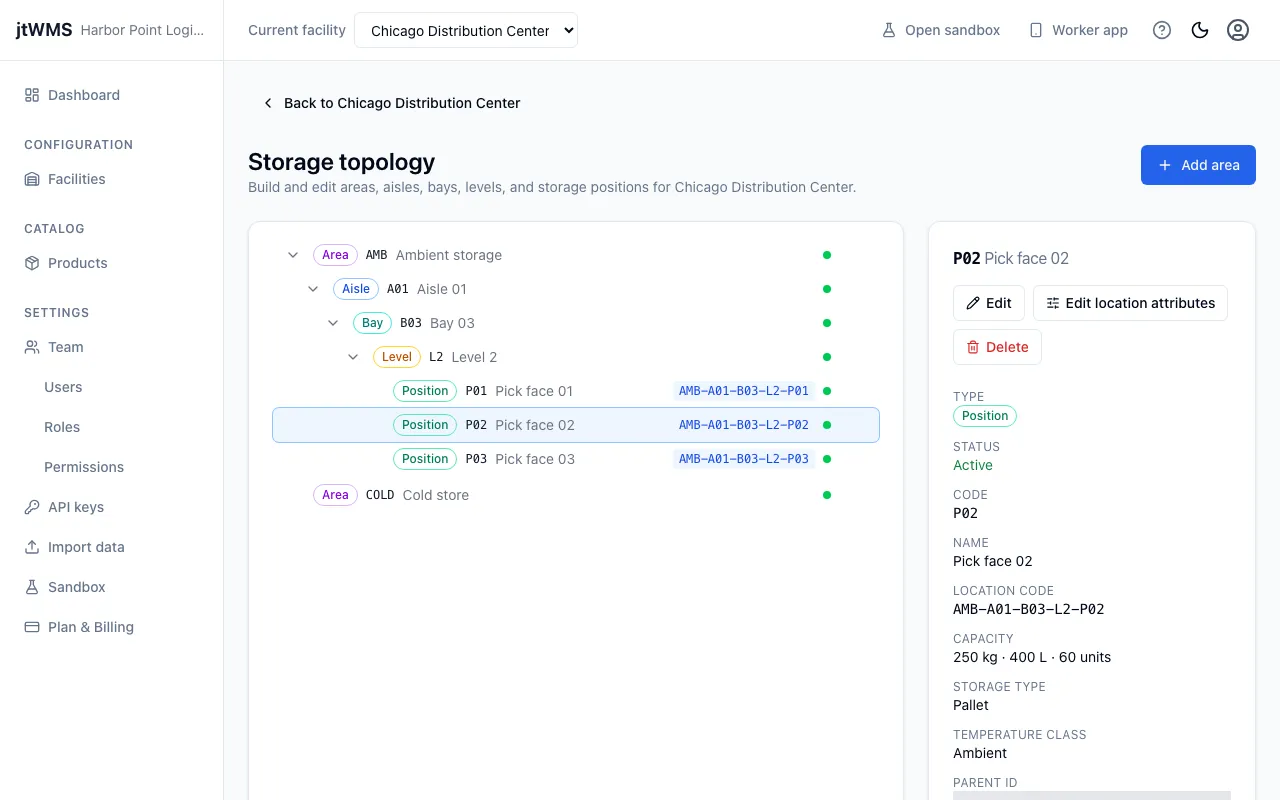
Click a node in the tree. The Node details panel shows its Type, Status, Code and Name, when it was created and updated, and its identifiers. For a position, it also shows the Location code, Capacity, Storage type and Temperature class.
Add an area
Section titled “Add an area”- Click Add area.
- Enter a Code: letters, digits and hyphens, up to 50 characters, unique within the facility.
- Enter a Name: required, up to 200 characters.
- Click Add node.
Add a node under another node
Section titled “Add a node under another node”- Select the parent node and click Add child in the details panel. Alternatively, point at the parent in the tree and click its + button.
- Choose the Type. The list offers only the types allowed below the parent.
- Enter a Code and a Name, with the same rules as for an area.
- Click Add node.
When you add a position, jtWMS creates its location and location code at the same time.
Rename a node
Section titled “Rename a node”- Select the node and click Edit.
- Change the Name, and the Code if it can be changed (see below).
- Click Save changes.
A node’s type can’t be changed.
Delete a node and everything under it
Section titled “Delete a node and everything under it”- Select the node and click Delete.
- If the node has no children, click Delete node.
- If it has children, the dialog says how many nodes beneath it will be deleted too, including every position and location. Tick the box to confirm you understand, then click the button that names the total, such as Delete 13 nodes.
If someone else changed the nodes beneath it while you had the dialog open, the dialog shows the new count and asks you to confirm again.
Set a position’s capacity, storage type and purpose
Section titled “Set a position’s capacity, storage type and purpose”- Select a position and click Edit location attributes.
- Under Capacity, fill in any of:
- Max weight (kg) — greater than 0 and at most 1,000,000, with up to 3 decimal places.
- Max volume (L) — the same rules as weight.
- Max units — a whole number from 1 to 1,000,000.
- Choose its Purpose: Storage, Dock or Staging (see below).
- Choose a Storage type: Not set, Pallet, Shelf, Bin, Floor or Flow.
- Choose a Temperature class: Not set, Ambient, Chilled or Frozen.
- Click Save attributes.
Capacity, storage type and temperature class are optional: leave a field blank to clear it. The position’s details show its purpose with its other attributes.
Location purpose
Section titled “Location purpose”Every location has a purpose, which says what it is for:
| Purpose | Used for |
|---|---|
| Storage | Holding stock. Every new location starts as Storage. |
| Dock | Receiving: goods arriving against an ASN are put down at a dock. |
| Staging | Receiving too, at an area near the docks where goods wait before putaway. |
Goods can only be received at a Dock or Staging location, and an ASN’s planned dock is chosen from them. Directed putaway only suggests Storage locations. To group your docks or staging lanes into a zone, filter the zone editor’s locations by Purpose (see Zone profiles).
How location codes are formed
Section titled “How location codes are formed”Each facility has a code pattern, shown on its page. The standard pattern is
{area}-{aisle}-{bay}-{level}-{position}. A position’s location code is the pattern filled with the
codes of the nodes on its path.
| Path | Location code |
|---|---|
Area A1 › Aisle 01 › Bay 03 › Level B › Position 02 |
A1-01-03-B-02 |
Area A1 › Position P3 (types skipped) |
A1-P3 |
Types skipped in the path are left out of the code, along with their separator. Equipment also has locations: an equipment node’s location code is its own code.