Team
The Team area is where you manage who can use jtWMS and what they can do. People get access through roles, and each role is a set of permissions. Open it from Team under Settings in the sidebar. It has three pages: Users, Roles and Permissions.
Before you start
Section titled “Before you start”- Anyone signed in can view the Users, Roles and Permissions pages. Pending invites are listed
only for people who hold
identity.users.manage. - To invite people, edit them, deactivate them or create reset-password links you need
identity.users.manage. - To create, copy, edit or delete roles you need
identity.roles.manage. - Of the standard roles, only Tenant Admin holds these permissions. Warehouse Manager, Operator and Read-Only API Client can’t manage the team.
- Without the permission, the buttons for these actions are hidden, and a role’s page opens read-only.
You can only grant permissions you hold
Section titled “You can only grant permissions you hold”Whenever you hand out permissions, by giving someone a role or by adding permissions to a role, jtWMS
checks that you hold every permission you’re adding yourself. Holding a .manage permission counts
as holding its .read permission too. If you don’t, the change is refused with “You can only grant
permissions you hold. You do not hold:” followed by the missing permissions.
Only what you’re adding is checked. Roles a person already has, and roles or permissions you’re removing, aren’t. The same rule applies to API keys.
Invite a user
Section titled “Invite a user”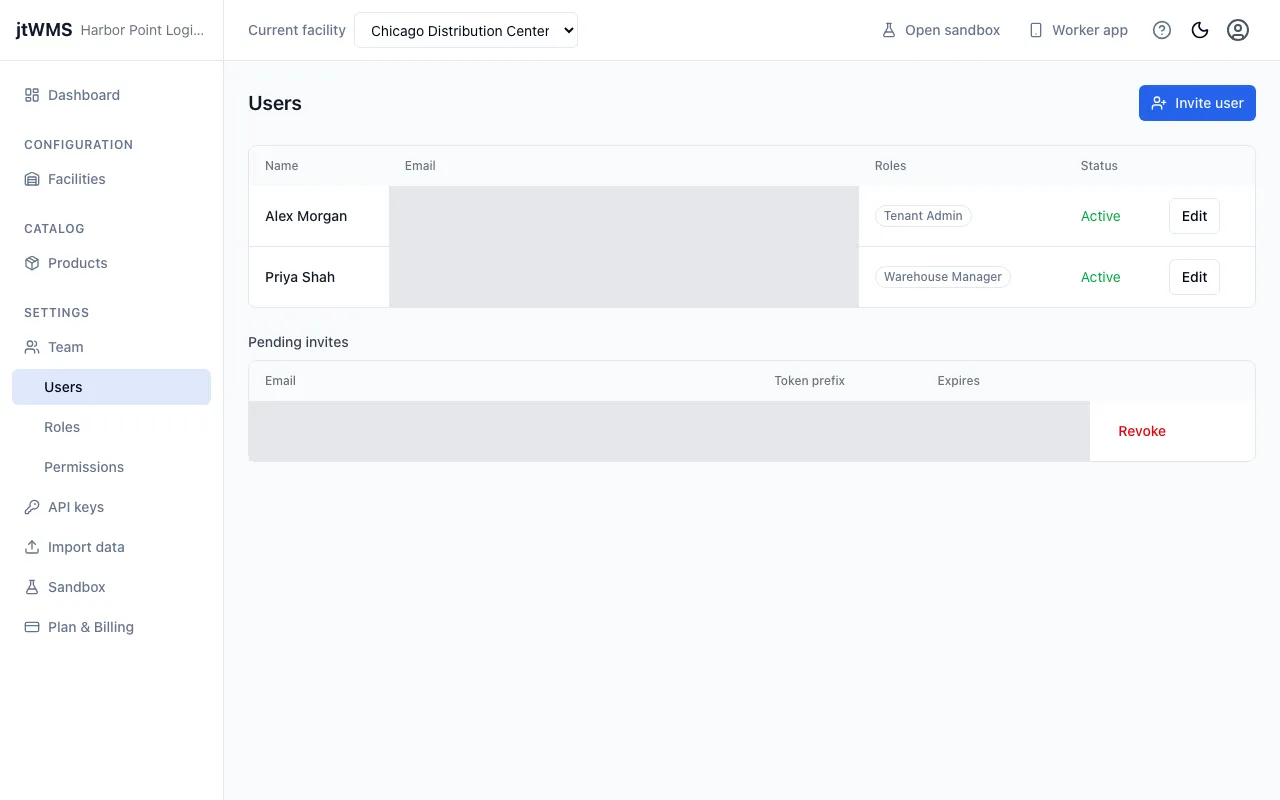
An invite is a link that jtWMS emails to the person. You can also copy it and share it yourself.
- On Users, click Invite user. The Invite a user drawer opens.
- Enter the person’s Email address, up to 254 characters. It can’t belong to someone already in your organisation: if it does, the drawer closes and the page reads “A user with email address already exists in this tenant.”
- Under Roles (optional), click each role to give them. A selected role shows a tick.
- Click Create invite link.
- The drawer shows Invite created, with the link and the date it expires (7 days from now). jtWMS emails the link to the person, with your name, your organisation’s and the roles you chose. To send it another way too, click Copy.
- Click Done.
The person opens the link, sets their name and password, and is signed in with the roles you chose. A role deleted since you created the invite is left out.
The invite is listed under Pending invites with its email address, the first characters of its code (Token prefix) and its expiry date until the person accepts it or you revoke it. An invite that has expired stays listed until you revoke it.
Edit a user’s name or roles
Section titled “Edit a user’s name or roles”- On Users, click Edit on the person’s row. A panel titled with their name opens.
- Change First name or Last name. Both are required, up to 100 characters each.
- Under Roles, click a role to give it or take it away. A highlighted role is assigned.
- Click Save changes. The page confirms with “Name updated.”
People with the SuperAdmin badge are platform administrators. Roles don’t apply to them, so the app doesn’t let you change their roles: the panel reads “Role assignments are not applicable to SuperAdmin users.”
Deactivate a user
Section titled “Deactivate a user”Deactivating a user ends their access: they can no longer sign in, and their current session stops working.
- On Users, click Edit on the person’s row.
- Click Deactivate user. The page confirms with “Name deactivated.”
The person stays in the list, with the status Inactive, and keeps their roles.
Create a reset-password link
Section titled “Create a reset-password link”If someone has forgotten their password, you can give them a link to set a new one.
- On Users, click Edit on the person’s row.
- Under Password reset, click Generate reset link.
- Copy the link with the button beside it, and share it with the person.
The link works once and expires after one hour. It is the same kind of link people get by email when they use the forgot-password page themselves. You can’t create one for a deactivated user: the page reports “Failed to generate reset link.”
The standard roles
Section titled “The standard roles”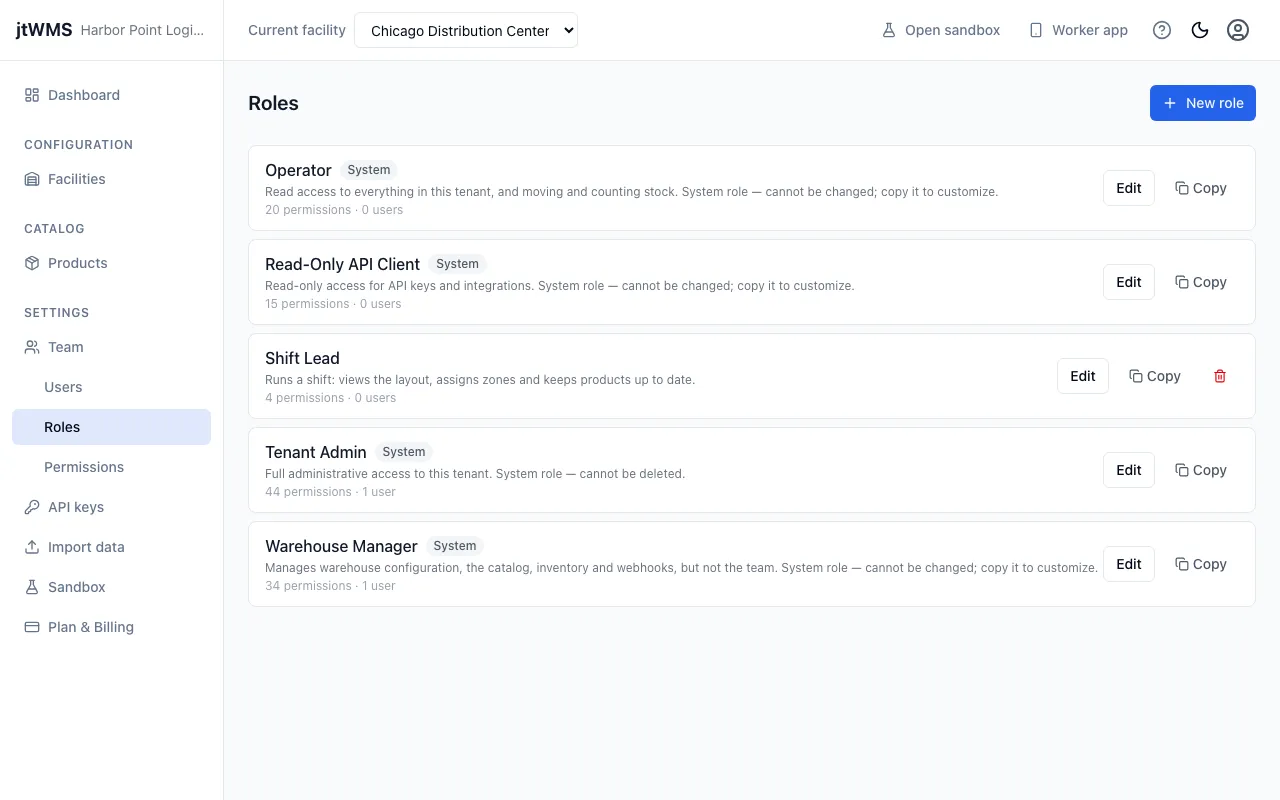
Every organisation starts with four standard roles. Each is defined by a rule, so it picks up new permissions automatically as jtWMS adds them.
| Role | Holds |
|---|---|
| Tenant Admin | Every permission. Given to the person who signed the organisation up. |
| Warehouse Manager | Every warehouseconfig.*, catalog.*, inventory.*, webhooks.* and routing.* permission: facilities, zones, storage, equipment, products, stock and webhook subscriptions, and conveyor routing on plans that include it. No identity.* permission, so it can’t manage the team, API keys or the plan. |
| Operator | Every .read permission, plus inventory.movements.manage, inventory.count_tasks.manage and routing.operations.manage: it can view facilities, zones, storage, equipment, products and stock, move stock and license plates, and submit cycle counts, but change nothing else. routing.operations.manage is for conveyor routing operations, on plans that include routing. |
| Read-Only API Client | Every .read permission. Meant for API keys and integrations. |
People whose roles hold no .manage permission other than inventory.movements.manage,
inventory.count_tasks.manage and routing.operations.manage, such as an Operator, land in the
worker app
when they sign in.
Standard roles carry the System badge and are read-only: they can’t be renamed, re-described, deleted, or have their permissions changed. To make a variation, copy one.
Create a role
Section titled “Create a role”- On Roles, click New role.
- Enter a Name (up to 200 characters, not used by another role), and optionally a Description (up to 1,000 characters).
- Click Create role. The role’s page opens, so you can give it permissions.
If the name is taken, the page reads “A role with this name already exists.”
Copy a role
Section titled “Copy a role”- On Roles, click Copy on the role’s row.
- In the Copy “role” dialog, change New role name if you like. It starts as the role’s name followed by “(copy)”, and it can’t be used by another role.
- Click Copy role. The new role has the same description and permissions as the original, and its page opens.
Copies of standard roles are ordinary roles, so you can edit them.
Edit a role’s name or permissions
Section titled “Edit a role’s name or permissions”- On Roles, click Edit on the role’s row.
- Under Role details, change the Name or Description, then click Save. The page confirms with “Role updated.”
- Under Permissions, tick or untick each permission. Permissions are grouped by service; click a service’s name to select or clear its whole group. The count beside it shows how many of the group are selected.
- Click Save permissions. The page confirms with “Permissions saved.”
Everyone with the role is signed out at their next action, with “Your permissions have changed. Please sign in again to continue.” When they sign back in, they have the role’s new permissions.
Delete a role
Section titled “Delete a role”You can delete a role only when no one holds it, deactivated users included. Standard roles can’t be deleted, so they have no delete button.
- On Roles, click the delete button (the bin icon) on the role’s row. It is disabled while the role has users.
- In the Delete role? dialog, click Delete. The page confirms with “Role “name” deleted.”
The permissions registry
Section titled “The permissions registry”The Permissions page lists every permission jtWMS knows about, grouped by service, with its key and description. It is read-only: each jtWMS service registers its own permissions when it starts.
Permission keys name a service, a resource and an action, such as catalog.products.manage.
Where a resource has both, .read lets people view it and .manage lets them change it, and
.manage includes .read.
Related
Section titled “Related”- API keys: give other systems access, under the same grant rule
- Worker app: where Operators, and others whose only
.managepermissions are the floor’s, work - Plan & Billing: your plan’s user limit