Waves
A wave is a group of a facility’s orders released and picked together. You make a wave from new orders, either the ones you choose or the ones a wave template selects, then release it: stock is reserved for every order line, and pick tasks are made for the pickers. Open waves from Waves under Outbound in the sidebar, and templates from Wave templates.
Before you start
Section titled “Before you start”- Waves come with the Outbound feature, on the Pro plan and above. On a plan without it, Outbound is hidden from the sidebar and the pages read “Your plan doesn’t include Outbound”.
- To see waves and templates you need
outbound.orders.readoroutbound.orders.manage, which every standard role holds. To create, change, release and cancel waves, and to create, edit and delete templates, you needoutbound.waves.manage, held by Tenant Admin and Warehouse Manager. Without it those buttons are hidden. - Releasing a wave needs the facility’s outbound staging location, where picked totes are put, set in Outbound settings. Until it is set, a release is refused.
- Waves are kept per facility: the pages show the facility chosen in Current facility at the top of the page.
Find waves
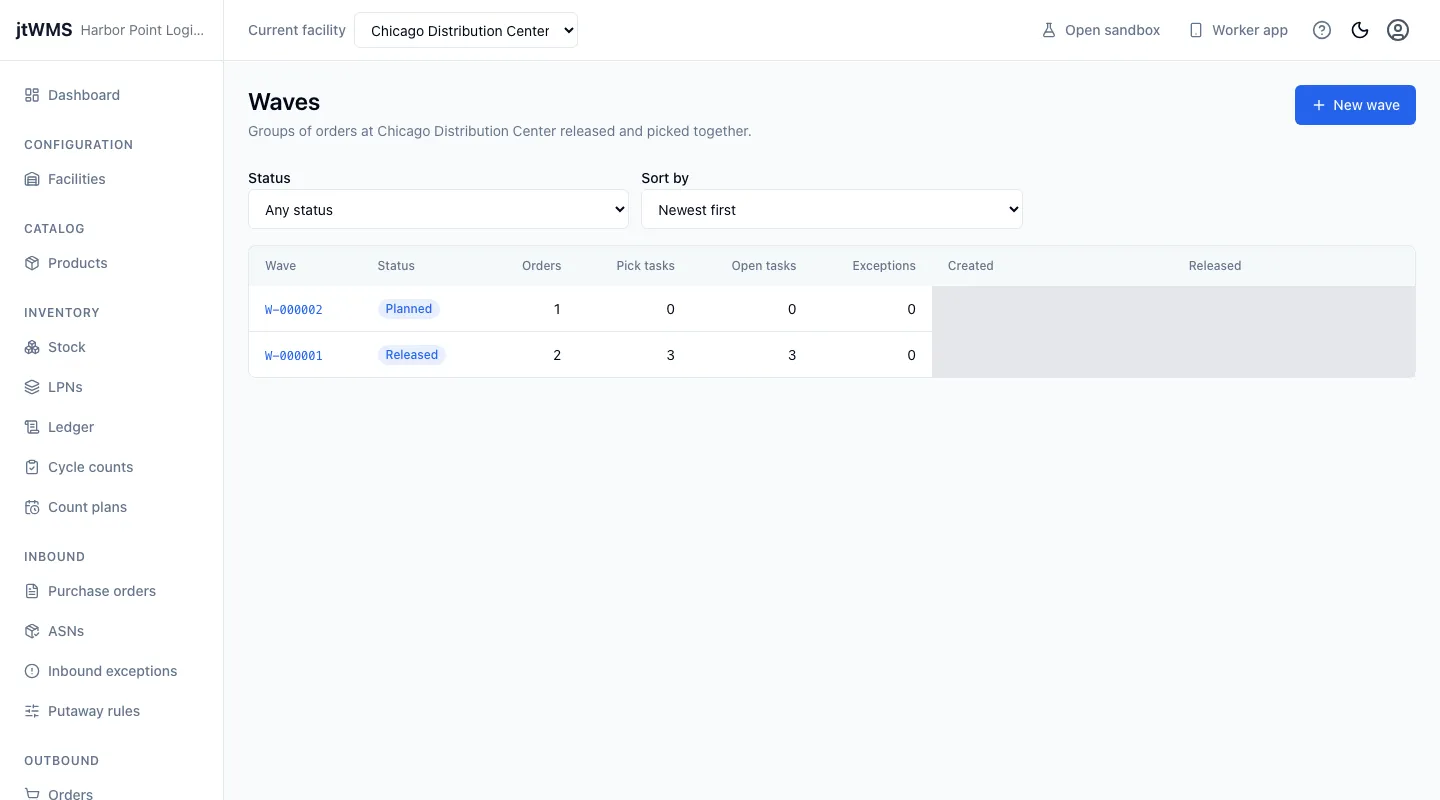
Section titled “Find waves”Click Waves in the sidebar. The list shows each wave’s number (such as W-000001), its Status, how many orders and pick tasks it has, how many tasks are still open, how many order lines could not get stock (Exceptions), and when it was created and released. Narrow it with Status, and choose the order with Sort by. Click a wave’s number to open its page.
| Status | What it means |
|---|---|
| Planned | Made, not released yet: its orders can still change. |
| Releasing | Stock is being reserved for its orders. |
| Released | Every line has been answered: its orders are allocated, or have exceptions. |
| Completed | Every order in it is picked. |
| Cancelled | Called off before release; its orders went back to New. |
Make a wave
Section titled “Make a wave”-
Click New wave.
-
Under Make the wave from, choose one:
- Orders I choose: tick the orders to wave. The list shows the facility’s new orders that are in no wave, most urgent first, each with its priority, who it ships to, its lines and when it should ship. Search orders narrows it by the start of an order number or customer reference. The orders you tick are listed above the search, whatever it shows; the cross on one takes it off. Choose all shown ticks every order listed, and Clear takes them all off. A wave holds up to 1,000 orders.
- A wave template: choose the Template. The wave takes the new orders that match it.
-
For orders you choose, under Picking, choose how they are picked:
- Each order to go: a picker takes one order at a time, into its own tote.
- As a batch, sorted at a put wall: one trip picks every order into shared totes, which are then sorted at the put wall, one cubby per order. Choose the Put wall: the list shows the facility’s active walls and how many cubbies each has free. This choice needs access to put walls.
A wave made from a template is picked the way the template says.
-
Tick Release now to release the wave as it is made. Leave it unticked to plan the wave first.
-
Click Create wave (or Create and release). The wave’s page opens.
If the wave can’t be made, the drawer says why: for example an order that is already in another wave, a template that matches no new order, or, with Release now, a facility with no staging location. An order chosen that was waved elsewhere in the meantime, or is gone, is taken off the orders chosen: submit again to wave the rest.
Change and release a wave
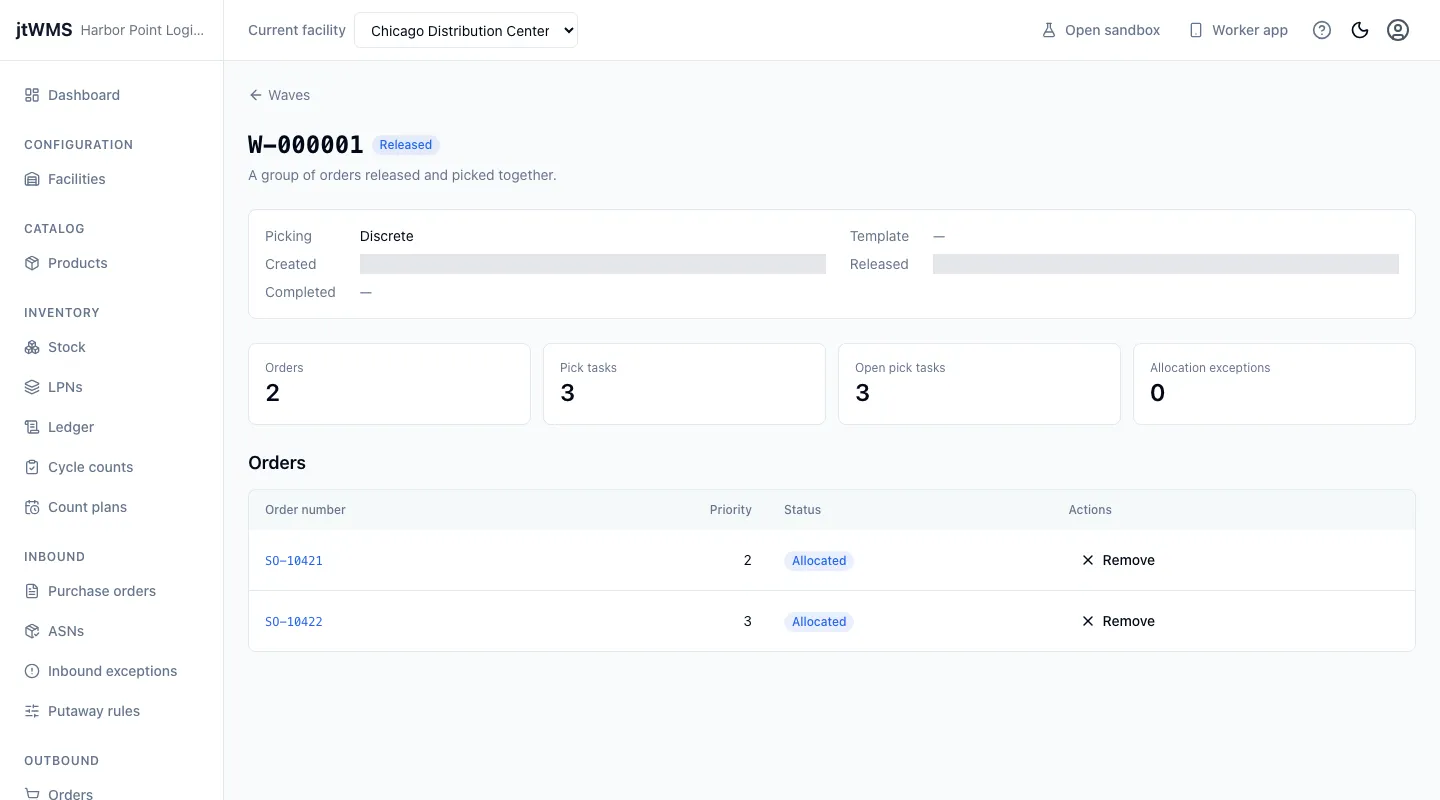
Section titled “Change and release a wave”A wave’s page shows how its orders are picked (for a batch, at which put wall, with a link to it), the template it was made from, when it was created, released and completed, its counts (orders, pick tasks, open pick tasks and allocation exceptions), and its Orders, most urgent first, each with its status.
While a wave is Planned, with outbound.waves.manage you can:
- Add orders: tick more new orders, then click Add orders.
- Remove an order: it goes back to New, ready for another wave.
- Release it, after you confirm. The wave is Releasing while stock is reserved for each line, and the page reads it again every few seconds until it is Released. Each order then shows Allocated, or Allocation exception when stock could not be reserved for a line.
- Cancel wave, after you confirm: its orders go back to New.
Lines that couldn’t get stock are listed on Allocation exceptions, where they can be retried. Once a wave is released it can’t be cancelled, but an order that is not yet being picked can still be removed from it. Its reserved stock is released, and it goes back to New.
Wave templates
Section titled “Wave templates”A wave template saves the criteria you wave by, so a wave can be made from them in one step. Click Wave templates in the sidebar to see the facility’s templates, by name.
- Click New template, or Edit on a template.
- Give it a Name, up to 100 characters, which no other template of the facility has, whatever its upper or lower case.
- Under Which orders, set any of these; one left empty takes any order:
- Least urgent priority: only orders of this priority or more urgent, from 1 to 9.
- Carrier and Service level: only orders asking for them, ignoring case.
- Ship within days: only orders requested to ship within this many days of the wave being made, from 0 to 365, and orders with no date.
- Under Picking, choose how its waves are picked: each order to go, or as a batch at a put wall you choose.
- Under How many, set Most orders (1 to 1,000; 50 when left empty) and Most order lines (no limit when left empty). A wave takes the matching orders most urgent first, then oldest, and stops before an order that would take it past either limit. A batch template also takes no more orders than its wall has free cubbies for.
- Click Create template (or Save changes). The list shows a batch template as Batch at its wall.
Delete removes a template after you confirm, and its name can be used again. Waves made from it are kept.
Batch waves
Section titled “Batch waves”A batch wave is picked in one trip, every order at once, and sorted at its put wall afterwards. Releasing one is refused when its wall is not active, or has fewer free enabled cubbies than the wave has orders, after the orders of the wall’s other batch waves still being sorted. Disable fewer cubbies, wait for orders to be packed, or make a smaller wave.
Once released, a batch wave’s page also shows:
- its Batch stops: each product to pick at each location for all of the batch’s orders, in the order the picker walks them, with how many orders it serves, how much is picked and how much is still open;
- its Totes: each tote the batch is picked into, with its state (Being picked, On its way to the wall, At the wall, or Emptied once everything in it is sorted), and how much was picked into it, has been put into the orders’ cubbies, and is still to put. A tote that was emptied and has since been taken by a later batch is listed by its code only.
A batch wave’s order stays Picking until it is sorted: it becomes Picked once everything picked for it is in its cubby at the wall.