Batch pick
In the worker app, Batch pick takes you through a batch of orders in one trip. A batch is a batch wave: its orders are picked together, a stop at a time. A stop is one product at one location, for every order of the batch that needs it. You pick into shared totes, then take them to the batch’s put wall, where each item is sorted into its order’s cubby.
Before you start
Section titled “Before you start”- Batch picking comes with the Outbound feature, on the Pro plan and above. Without it, the screen reads “Your plan doesn’t include Outbound”.
- You need
outbound.picking.manageandoutbound.orders.read(oroutbound.orders.manage), as for picking orders. The Operator, Warehouse Manager and Tenant Admin roles hold them. - Batches are ready once their batch wave is released and stock is reserved for its orders.
Open batch pick
Section titled “Open batch pick”Batch pick sits under Pick in the bottom navigation. Tap Pick, then Pick a batch instead under the tote field. Pick single orders instead takes you back.
Which batch you get
Section titled “Which batch you get”jtWMS hands out the batch released longest ago first. Once you have a batch it’s yours until it’s picked: scanning a tote again, even after leaving the screen or signing out, brings you back to it.
Pick a batch
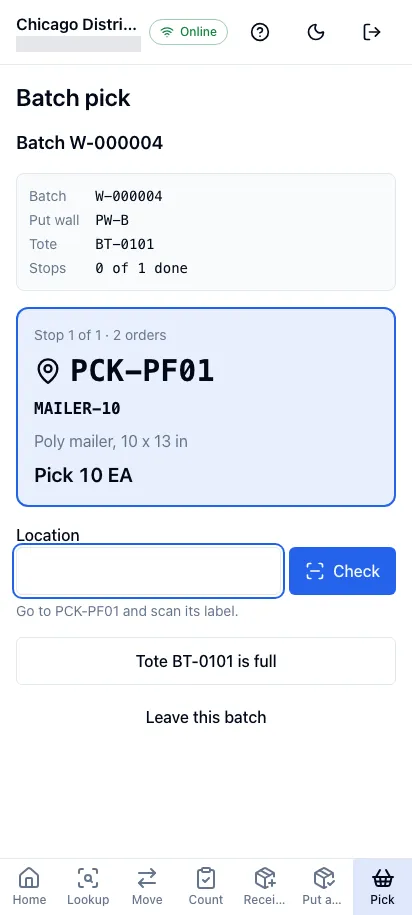
Section titled “Pick a batch”- Scan a tote: scan the label of an empty tote in Tote. The screen shows the batch, its put wall, the tote and how many stops are done, and the first stop: the location in large type, the product, how many orders it serves and how many to pick in all. If no batch is ready, the screen says so: scan the tote again later.
- Location: go to the location and scan its label. A different location is refused, so you can’t pick from the wrong place.
- Product: scan the product’s barcode, or its SKU. A different product is refused, naming the one to pick.
- Quantity picked: enter how many you put in the tote, then tap Confirm into followed by the tote’s code. You can’t confirm more than the stop asks for. If you confirm fewer, the rest of the stop stays on screen to pick from the same place. jtWMS shares what you pick out over the stop’s orders, the most urgent first.
- The next stop follows straight away. When every stop is done the screen reads, for example, “Batch W-000012 is picked. Take totes BT-1 and BT-2 to put wall PW-A.”, with what each stop came to, and Next tote is ready for the next batch.
Back returns to the step before, keeping what you’ve scanned. A wrong location or product scan is checked on the phone, before anything is sent.
Report a short
Section titled “Report a short”When there isn’t enough at the location:
- Some found: enter how many you found in Quantity picked, tap Report a short, then tap again to confirm. What you found goes into the tote.
- None found: at the product step, tap None here: report a short, then tap again to confirm.
The orders the stop was short for ship without what was missing.
A batch can fill several totes. When the tote you’re picking into is full, tap Tote … is full and scan an empty one in New tote: the full tote is completed, so it can go to the put wall, and picking carries on in the new one. What you’d scanned for the stop is kept.
A tote holds one batch until it’s emptied at the put wall. If the tote you scanned holds another batch, confirming a pick says so and asks for another tote: scan an empty one and confirm again.
When the last stop is done, the batch’s open totes are completed for you. Take every tote the screen names to the put wall.
Leave a batch
Section titled “Leave a batch”Leave this batch returns to the tote scan. The batch stays yours: scanning a tote brings you back to it.
Working offline
Section titled “Working offline”While you’re offline, the tote scan, the confirm and short buttons, and completing a full tote are disabled, with a message saying why. What you’ve scanned and typed is kept, so when the connection returns you tap the button again. Nothing is saved to send later.
Related
Section titled “Related”- Sort at a put wall: sort the batch’s totes into cubbies
- Put walls: where the batch’s totes are sorted
- Waves: release batch waves
- Pick orders: pick one order at a time