Sortation plan
The sortation plan decides which ship sort lane each shipping carton goes to. It reads the carton’s purchased label: its carrier, its service and the ship-to postal code. Then it picks one of the facility’s ship sort lanes, the destinations you bound in the routing topology.
Before you start
Section titled “Before you start”- Routing needs a plan that includes Routing & Sortation (the Enterprise plan).
- Viewing the plan needs
routing.config.read. Changing it needsrouting.config.manage. Tenant Admin and Warehouse Manager hold both. Operator can view only. - The facility needs at least one Ship sort lane destination in its routing topology.
Open the sortation plan
Section titled “Open the sortation plan”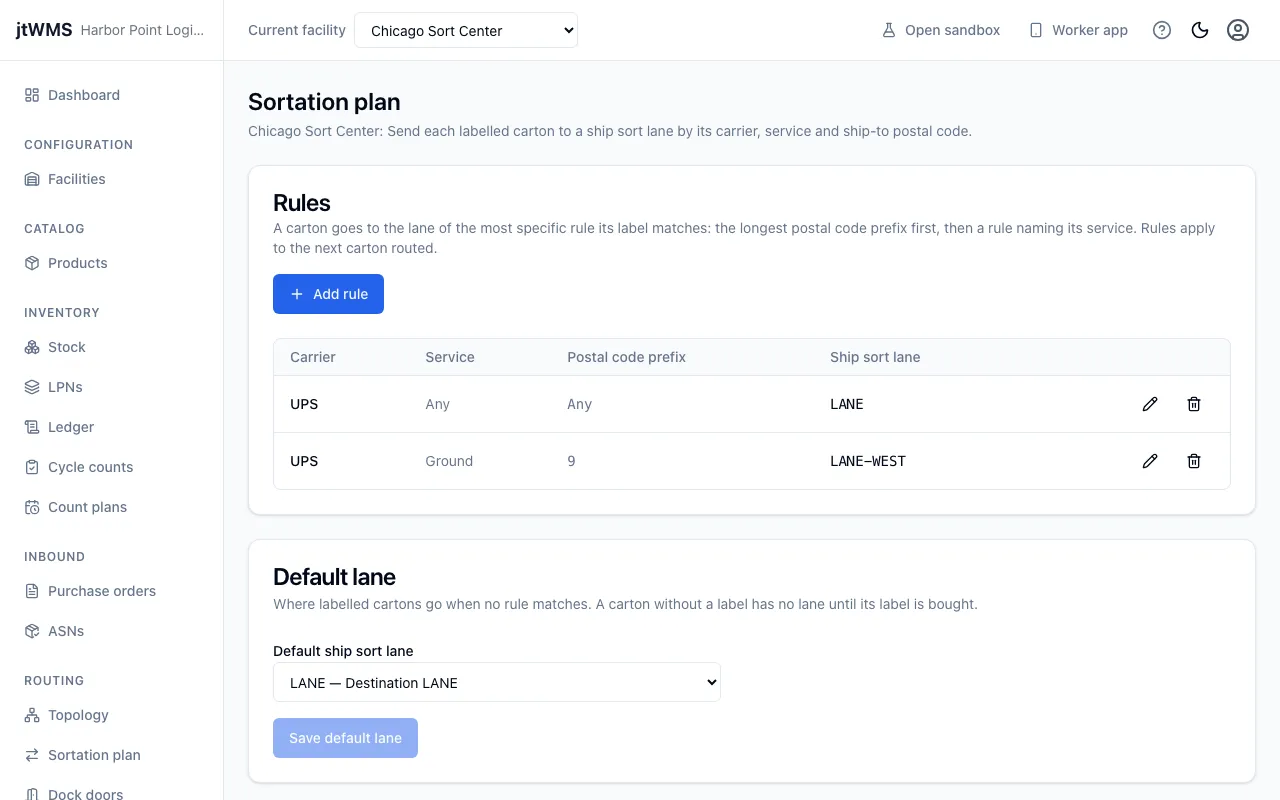
- Choose the facility with Current facility at the top of the page.
- In the sidebar, under Routing, click Sortation plan.
How a carton’s lane is chosen
Section titled “How a carton’s lane is chosen”Each rule names a carrier, and optionally a service and a postal code prefix. Among the rules for the label’s carrier whose service and prefix match the carton, the most specific wins:
- the rule with the longest matching postal code prefix;
- then a rule that names the service, over one that leaves it empty.
When no rule matches, the carton goes to the default lane. Carriers and services are compared ignoring case, and postal codes ignoring case and spaces.
A carton with no label yet can’t be sorted. It goes around the loop once, then to the exception destination. A rule pointing to a lane added since the last publish also sends its cartons to the exception destination, rather than to the default lane: publish the topology to fix it.
Rules and the default lane apply to the next carton sorted. They don’t need a publish.
Add a rule
Section titled “Add a rule”- In Rules, click Add rule.
- Fill in:
- Carrier: the carrier on the label, such as
UPS. Up to 50 characters. - Service: the label’s service, such as
Ground, or empty for any. Up to 50 characters. - Postal code prefix: the start of the ship-to postal code, such as
902, or empty for any. Up to 10 characters. - Ship sort lane: where the cartons go.
- Carrier: the carrier on the label, such as
- Click Add rule.
Two rules can’t have the same carrier, service and prefix: the form says so on Carrier.
To change a rule, click its pencil icon. To delete one, click its bin icon.
Choose the default lane
Section titled “Choose the default lane”In Default lane, choose the Default ship sort lane and click Save default lane. It’s the same setting as Default ship sort lane on the routing topology page.
While the page is refreshing its data, or after a refresh failed, its changes wait until the data loads again.