API keys
API keys let other systems, such as an ERP, a shop or a script, call the jtWMS API on your
organisation’s behalf. The system sends the key in the X-Api-Key header with each request. A key
holds only the permissions you give it when you create it. Open the page from API keys under
Settings in the sidebar.
Before you start
Section titled “Before you start”- You need
identity.api_keys.manage, which of the standard roles only Tenant Admin holds. Without it, the API keys entry is hidden from the sidebar, and the page reads “You don’t have access to API keys”. - You can only give a key permissions you hold yourself (see What a key can hold, below).
See your keys and your plan’s limit
Section titled “See your keys and your plan’s limit”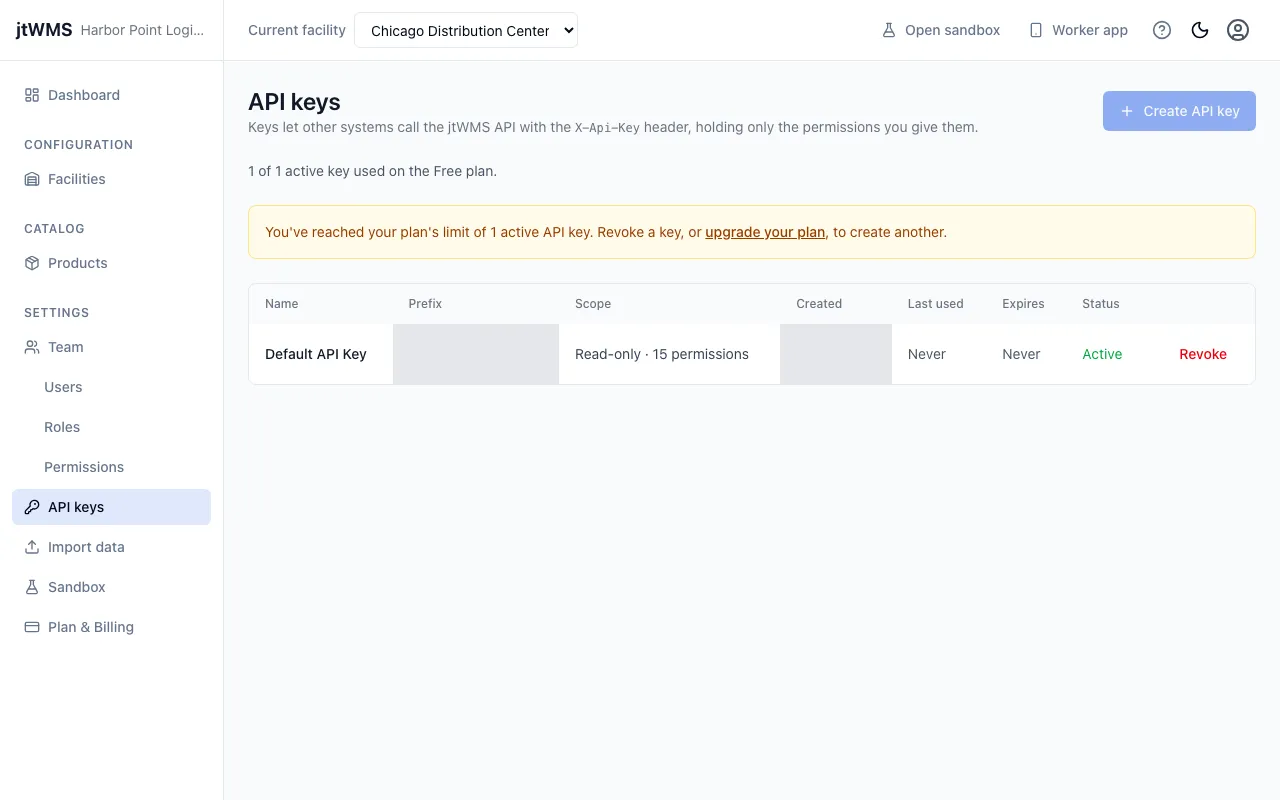
The page lists every key with its Name, Prefix (the key’s first 16 characters, so you can tell keys apart), Scope (such as “Read-only · 7 permissions”; hover over it to see the permissions), Created, Last used, Expires and Status. The status is Active or Expired. A revoked key is removed from the list.
When your organisation signs up, jtWMS creates a first key, Default API Key, with read-only permissions. Its full key is shown once, on the page you see after signing up.
Above the list, a line shows how many active keys you have and how many your plan allows, such as “1 of 3 active keys used on the Starter plan.” Expired keys don’t count. When you reach the limit, Create API key is disabled, and the page says so (for a limit of 3: “You’ve reached your plan’s limit of 3 active API keys. Revoke a key, or upgrade your plan, to create another.”). Revoke a key or change your plan to create another.
What a key can hold
Section titled “What a key can hold”A key’s permissions, its scope, follow the same rule as handing out roles: you can only give a
key permissions you hold yourself. Holding a .manage permission also lets you give its .read
permission. The form offers only the permissions you can give, and jtWMS checks again when it
creates the key. If your permissions changed in the meantime, the drawer refuses the key under
Permissions with “An API key can only have permissions you hold. You do not hold:” followed by
the permissions you no longer hold.
Create an API key
Section titled “Create an API key”-
Click Create API key. The New API key drawer opens.
-
Enter a Name that says what uses the key, such as an integration’s name. Required, up to 100 characters.
-
Optionally pick an Expires on date, today or later. The key stops working at the end of that day. Leave it empty for a key that never expires.
-
Under Permissions, tick the permissions the key needs. They are grouped by service.
- Click Read-only to replace your selection with every
.readpermission you can give. - Click Clear to start again.
Choose at least one permission. If the drawer reads “You hold no permissions that can be granted to a key”, you can’t create a key until you have some.
- Click Read-only to replace your selection with every
-
Click Create key.
If another key was created and your plan’s limit was reached while the drawer was open, the drawer closes and the app shows “This tenant already has 3 API key(s), the most its plan allows. Revoke a key or upgrade the plan.” (with your plan’s limit in place of 3).
Copy the key
Section titled “Copy the key”Once the key is created, the drawer shows API key created with the full key.
- Click Copy, and store the key somewhere safe, such as a password manager or your system’s secret store. If the app reads “Couldn’t copy automatically. Select the key above and copy it yourself.”, copy the key from the box by hand.
- Check the summary of Name, Prefix, Scope and Expires.
- Click Done.
Revoke a key
Section titled “Revoke a key”Revoke a key when the system that uses it no longer needs access, or if the key may have been exposed.
- Click Revoke on the key’s row.
- The dialog Revoke “name”? says anything using the key stops being able to call the API within about a minute, and that this cannot be undone. Click Revoke key, or Cancel to keep the key. The app confirms with “API key “name” revoked.”
The key is removed from the list, and no longer counts towards your plan’s limit.
Related
Section titled “Related”- Authentication: how to send requests with an API key
- Permissions and scopes: what a key’s scope allows
- Team: the permissions you hold, and the standard roles
- Plan & Billing: your plan’s API key limit