Pack and ship orders
In the worker app, Pack takes a picked order from the tote to the truck. At the pack station you find the order, choose a carton, scan each product into it, weigh and close the carton, and open another for whatever doesn’t fit. Once everything picked is packed, you buy the shipping labels, print them and the packing slip, and ship the order, which takes its stock out of your inventory.
Before you start
Section titled “Before you start”- Packing comes with the Outbound feature, on the Pro plan and above. Without it, the screen reads “Your plan doesn’t include Outbound”.
- Pack appears in the bottom navigation for people who hold
outbound.packing.manageandoutbound.orders.read(oroutbound.orders.manage). Buying labels and shipping also needoutbound.shipping.manage. The Operator, Warehouse Manager and Tenant Admin roles hold all of them. - An order is ready to pack once it’s picked: its status is Picked.
- The facility needs at least one carton type, the boxes you pack into, with their inside sizes and empty weight. An administrator sets them up.
- Labels are bought through your organisation’s default carrier account. Until one is set up, jtWMS uses a built-in simulated carrier, which prints sample labels marked as not valid for shipping, so you can try the whole flow.
Find the order
Section titled “Find the order”Tap Pack in the bottom navigation, then scan or type the order number in Order and tap Find. The order number is on the order in the admin app’s Orders page, and on the pick screen when the order was picked. jtWMS looks the number up ignoring case. An order sorted at a put wall opens straight from the wall’s ready-for-pack list (see Sort at a put wall): pack it from its cubby.
The order opens with each line’s product and how many of it are packed out of how many were picked, for example “0 of 3 packed”. A line picked short also says how many are short: the order ships without them.
An order that isn’t picked yet, is still being picked, was cancelled or has already shipped is refused with the reason, and the number stays in the field.
Pack a carton
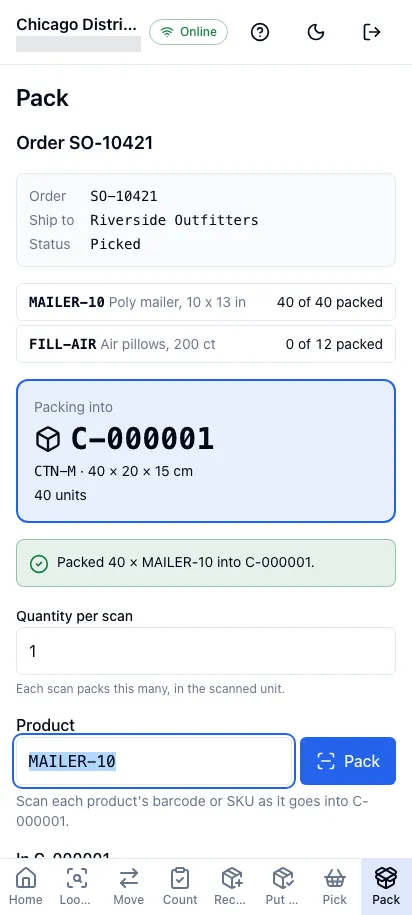
Section titled “Pack a carton”- Choose a carton: tap the carton type you’re packing into. jtWMS opens a container for the order and gives it a code, such as C-000001, shown in large type.
- Scan the products: scan each product’s barcode or SKU in Product as it goes into the carton. Each scan packs one, in the unit the barcode is for: scanning a case’s barcode packs a case. To pack several at once, enter the number in Quantity per scan first; it goes back to 1 after the scan. The screen confirms each scan (“Packed 1 × 0004445556667 into C-000001.”) and the line’s count goes up.
- A product that isn’t on the order is refused (“…isn’t on order SO-10421. Set it aside and scan the order’s products.”), and so is a scan of more than was picked. Nothing is packed either way.
- If the product was picked in more than one lot, jtWMS asks which lot is in your hand: tap it.
Take out next to an item in the carton removes it, and its quantity is back to pack.
Weigh and close
Section titled “Weigh and close”When the carton is full, or everything is packed (“Everything picked is packed. Weigh and close C-000001.”), tap Weigh and close:
- Put the carton on the scale and enter its Weight, choosing the Unit your scale shows (kg, g, lb or oz).
- The Expected weight is shown beside it: the products’ weights plus the empty carton’s, in the unit you chose. Use it as a check; a different weight isn’t refused. When a product has no weight in the catalog, the expected weight reads “Not known”.
- Tap Close followed by the carton’s code. A closed carton doesn’t change any more.
Back returns to scanning, keeping the weight you typed.
More than one carton
Section titled “More than one carton”If not everything fits, close the carton and choose another carton type for the rest. You can also tap Open another container while a carton is open, and go back to the first with Pack into followed by its code. Closed cartons are listed with their weights.
The order is Packed once everything picked is in closed cartons.
Buy and print the labels
Section titled “Buy and print the labels”Once the order is packed, tap Buy label. jtWMS rates the order with your carrier account and buys one label per carton, at the cheapest rate for the carrier and service the order asks for (or the cheapest of all, when it asks for none). Each carton is then listed with its tracking number.
If the carrier account doesn’t offer the carrier or service the order asks for, jtWMS says so and lists the rates it has: tap one to buy it, or ask a supervisor.
- Print label followed by a carton’s code downloads that carton’s label as a PDF, to print on your label printer.
- Print packing slip opens the packing slip in a new tab: the order number, the ship-to address, each line’s ordered, packed and short quantities, and what each carton holds. Tap Print on it to print it, without the app’s header and navigation.
If you don’t hold outbound.shipping.manage, the screen says so instead of offering Buy label:
hand the packed order to someone who ships. You can still print the packing slip.
When the cartons leave, tap Ship order followed by the order number. The order becomes Shipped, and jtWMS takes the shipped stock out of your inventory: the stock ledger shows it as an Issue. The screen reads, for example, “Order SO-10421 has shipped.”, and Next order is ready for the next one. The labels and packing slip can still be printed.
Leave an order
Section titled “Leave an order”Leave this order returns to the order scan. What you packed is kept: scanning the order again brings you back to it, with any open carton still open.
Working offline
Section titled “Working offline”While you’re offline, finding an order, choosing a carton, packing, closing, buying labels and shipping are disabled, with a message saying why (“You’re offline. Packing needs a connection.”). What you’ve typed is kept, so when the connection returns you scan or tap again. Nothing is saved to send later.
Related
Section titled “Related”- Pick orders: pick the orders packed here
- Orders: follow an order’s containers and shipment in the admin app
- Stock ledger: see the stock each shipment issued
- Worker app: open the app and choose your facility