Dock doors and loads
Sorted cartons leave the conveyor on ship sort lanes, and each lane feeds a dock door. A load is one trailer’s visit to a door. Open it when the trailer arrives, scan each carton as it goes on, and close the load when the trailer leaves. Closing a load ships the shipments on it.
Before you start
Section titled “Before you start”- Routing needs a plan that includes Routing & Sortation (the Enterprise plan).
- Dock doors need
routing.config.readto view androuting.config.manageto change. Tenant Admin and Warehouse Manager hold both. - Loads need
routing.operations.readto view androuting.operations.manageto open, load and close. Opening a load also needsrouting.config.read, to choose its dock door. Tenant Admin, Warehouse Manager and Operator hold all three. - The facility needs Ship sort lane destinations in its routing topology.
Add a dock door
Section titled “Add a dock door”- Choose the facility with Current facility at the top of the page.
- In the sidebar, under Routing, click Dock doors.
- Click Add dock door and fill in:
- Code: letters, digits,
-and_, up to 32 characters, unique in the facility, ignoring case. - Name: up to 100 characters.
- Ship sort lanes: the lanes that feed the door. Choose at least one. A lane feeds one door at most, so a lane already feeding another door is marked (on another door).
- Code: letters, digits,
- Click Add dock door.
The Open load column links to the door’s open load, if it has one.
To change a door, click its pencil icon. To delete one, click its bin icon: its lanes are then free for another door. A door with an open load can’t be deleted, so close the load first.
Open a load
Section titled “Open a load”- In the sidebar, under Routing, click Loads.
- Click Open load and fill in:
- Dock door: where the trailer is. A door takes one open load at a time.
- Trailer number: up to 32 characters.
- Carrier: the carrier collecting the trailer, if known.
- Click Open load. The load’s page opens.
The Loads list shows every load, newest first. Filter it by Status to see only open or closed loads.
Load cartons
Section titled “Load cartons”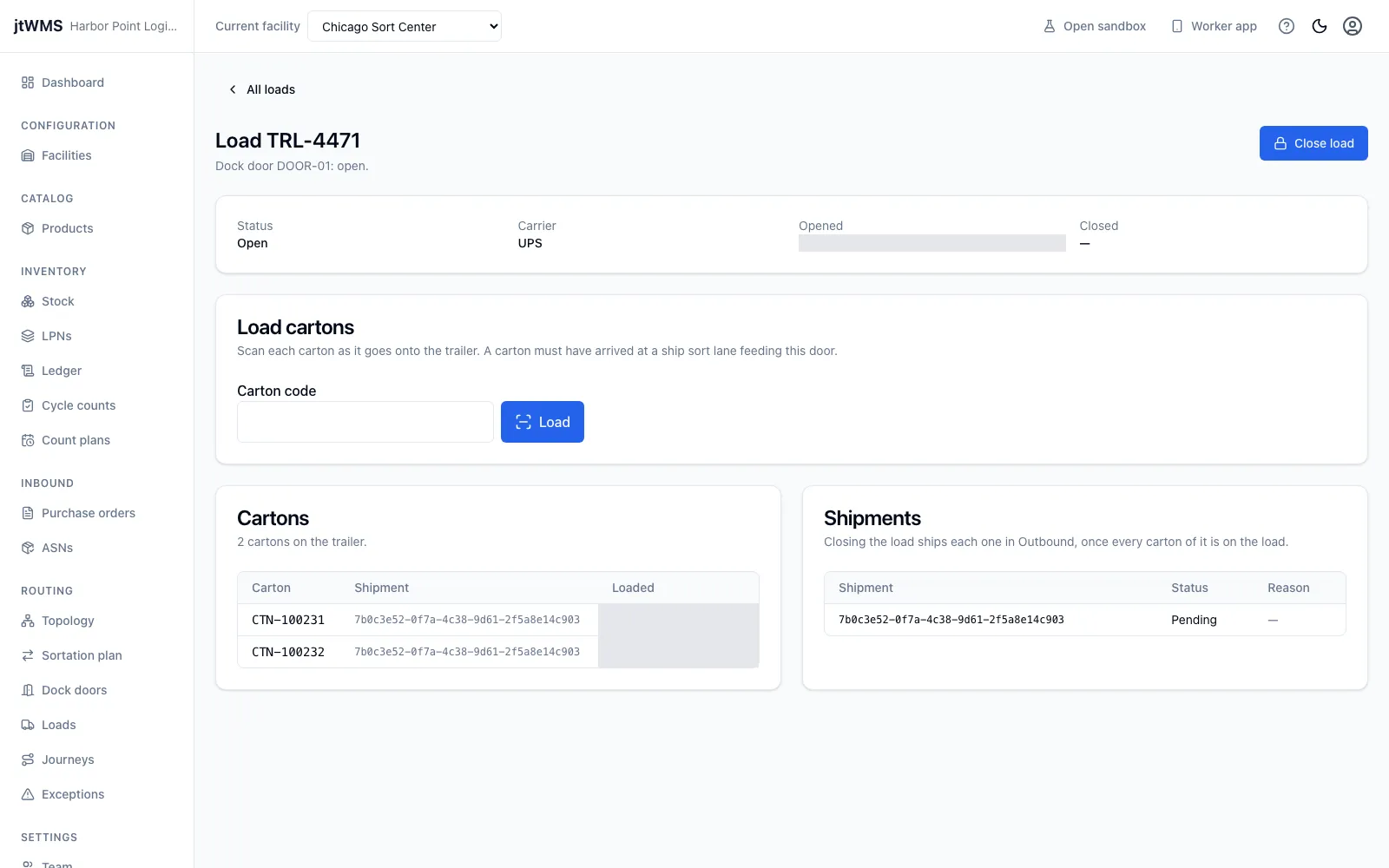
On an open load’s page, scan each carton into Carton code as it goes onto the trailer, or type its code and click Load. The carton must have arrived at a ship sort lane that feeds this door. If it hasn’t, or it’s on another load, the field says why.
Cartons lists the cartons on the trailer. Shipments lists the shipments they make up, each with its status:
- Pending: on the load, waiting for the close.
- Sent to ship: the load is closed and the shipment is being shipped.
- Shipped: the shipment is shipped.
- Ship failed: it couldn’t be shipped, and Reason says why. Routing raises an exception for it.
Workers in the worker app reach the loads from Dock loading on its home screen.
Close a load
Section titled “Close a load”When the trailer leaves, click Close load, then Close load again to confirm. Each shipment on the load is shipped, and the load takes no more cartons.
A load can’t close while a shipment on it has cartons that aren’t on it. The dialog names the missing cartons: load them, then close again.