Receive deliveries
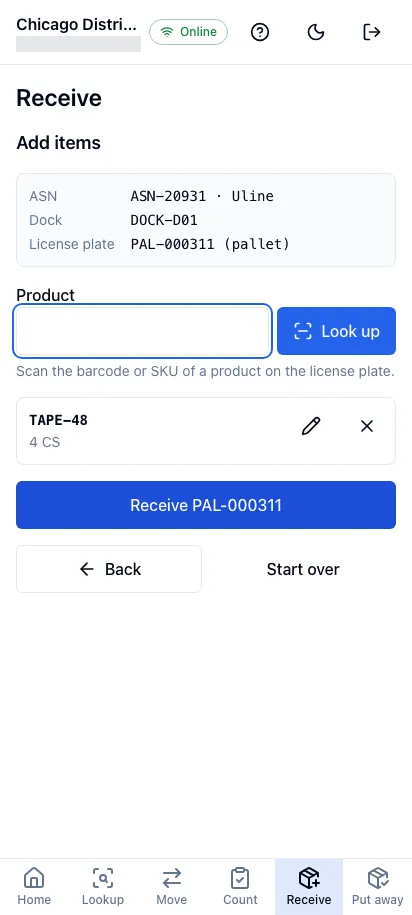
In the worker app, Receive takes a delivery in at the dock, one license plate at a time. You scan the delivery’s ASN, the dock you’re at and the label on the pallet, case or tote, then each product on it. jtWMS then posts the license plate to stock, where it waits to be put away.
Before you start
Section titled “Before you start”- Receiving comes with the Inbound feature, on the Pro plan and above. Without it, the screen reads “Your plan doesn’t include Inbound”.
- Receive appears in the bottom navigation for people who hold
inbound.receiving.manage. The screen also needsinbound.orders.read(orinbound.orders.manage), to find the ASN. The Operator, Warehouse Manager and Tenant Admin roles hold both. - The delivery needs an Open or Receiving ASN, and the facility needs a location whose purpose is Dock or Staging to receive at (see Storage topology).
- Choose the facility you’re working in on the worker app’s Home first.
Receive a license plate
Section titled “Receive a license plate”Tap Receive in the bottom navigation, then:
-
Scan the ASN: scan or type the ASN’s number in ASN number (capitals don’t matter). A Closed or Cancelled ASN can’t be received against.
-
Scan the dock: scan the dock or staging location you’re receiving at. The hint names the dock the ASN plans, if it has one. A storage location isn’t accepted here.
-
Scan the license plate: scan the label on the pallet, case or tote. A label’s code has only letters, digits,
.,_and-, up to 64 characters. Choose its License plate type (Pallet unless you pick Case or Tote); it is used when the license plate is new. -
Add items: scan the barcode or SKU of each product on the license plate in Product. For each one:
- The screen says whether the product is on the ASN and how much of it the ASN still expects, in the product’s base unit, or “Not on this ASN”.
- Enter the Quantity and its Unit of measure (the scanned barcode’s unit, else the base unit).
- For a product tracked by lot, enter the Lot; for one that tracks expiry, the Expiry date. Only the fields the product tracks are shown, and they are required.
- For a product tracked by serial number, scan each unit’s serial in Serial instead of a quantity: one serial is one base unit, and the screen counts them as you scan. Remove one with its remove button. A serial can be on the license plate only once.
- Choose the Condition: Good, or Damaged for goods that arrived damaged.
- Confirm a reason when the ASN calls for one (see below), then tap Add to license plate.
The items are listed under the field. Change one with its edit button, or remove it with its remove button. Scan the next product to add more.
-
Tap Receive followed by the license plate’s code, for example Receive PAL-000311.
Reasons
Section titled “Reasons”jtWMS asks for a reason when what you receive departs from the ASN, before the receipt is sent:
| When | Reason | What you do |
|---|---|---|
| More than the ASN still expects of the product | Overage | Tick Receive it as an overage |
| A product the ASN doesn’t list | Unexpected product | Tick Receive it anyway |
| Condition is Damaged | Damaged | Nothing more: the reason follows the condition |
Damaged goods are received as damaged stock, held apart from available stock. Each overage, unexpected product and damaged line is listed for a supervisor in the inbound exceptions.
What the ASN still expects counts what was received before, what other license plates still posting hold, and the items before this one on the same license plate. If you change or remove an item, an item after it can need a different reason: the list then says which one needs a look, and the license plate can’t be received until you change it.
Posting to stock
Section titled “Posting to stock”After you tap Receive, the screen shows the receipt as it posts to stock, which normally takes a moment:
- Posting: jtWMS is adding the license plate to stock.
- Received: for example “Received PAL-000311 at DOCK-D01 against ASN-20931: 1 line posted to stock.” The license plate is ready to put away.
- Posting failed: the reason shows, for example a license plate code already standing at another location. Tap Retry to send it again once the cause is fixed. The failure is also listed in the inbound exceptions.
Then tap Next license plate to receive another one against the same ASN at the same dock, or Done with this ASN to scan another ASN.
Going back and starting over
Section titled “Going back and starting over”Every step has Back, which keeps what you’ve scanned: going back from the items to the license plate keeps the items, and Continue with the earlier scan returns to them. Start over drops everything; with items on the license plate it takes a second tap.
If jtWMS refuses the receipt, its reason shows above the button, the item it is about says why, and everything you scanned is kept: change what it names and tap Try again. The ASN is read again first, so what it still expects is up to date. A receipt is refused when, for example:
- someone received against the same ASN at the same moment (try again);
- the ASN was closed or cancelled meanwhile;
- a line needs a reason, or has one it doesn’t need.
Working offline
Section titled “Working offline”While you’re offline, the scan fields and Receive are disabled, with “You’re offline. Receiving needs a connection.” under the button. What you’ve scanned is kept, so when the connection returns you carry on where you were. Nothing is saved to send later.
Related
Section titled “Related”- Put stock away: take received license plates to storage
- ASNs: the deliveries you receive against, and their receipts
- Worker app: open the app and choose your facility