Cycle counts
A cycle count checks one storage location. A counter records everything they find there, and jtWMS compares it with the stock it holds for that location. Counts are blind: the counter never sees what is expected, so what they record is what is really there. The cycle counts page lists a facility’s counts, and each count’s page shows what it found and lets you resolve it. Open it from Cycle counts under Inventory in the sidebar.
Before you start
Section titled “Before you start”- Cycle counts come with the Inventory feature, like Stock: on a plan without it the page reads “Your plan doesn’t include Inventory”.
- To see counts you need
inventory.counts.readorinventory.counts.manage. Every standard role holds the first; without either, Cycle counts is hidden from the sidebar and the page says you don’t have access. - To open, approve, recount and cancel counts you need
inventory.counts.manage, held by Tenant Admin and Warehouse Manager. Without it the page’s buttons are hidden. Finding a location by its code also needswarehouseconfig.topology.read, which those roles hold. - Counters submit what they find with
inventory.count_tasks.manage, which Operator holds. - Counts are kept per facility: the page shows the facility chosen in Current facility at the top of the page.
Where counts come from
Section titled “Where counts come from”The Origin column says what opened each count:
| Origin | Opened by |
|---|---|
| Manual | Someone with Count a location, or through the API |
| Planned | A count plan’s schedule |
| Anomaly | An adjustment saying the record was wrong at the location: Shrinkage, Found, Discovered or Correction (not Damage); or a picker finding less at the location than the pick asked for (a short pick) |
A location has at most one count open or waiting for review at a time. Anything that would open another one gets the count already there instead.
Find counts
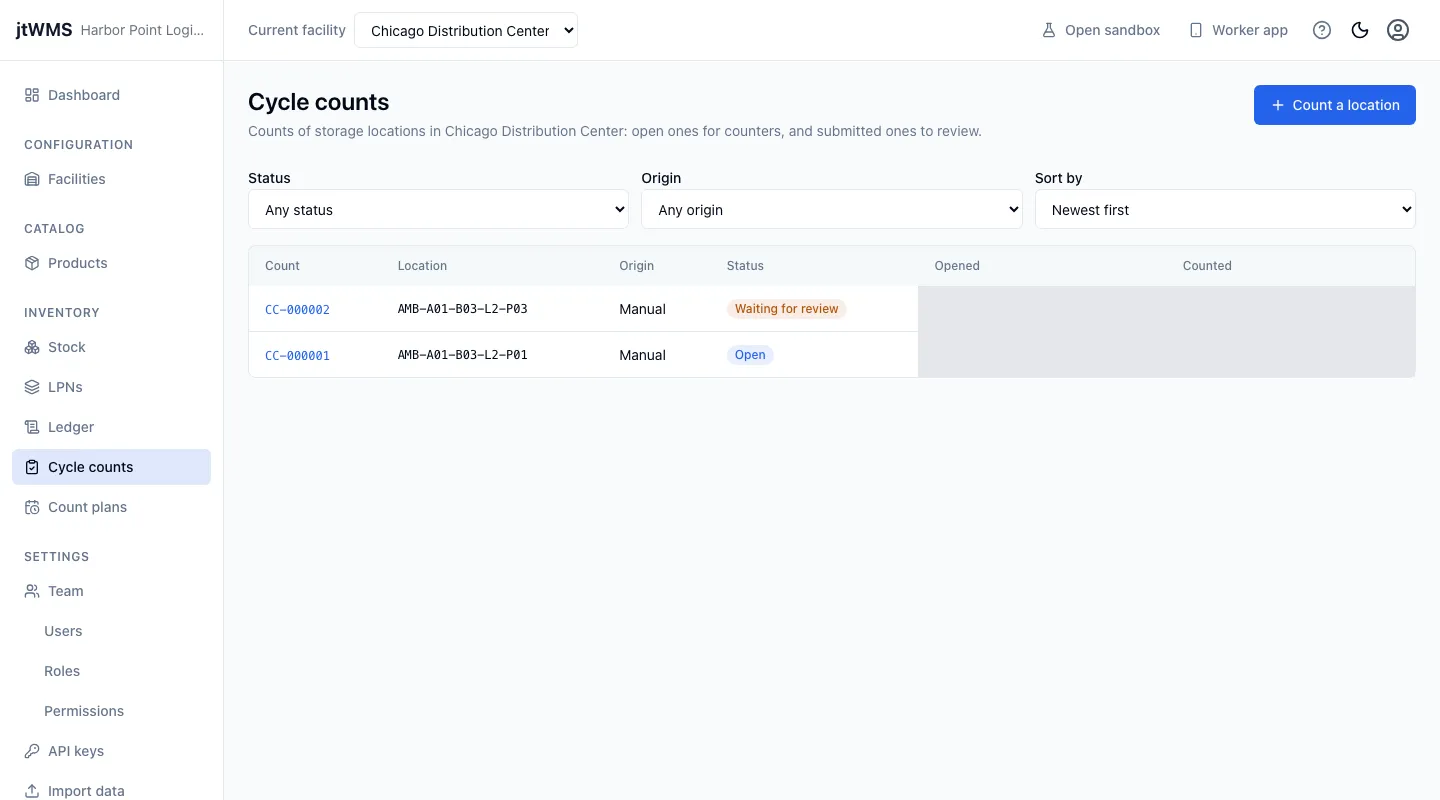
Section titled “Find counts”- Click Cycle counts in the sidebar. The list shows each count’s number (such as
CC-000001), its Location, Origin and Status, and when it was Opened and Counted. - Narrow it with Status (Open, Waiting for review, Closed, Cancelled) and Origin, and choose how it is sorted with Sort by. Newest first is the default.
- Click a count’s number to open its page.
Count a location
Section titled “Count a location”- Click Count a location.
- Type part of the location’s code in Find location, then choose it in Location. Only storage locations are counted, never equipment, and a location that is inactive can’t be.
- Optionally add a Note, up to 500 characters: why it is counted, or what to look for.
- Click Open count. The app confirms with “CC-000001 is open at location.” If the location already had a count open, you get that one, and no second count is opened.
Review a submitted count
Section titled “Review a submitted count”Once a counter has submitted, the count’s status is Waiting for review if what they found differs from what jtWMS held, and its page shows What was found: a line for each product, license plate, lot, serial and expiry found or held at the location, with what was Expected, what was Counted and the Variance between them. A count that matched closes by itself as Closed: Matched, and nothing is posted.
Expected is what jtWMS held when the count was submitted, not when it was opened, so stock moved in the meantime doesn’t show up as a variance. The count’s page also shows its origin (for an anomaly, a link to the adjustment that opened it, or the short pick: how much of which product was short, for which order), when it was opened, counted and reviewed, and its note.
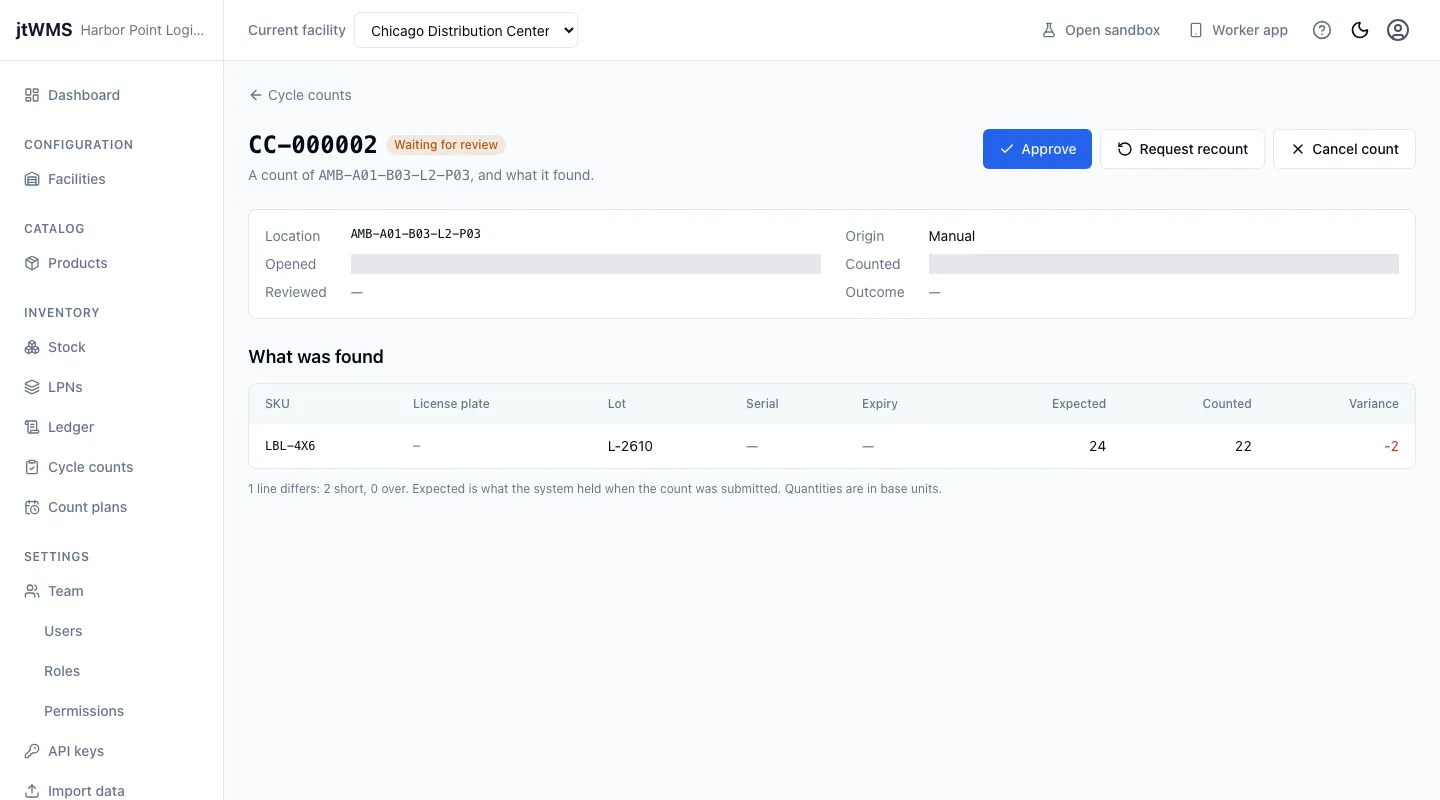
A count waiting for review is resolved in one of three ways:
- Approve posts the variance to the stock ledger as one adjustment with the reason CycleCount and the count’s number as its reference, and closes the count as Closed: Adjusted. Shortages come from stock that isn’t allocated, available stock first; extra stock found goes in as received today. Optionally add a note to the approval.
- Request recount closes the count as Closed: Recounted, posts nothing, and opens a new blind count of the location. Its page links back to the earlier count.
- Cancel count ends it without changing any stock. An open count can be cancelled too.
When the stock changed since the count
Section titled “When the stock changed since the count”If the quantities at the location changed after the count was submitted (stock received, moved in or out, or adjusted there), its variance no longer says how far the record is off. Approving it is then refused: the page explains why and offers Request recount, so the location is counted again from scratch. Holding or releasing stock doesn’t count as a change: it changes only the stock’s status, and a count adds up every status.
The buttons are unavailable while the count, or what it found, is being read, and when that read failed. Read it again first.
Count plans
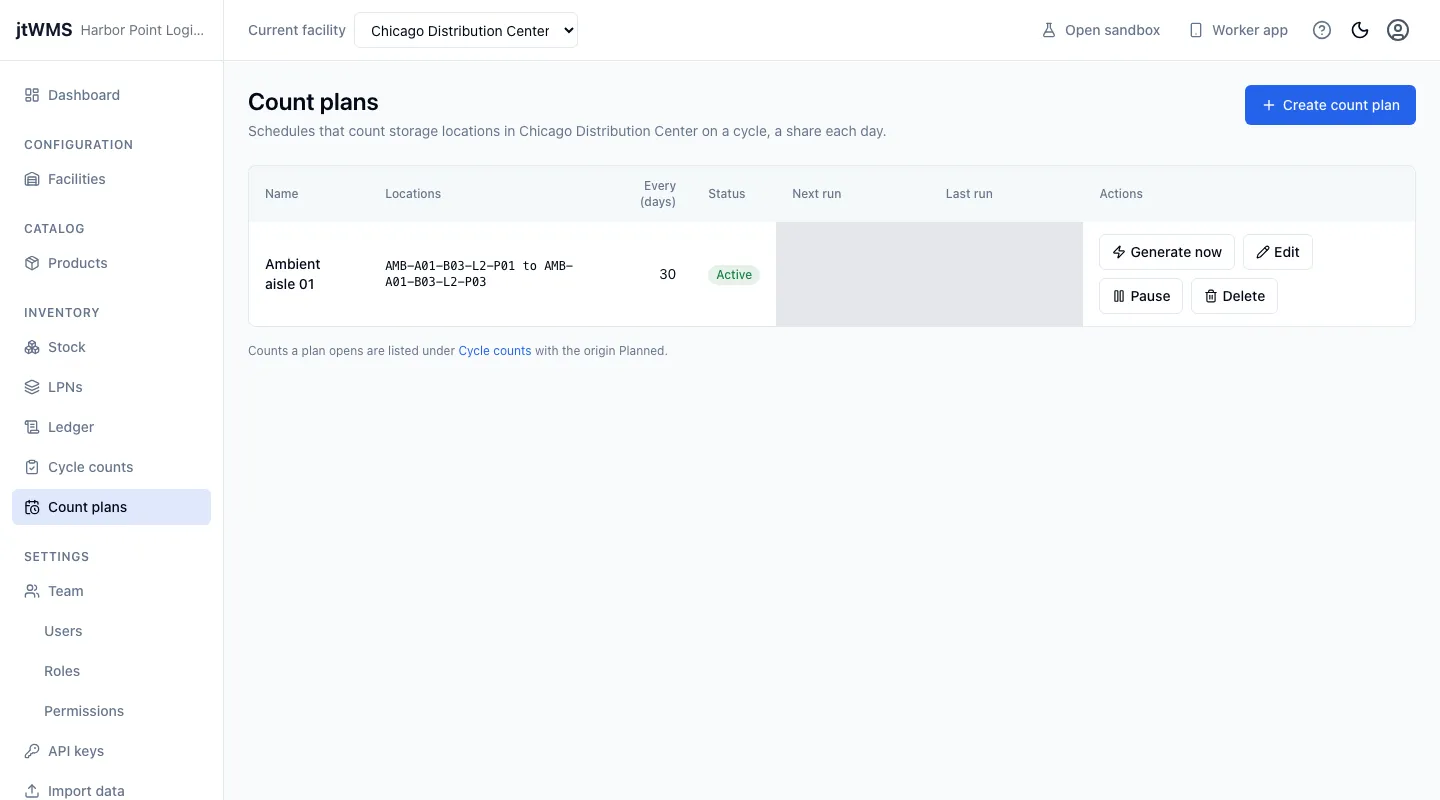
Section titled “Count plans”A count plan counts a range of storage locations on a cycle: each location once every so many
days, a share of them each day so the work stays level. Open the plans from Count plans under
Inventory in the sidebar. Seeing them needs the same permission as counts, and changing them
needs inventory.counts.manage.
Create a plan
Section titled “Create a plan”- Click Create count plan.
- Give it a Name, up to 100 characters. No other plan of the facility can have the same name, whatever its upper or lower case.
- Optionally give the First location code and Last location code of its range. The range
includes both, and codes compare ignoring case, so
a01toA99coversA05-B02. Leave both empty to cover every storage location of the facility; give only one to leave the range open at the other end. - Choose how often each location is counted in Count every (days), from 1 to 365.
- Click Create plan. The app confirms with how many locations the plan covers and how many are due now.
A new plan runs at once and then every day at the same time. Each run opens Planned counts for the locations due: those with no count open or waiting for review, and not counted within the plan’s days. Locations never counted come first, then those counted longest ago. A run opens at most the plan’s locations divided by its days (rounded up), so a 30-day plan over 300 locations opens 10 a day. A location is counted once a count of it closes as Matched or Adjusted; a cancelled or recounted count doesn’t count.
Manage plans
Section titled “Manage plans”Each plan’s row shows its range, its days, whether it is Active or Paused, and when it runs
next and ran last. With inventory.counts.manage you can:
- Generate now: run an active plan straight away, for the counts due now. The app says how many it opened. The plan’s next run stays as it was.
- Edit: change the name, the range or the days. The drawer shows how many locations the plan covers and how many are due now. The schedule stays as it was.
- Pause: stop the plan opening counts, after you confirm. Activate starts it again, with a run at once.
- Delete: remove the plan, after you confirm. Its name can be used again.
Pausing or deleting a plan leaves the counts it opened as they are.
Through the API
Section titled “Through the API”Counters submit what they found through the API.