Worker app
The worker app is a phone-sized app for people on the warehouse floor. It has large buttons, a header that shows the facility you’re working in and whether you’re online, and a navigation bar along the bottom. When your role has more tasks than fit across a narrow phone, swipe the navigation bar sideways to reach the rest. You can install it on a phone’s home screen.
In the worker app you choose the facility you’re working in, look up what a scanned code is and what it holds, move stock and license plates by scanning them, count locations, receive deliveries and put them away (see Receive deliveries and Put stock away), pick orders, one at a time or in batches (see Pick orders and Batch pick), sort batches at a put wall (see Sort at a put wall), and pack and ship them (see Pack and ship orders).
Before you start
Section titled “Before you start”- Anyone signed in can open the worker app.
- To choose a facility you need
warehouseconfig.facilities.readorwarehouseconfig.facilities.manage. Every standard role holds one of them. Without either, the home screen reads “No facility access: Your role doesn’t include facilities. Ask an administrator for access.” - Lookup and Move need a plan that includes Inventory (Starter and above), and they appear
in the bottom navigation only for people who can use them: Lookup needs
inventory.stock.read(orinventory.stock.manage), and Move needsinventory.movements.manageas well. The Operator role holds both. Without Inventory in the plan, their screens read “Your plan doesn’t include Inventory”. - Count also needs a plan with Inventory, and appears for people who hold
inventory.count_tasks.manage. Its screen also needsinventory.counts.readandinventory.stock.read. The Operator role holds all three. - Receive and Put away need a plan that includes Inbound (Pro and above), and appear for
people who hold
inbound.receiving.manage. The Operator role holds it. - Pick needs a plan that includes Outbound (Pro and above), and appears for people who hold
outbound.picking.manageandoutbound.orders.read. The Operator role holds both. Batch pick is reached from it. - Put wall needs a plan that includes Outbound too, and appears for people who hold
outbound.picking.manage,outbound.putwalls.readandoutbound.orders.read. The Operator role holds all three. - Pack needs a plan that includes Outbound too, and appears for people who hold
outbound.packing.manageandoutbound.orders.read. Buying labels and shipping from it also needoutbound.shipping.manage. The Operator role holds all three. - When you sign in, jtWMS takes you to the worker app if your only
.managepermissions areinventory.movements.manage,inventory.count_tasks.manage,routing.operations.manage,inbound.receiving.manage,outbound.picking.manage,outbound.packing.manageandoutbound.shipping.manage, or you have none, as with the Operator role. Everyone else lands on the admin app’s dashboard, even when signing in from the installed app, and can open the worker app from there.
Open the worker app
Section titled “Open the worker app”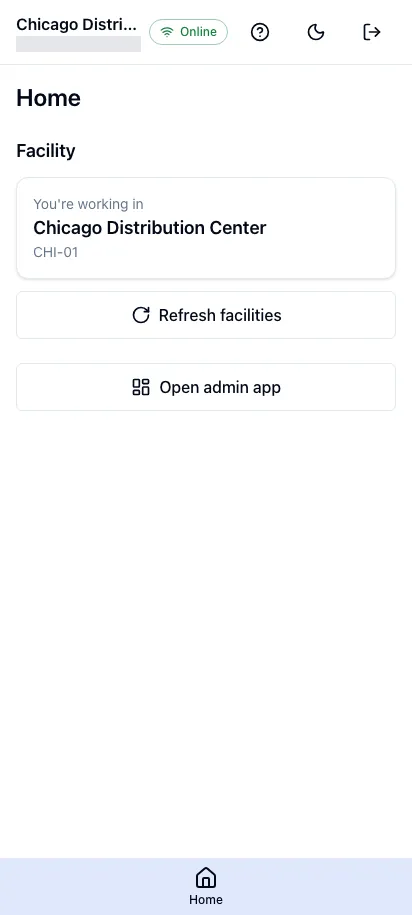
- From the admin app, click Worker app in the header.
- Or go straight to
/workeron your jtWMS address, for example on a phone’s browser.
Install it on a phone
Section titled “Install it on a phone”The worker app installs as jtWMS Worker, and opens straight to its home screen, without the browser’s address bar.
- Open the worker app in the phone’s browser and sign in.
- Use the browser’s install option: on Android in Chrome, open the menu and choose to install the app or add it to the home screen; on an iPhone in Safari, tap Share, then Add to Home Screen.
- Open jtWMS from the home screen.
When jtWMS is updated, the installed app picks up the new version the next time you open or reload it.
Choose the facility you’re working in
Section titled “Choose the facility you’re working in”- On Home, under Facility, pick a facility from Choose the facility you’re working in.
- Tap Use this facility.
The home screen then shows “You’re working in” with the facility’s name and code, and the header shows the facility’s name instead of “No facility selected”. If there is only one facility you can choose from, it is chosen for you.
Your choice is remembered in this browser for your account, and it is the same choice the admin app shows under Current facility. Change it in one app, and the other shows the new facility the next time you open it.
If there are no facilities yet, the home screen reads “No facilities yet”: an administrator needs to create one first (see Facilities).
Change facility
Section titled “Change facility”- On Home, tap Change facility. It is shown only when you can choose from more than one facility.
- Pick another facility, then tap Use this facility, or tap Cancel to keep the current one.
If a facility was added since you opened the app, tap Refresh facilities to read the list again. If the list can’t be read, the home screen reads “Couldn’t load your facilities.”; tap Refresh facilities to try again.
Scanning codes
Section titled “Scanning codes”Every code field in the worker app works with a barcode scanner that types the code and presses Enter, as most handheld and ring scanners do. You can also type a code and tap the button beside the field. After a scan the field is ready for the next one: the code stays selected, so the next scan replaces it (Add a serial clears instead). Pressing Enter again while a code is being looked up does nothing.
Look up a code
Section titled “Look up a code”- Tap Lookup in the bottom navigation.
- Scan or type a code in Scan or type a code.
jtWMS looks the code up in the facility you’re working in, in this order, and shows the first match:
- a license plate’s code (capitals don’t matter);
- a location’s code;
- a product’s barcode;
- a product’s SKU (capitals don’t matter).
The result says what the code is and shows the stock it holds:
- License plate: its type, the location it’s at, the pallet it’s on and the plates on it, and whether it holds stock. The stock listed includes the stock in the plates on it.
- Location: its status, and Blocked with the reason when stock can’t be put there. The stock listed is everything there, loose and in license plates.
- Product: its SKU, name and status, the unit of measure the barcode is on, and what it tracks (lots, serials, expiry). The stock listed is the product’s stock in the facility.
Each stock position shows its SKU, quantity on hand (in base units), location and license plate, lot, serial and expiry, and whether it is held, allocated or blocked. A result lists up to 100 positions; when there are more, it says how many and that the admin app’s Stock page lists them all.
Scanning another code replaces the result. If nothing in the facility has the code, the screen reads “No match”. If the lookup fails, scan the code again; the message shows a support reference to quote if it keeps failing.
Move stock or a license plate
Section titled “Move stock or a license plate”A move takes stock from one place to another in the same facility, or a whole license plate with everything on and in it. Tap Move in the bottom navigation, then:
-
Scan the source: the location or license plate to move from. A product’s code isn’t a source.
-
Choose what to move: tap the stock to move, from the list of what the source holds. When the source is a license plate, you can instead tap Move the whole license plate, which skips the next step.
-
How much: enter the Quantity and choose its Unit of measure (the product’s base unit unless you pick another), then tap Continue. For a product tracked by serial number, the serial of the stock you chose is listed: scan each other unit to move in Add a serial, and remove one with its remove button.
-
Scan the destination:
- For stock: a location, a license plate, or both. Stock moved to a location alone is loose there; stock moved into a license plate goes wherever the plate is. If you scan both, the plate must be at that location.
- For a whole license plate: a location for it to stand at, or a pallet to put it on. The latest scan replaces the earlier one. A case or tote on a pallet scanned to its own location is taken off the pallet.
The destination is listed under the field. Scanning another location (or plate) replaces it, and its remove button takes it off. Then tap Continue.
-
Confirm the move: check what moves, from where and to where, then tap Move.
When the move is saved, the screen reads, for example, “Moved 4 EA of WIDGET-1 from A1-P1 to A1-P2.” and is ready for the next move. Every step has Back, which keeps what you’ve scanned, and Cancel, which starts over.
If jtWMS refuses the move, its reason shows above the button and everything you scanned is kept, so you can tap Try again, or go Back to change it. The source’s stock is read again, so going Back shows it as it is now, for example with the part that was allocated meanwhile. If the stock you chose is no longer there, the app returns you to Choose what to move to choose again. For example, a move is refused when:
- the stock changed while you were moving it (someone else moved or adjusted it first);
- part of the stock is allocated to an order: allocated stock never moves, so at most what is not allocated can be moved;
- the position holds less than the quantity;
- the destination is blocked, or is where the stock already is;
- the license plate isn’t at the location you scanned with it, or a plate can’t go on the one you scanned (only cases and totes go on pallets).
Count a location
Section titled “Count a location”A cycle count checks one storage location: you record everything you find there, and jtWMS compares it with what it holds. The count is blind: the app never shows what jtWMS expects at the location, before or after you send the count. Supervisors open counts in the admin app (see Cycle counts), and adjustments that say the record was wrong open them too. Tap Count in the bottom navigation, then:
-
Choose a count: tap one of the Open counts, oldest first, each with its location, number and how long ago it was opened. You then Go to the location and scan its code, to say you’re there. Or scan a location’s code in Location straight away: if it has an open count, counting starts at once; if it hasn’t, the app says “No count is open at location”.
-
Count what is here: scan each product you find (its barcode or SKU). For stock in a license plate, first scan the plate: what you scan next is counted in it, until you scan another plate or tap Leave plate. A plate must be at the location you’re counting.
-
How many: for each product, enter the Quantity in its Unit of measure (the scanned barcode’s unit, else the base unit; choose another if you counted cases, say), and the Lot and Expiry date as the label shows them. The hints say which the product tracks. For a product tracked by serial number, scan each unit’s Serial: every serial is an entry of one, in the base unit. Tap Add to count.
What you’ve counted is listed under Found so far, where each entry can be changed or removed. The same product can be listed more than once (in different plates or lots, or counted in two goes): jtWMS adds them up.
-
Send the count: tap Finish count, check the entries, and tap Send count. If you found nothing, sending says the location is empty. A count is sent once.
When it’s sent, the screen reads, for example, “Count recorded: CC-000012 at A1-P1, 3 entries.” and the count leaves the list. Whether it matched is for the supervisor to see. Leave count drops what you’ve counted (tap it twice when there are entries), and Back on the later steps keeps it.
If someone else sends or cancels the count while you’re counting, sending it returns you to the list with “CC-000012 at location is no longer open”, and what you entered isn’t sent. If jtWMS refuses the count for another reason, such as a lot the product needs, its reason shows above the button, naming the entry (“Entry 2 (LOT-1): …”), and your entries are kept: go Back, change the entry, and send again.
Working offline
Section titled “Working offline”The header shows Online or Offline.
While you’re offline, buttons and fields that need a connection are disabled, with a message saying why. For Refresh facilities it reads “You’re offline. Refreshing the facilities needs a connection.”; scanning a code reads “You’re offline. Looking up a code needs a connection.”; and the Move button reads “You’re offline. Moving stock needs a connection.”; Send count reads “You’re offline. Sending a count needs a connection.” Receiving, putting away, picking and packing say the same for their buttons. What you’ve scanned in a move, a count, a receipt, a putaway, a pick or a pack is kept while you’re offline, and the scan field is ready again when the connection returns. Nothing is saved to send later: when you’re back online, do the action again.
Load trailers
Section titled “Load trailers”On Home, tap Dock loading to open the facility’s loads, where you open a load, scan cartons
onto the trailer and close it. It is shown to people who hold routing.operations.manage when the
plan includes Routing & Sortation. See Dock doors and loads.
Go back to the admin app
Section titled “Go back to the admin app”On Home, tap Open admin app. It is shown only to people who can use the admin app: those
who hold at least one .manage permission other than inventory.movements.manage,
inventory.count_tasks.manage, routing.operations.manage, inbound.receiving.manage,
outbound.picking.manage, outbound.packing.manage and outbound.shipping.manage.
Sign out
Section titled “Sign out”Tap Sign out, the icon at the right of the header.
Related
Section titled “Related”- Getting started: sign in and accept an invite
- Facilities: create the facilities workers choose from
- Stock: stock positions, moves and holds in the admin app
- License plates: create the plates workers scan
- Receive deliveries and Put stock away: the inbound screens
- Pick orders: the pick screen
- Batch pick: picking a batch of orders in one trip
- Sort at a put wall: sorting batch totes into cubbies
- Pack and ship orders: the pack screen
- Team: the roles that decide where people land