Journeys and exceptions
Every container the conveyor routes has a journey: where it was inducted, where it was sent, and each step the devices reported on the way. When a container can’t be routed, arrives at the wrong place, or its shipment fails to ship, a routing exception is raised for someone to deal with.
Before you start
Section titled “Before you start”- Routing needs a plan that includes Routing & Sortation (the Enterprise plan).
- Viewing journeys and exceptions needs
routing.operations.read. Acknowledging an exception needsrouting.operations.manage. Tenant Admin, Warehouse Manager and Operator hold both.
Find a journey
Section titled “Find a journey”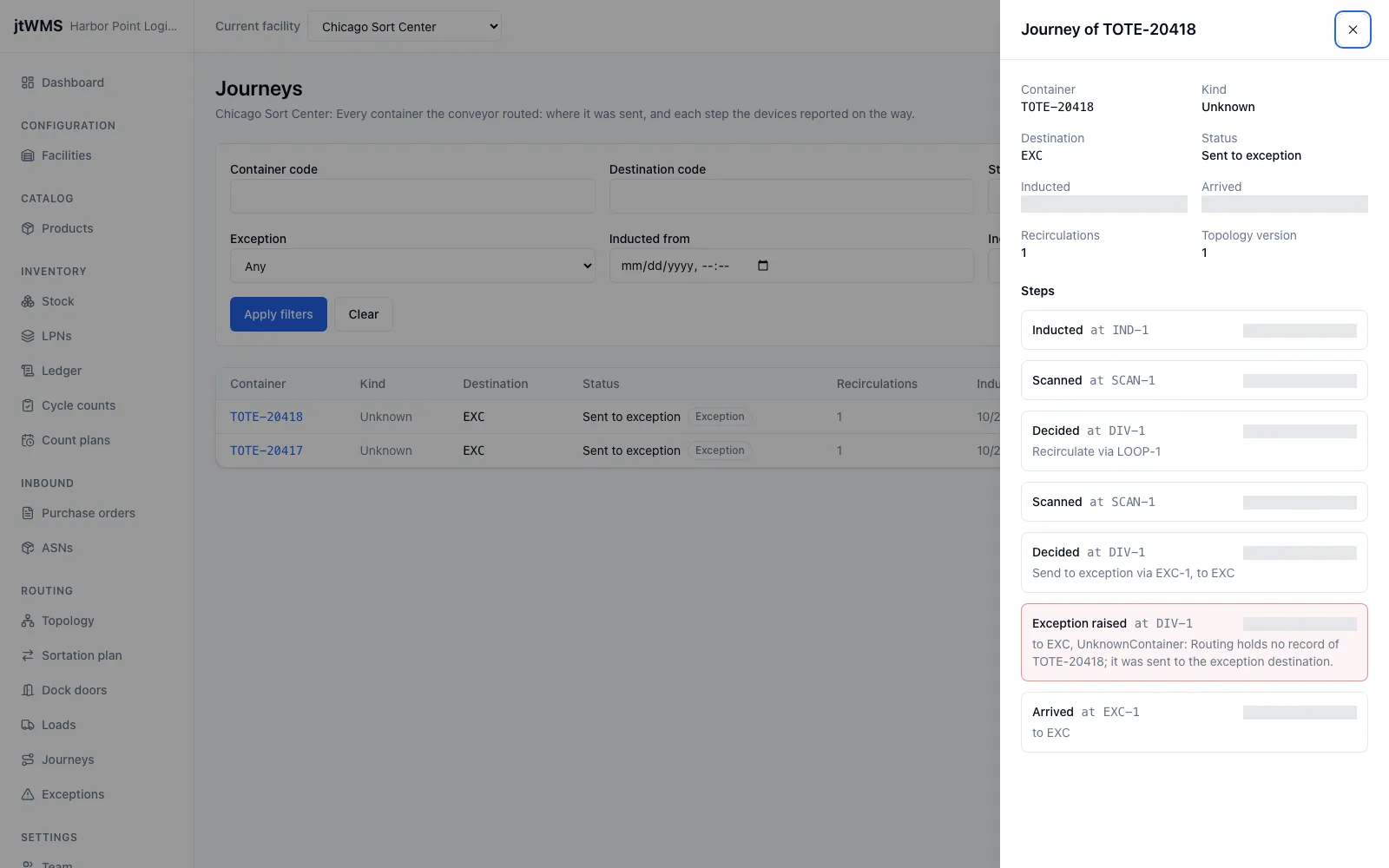
- Choose the facility with Current facility at the top of the page.
- In the sidebar, under Routing, click Journeys.
Journeys are listed newest first. To narrow the list, fill in any of the filters and click Apply filters:
- Container code or Destination code: the whole code, ignoring case.
- Status: In transit, Arrived, Sent to exception, Loaded onto a trailer, or Superseded (the container was inducted again before it arrived).
- Exception: journeys that raised an exception, or those that didn’t.
- Inducted from and Inducted before: when the container entered the conveyor.
Clear removes every filter. The filters are part of the page’s address, so you can bookmark or share a filtered list.
Read a journey’s timeline
Section titled “Read a journey’s timeline”Click a container’s code to open its journey. The top shows the container, its destination, its status, its times, how many times it went around the recirculation loop, and the topology version it was routed on.
Steps lists everything the devices reported, in the order it happened:
- Inducted: the container entered the conveyor.
- Scanned: a scanner read it, or failed to.
- Decided: where it was sent next: Route along its path, Recirculate around the loop for another read, or Send to exception.
- Exception raised: why it couldn’t be routed.
- Arrived: it reached a destination.
- Loaded: it was scanned onto a trailer at a dock door.
Work through exceptions
Section titled “Work through exceptions”In the sidebar, under Routing, click Exceptions. The page lists the open exceptions, newest first. Each one has a type:
- No read: the scanner couldn’t read the container’s code.
- Unknown container: the code was read, but jtWMS doesn’t know the container.
- No destination: the container is known, but no destination could be chosen for it, for example a carton without a label, or a rule pointing to a lane that isn’t published yet.
- Misroute: the container arrived somewhere other than its destination.
- Ship failed: closing a load couldn’t ship one of its shipments.
A container that can’t be read, isn’t known or has no destination is sent around the loop once for another try. If it still can’t be routed, an exception is raised and it goes to the facility’s exception destination. A scan that reads nothing and can’t be matched to a container on the conveyor sends it there straight away. A misroute is raised when the container arrives, and a failed shipment when its load is closed.
View journey opens the container’s journey, and View load opens the load a failed shipment was on. When you’ve dealt with an exception, click Acknowledge. It leaves the open list, and Status shows it under Acknowledged. Filter by Type to work through one kind at a time.