ASNs
An ASN (advance shipping notice) is a supplier’s notice of one delivery: what is on its way, from whom, with which carrier, when it should arrive and at which dock. Goods are always received against an ASN, one license plate at a time, at a dock or staging location. An ASN can deliver against a purchase order, so what it receives counts as received on the order too. Open the ASNs from ASNs under Inbound in the sidebar.
Before you start
Section titled “Before you start”- ASNs come with the Inbound feature, on the Pro plan and above, and need the same permissions
as purchase orders:
inbound.orders.readto see them,inbound.orders.manageto create, edit, close, cancel and delete them. - Seeing an ASN’s receipts needs
inbound.receiving.readorinbound.receiving.manage; retrying a receipt that failed needsinbound.receiving.manage. Tenant Admin, Warehouse Manager and Operator hold it. - A planned dock is a location whose purpose is Dock or Staging. Other locations aren’t offered.
- ASNs are kept per facility: the page shows the facility chosen in Current facility at the top of the page.
Find ASNs
Section titled “Find ASNs”- Click ASNs in the sidebar. The list shows each ASN’s number, its Purchase order, Supplier, Expected arrival and Status, and what it Expected and has Received across its lines, in base units.
- Narrow it with Search (part of an ASN number, a PO number or a supplier’s name) and Status, and choose how it is sorted with Sort by. The soonest expected arrival comes first by default.
- Click an ASN’s number to open its page. From a purchase order’s page, See them all lists only that order’s ASNs; remove the Purchase order filter to see every ASN again.
Statuses
Section titled “Statuses”| Status | Meaning |
|---|---|
| Open | Nothing received yet. It can be edited, cancelled or deleted. |
| Receiving | At least one license plate has been received against it. |
| Closed | The delivery is done; nothing more is received against it. |
| Cancelled | Called off before anything was received. |
Create an ASN
Section titled “Create an ASN”- Click New ASN, or Create ASN on a purchase order’s page to start from its open quantities.
- Fill in the ASN number, up to 50 characters, unique in the facility whatever its upper or lower case.
- Optionally choose the Purchase order it delivers against: type part of an open order’s number or supplier in Find purchase order, then choose it. Leave Supplier empty to take the order’s.
- Optionally fill in the Carrier and the Expected arrival (in your time zone), and choose the Dock it is planned to arrive at.
- Add its lines as on a purchase order: find each product by SKU or barcode, then give the Quantity expected and its Unit of measure. For a product that tracks lots or expiry dates, you can add the Expected lot and Expected expiry. On an ASN for a purchase order, Purchase order line links the line to the order’s line of the same product, chosen for you when there is one; received quantities then count against that order line.
- Click Create ASN.
While the ASN is Open, Edit changes any of it. The lines you keep stay the same lines; a line you remove is deleted. Choosing another purchase order unlinks the lines from the previous one.
Follow a delivery
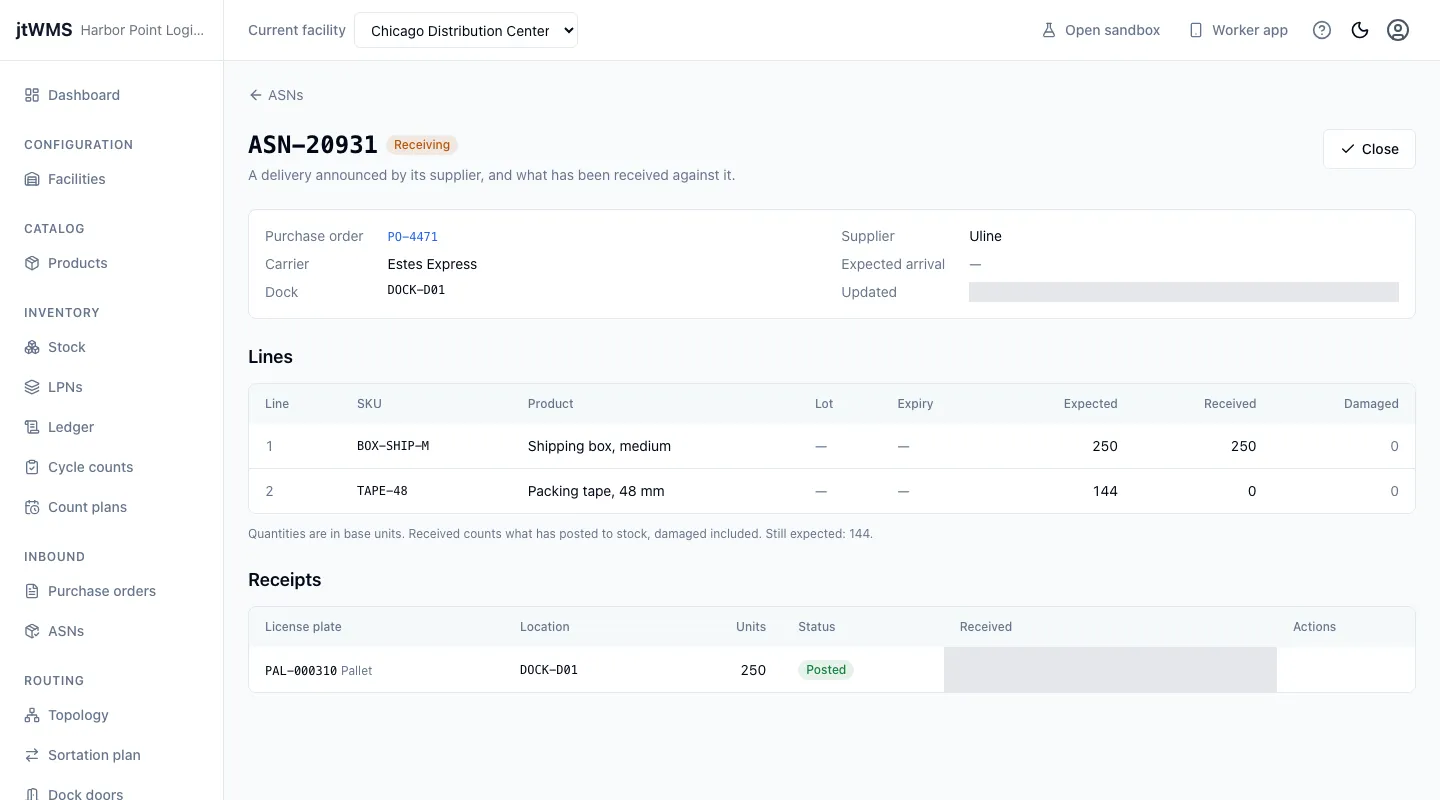
Section titled “Follow a delivery”An ASN’s page shows its purchase order, supplier, carrier, expected arrival and dock, then its Lines with what each Expected, has Received and how much of that arrived Damaged, in base units. A line marked Unplanned is a product the ASN didn’t list that was received anyway.
Receipts lists each license plate received against the ASN: its code and type, the dock or staging location it was received at, how many units it holds, and its status:
| Receipt status | Meaning |
|---|---|
| Posting | Received, and being put into stock. This normally takes a few seconds. |
| Posted | In stock at the receiving location, and counted on the ASN’s lines. |
| Posting failed | Stock refused it, for the reason shown under the status. It isn’t counted on the ASN. |
While any receipt is posting, the page says so and updates the receipts by itself every few seconds; the received quantities on the lines update when a receipt is posted. You don’t need to reload. See this ASN’s exceptions lists what departed from it: overages, damage, unexpected products, receipts that failed to post and, once it is closed, shortages (see Inbound exceptions).
A receipt that failed to post can be sent again with Retry once its cause is fixed, for example after a license plate with the same code was moved. It goes back to Posting, and fails again if the cause remains.
Close, cancel or delete an ASN
Section titled “Close, cancel or delete an ASN”With inbound.orders.manage:
- Close ends the delivery: nothing more can be received against it, and each planned line that received less than it expected is recorded as short, in the exceptions queue. An ASN can’t be closed while any of its receipts is still posting, since what it is short of isn’t known yet: wait until each is Posted or Posting failed. An ASN whose receipts all failed is ended by closing it.
- Cancel ASN calls off an Open ASN, before anything was received.
- Delete removes an Open or Cancelled ASN from the lists after you confirm, and its number can be used again.
The buttons are unavailable while the ASN is being read, and when that read failed. Read it again first.