Setup wizard
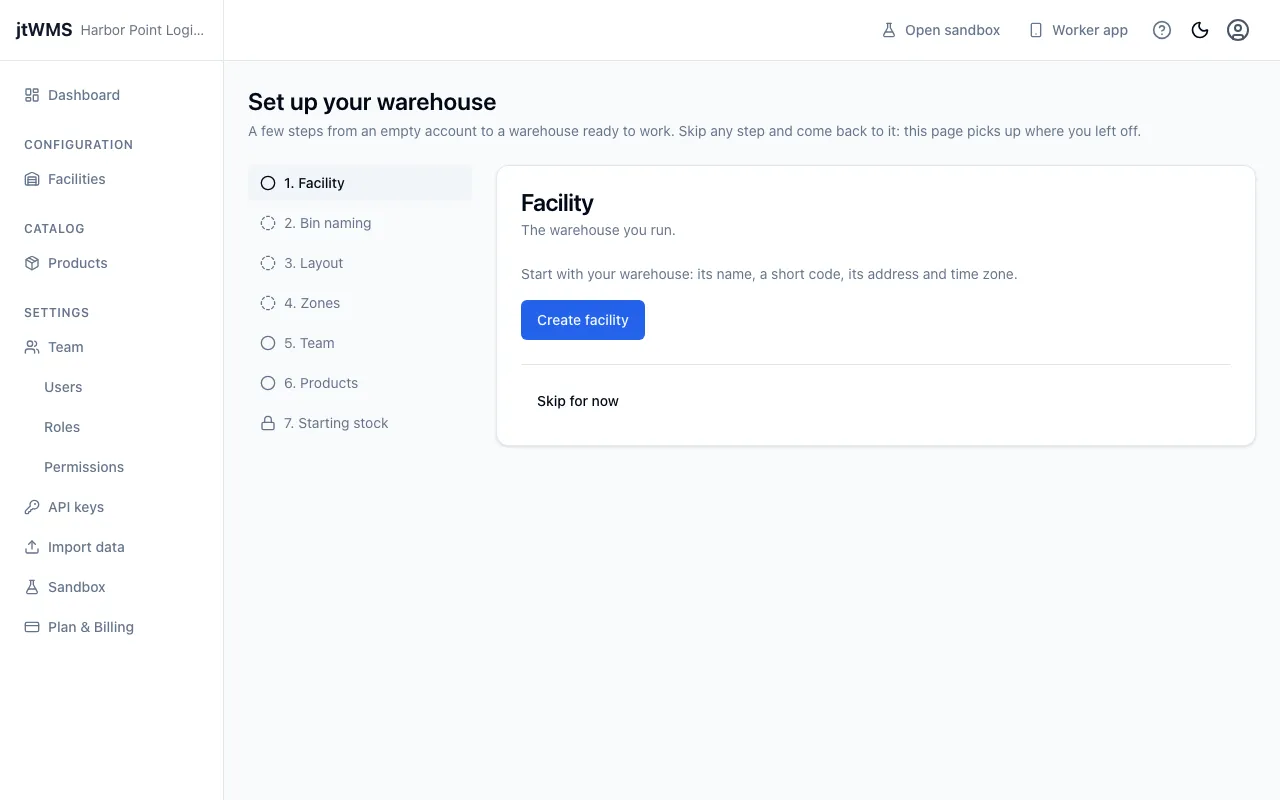
The setup wizard walks you from a new, empty account to a warehouse ready to work. It opens after
you sign up, and whenever an administrator who can create facilities signs in, or accepts an
invitation, to an organisation with no facility yet. You
can also open it at any time at /setup.
Before you start
Section titled “Before you start”- Each step needs the permission its work does, such as
warehouseconfig.facilities.manageto create the facility. A Tenant Admin holds them all. A step you can’t do says which permission it needs. - The products step needs a plan with the catalog, the starting stock step a plan with inventory, the first ASN, receipt and put-away steps a plan with Inbound, and the first order and pick steps a plan with Outbound. A step your plan doesn’t include says so, with a link to Plan & Billing.
How the wizard works
Section titled “How the wizard works”The steps are listed on the left, each marked done or to do. A step is done when its data exists: a facility for the first step, locations for the layout, an active zone profile for zones, and so on. So the wizard opens at the first step with nothing yet, and if you leave part way and come back, it carries on where you left off. Click a step in the list to open it, or Skip for now to move on and come back later. Done steps can be opened again.
The steps after the first apply to the facility chosen under Current facility in the header.
The steps
Section titled “The steps”- Facility. Click Create facility and fill in its name, code, type, time zone and address, as on the Facilities page.
- Bin naming. Choose the levels your warehouse has between its areas and its bins: aisles,
bays and shelf levels. Each bin’s code is built from where it is, such as
A-01-03-B-02for area A, aisle 01, bay 03, level B, bin 02, with a hyphen or nothing between the parts. A preview shows codes as they will be. Click Use this naming. Bin codes are set when the bins are created, so this step comes before the layout and can’t change codes that already exist. - Layout. Create the bins in one of three ways:
- Generate it: say how many areas, aisles, bays, levels and bins your warehouse has, see how many bins that makes and their first and last codes, then click Create. Up to 5,000 bins at once. If you skipped bin naming, generating sets the bin codes it describes all the same. Each count is a whole number from 1 up to 26 for areas and levels, or 99 for the rest.
- Use the sample layout: a reserve area of six pallet positions and a pick aisle of eight shelves, to adapt later.
- Import a CSV file: your own list of locations, as described in Importing data.
- Zones. Each area becomes a zone of its bins, in an active zone profile named Main zones. Click Create zones, and change them later in the zone editor. A facility that already works by an active zone profile keeps it: the step says so and links to the zone profiles instead.
- Team. Invite people one at a time with Invite someone, or import a list from a CSV file. See Team.
- Products. Add products one at a time with Add a product, or import a list from a CSV file.
- Starting stock. Import the stock already on your shelves from a CSV file, as described in Importing data.
- First ASN. Click Create an ASN to record a delivery you expect: its number, supplier, carrier and expected arrival, and its lines, each product found by its SKU or barcode. See ASNs. Done once the facility has an ASN.
- First receipt. Deliveries are received on the worker app, at a dock: a location whose purpose is Dock or Staging. If the facility has none yet, enter a code under Dock code and click Add a dock, which adds it under a Receiving area. Then Open Receive in the worker app and receive a license plate against the ASN, as described in Receive deliveries. Done once a receipt has posted to stock.
- First put-away. Open Put away in the worker app, scan the received license plate and take it where jtWMS directs, as described in Put stock away. Done once a put-away is complete.
- First order. Enter an order: its number, who and where it ships to, and its lines, each a product’s SKU and a quantity in the product’s base unit. Add line adds another; click Create order. Orders usually reach jtWMS from your other systems through the API, and are then listed under Orders. Done once the facility has an order.
- First pick. Picks are taken to the facility’s outbound staging location, so the step asks for one first: choose one of its staging locations and click Use this staging location, or, if it has none, enter a code and click Add a staging location, which adds it under a Shipping area. Then click Release to release the orders waiting (up to 50) in a new wave, and Open Pick in the worker app to pick them, as described in Pick orders. Done once an order is picked: your first successful pick.
When every step is done or skipped, the wizard says You’re set up, with links to the dashboard and the worker app.
Related
Section titled “Related”- Getting started
- Sandbox, to try jtWMS with sample data first
- Importing data