Stock
The stock page shows what is on hand in a facility: each product’s stock at each location, its lot, serial and expiry, and how much of it is free to use. From it you can receive stock into a location, correct stock with an adjustment, move it to another location or into a license plate, and put it on hold or release it. Open it from Stock under Inventory in the sidebar.
Before you start
Section titled “Before you start”- Stock comes with the Inventory feature, which the Starter plan and above include. On a plan without it, the Inventory section is hidden from the sidebar, and the page reads “Your plan doesn’t include Inventory”. A Tenant Admin can change the plan under Plan & Billing; the Inventory section appears as soon as the plan is changed.
- To see stock you need
inventory.stock.readorinventory.stock.manage. Every standard role holds one of them: Tenant Admin and Warehouse Manager hold both, and Operator and Read-Only API Client holdinventory.stock.read. Without either, the Inventory section is hidden, and the page reads “You don’t have access to stock”. - To receive, adjust, hold and release stock you need
inventory.stock.manage, held by Tenant Admin and Warehouse Manager. Without it, the Receive stock button and the Adjust, Hold and Release buttons are hidden. Receiving also finds the product in your catalog and the location in the facility, so it needscatalog.products.readandwarehouseconfig.topology.readas well, which those roles hold. - To move stock you need
inventory.movements.manage, held by Tenant Admin, Warehouse Manager and Operator. Without it, the Move buttons are hidden. - Stock is kept per facility. The page shows the facility chosen in Current facility at the top of the page; if none is chosen, it asks you to pick one there. A facility needs locations (storage positions, or equipment) before stock can be received into it: see Storage topology.
How stock is counted
Section titled “How stock is counted”Stock is listed as positions: an amount of one product at one location, with one lot, serial and expiry date, received on one day, in one status. Stock received on different days, or with a different lot or expiry, is a separate position, so you can always tell which stock is oldest.
- On hand is everything at the position, counted in the product’s base unit (such as each), whatever unit it was received in.
- Allocated is the part set aside for orders.
- Available is what is free to use: on hand less allocated, for stock that is neither held nor blocked. Held and blocked stock is on hand, but none of it is available.
- Held stock has the status Quarantine (waiting for inspection) or Damaged, shown as a Held badge in the Status column. Stock you receive or adjust in is Available.
- Blocked stock is at a location, of a product, or in a facility that is no longer active (it was deactivated or deleted). It stays on hand and visible, with a Blocked badge saying why, such as “Product inactive” or “Location deleted”. It can be adjusted or moved out, held and released, but nothing can be received or adjusted into it, or moved to a blocked location. Activating the product or location again clears the badge.
Find stock
Section titled “Find stock”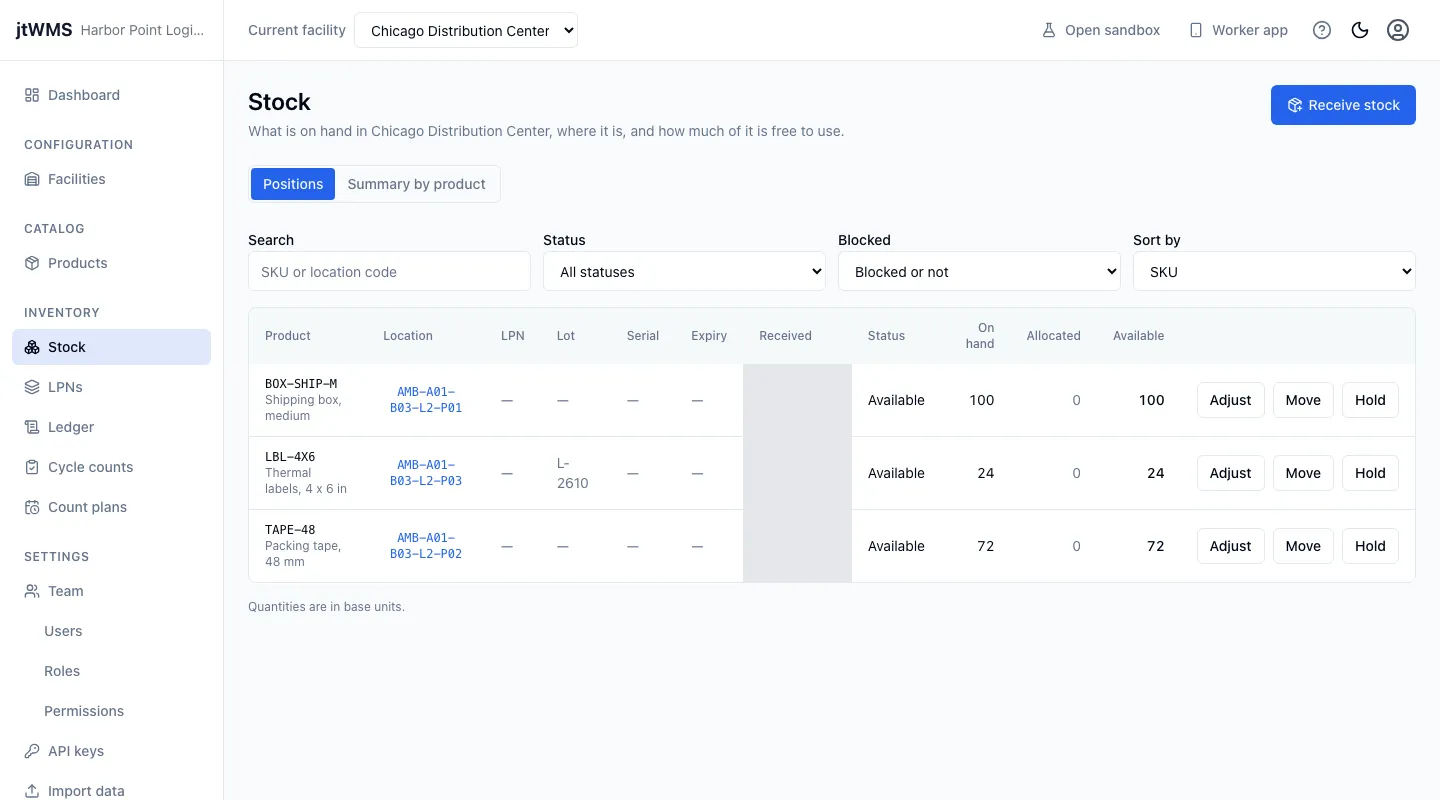
- Click Stock in the sidebar. The Positions view lists the facility’s stock.
- Narrow the list with the filters above it:
- Search — type part of a SKU or a location code (upper or lower case doesn’t matter).
- Status — All statuses, Available, Quarantine or Damaged.
- Blocked — Blocked or not, Blocked only or Not blocked.
- Sort by — SKU (the default), Location, Quantity (most first), Received (oldest first), Expiry (soonest first), or Recently changed.
- To see only the stock at one location, click its code in the Location column. The filter appears above the list as Location: code; click the cross beside it to remove it.
- When there are more positions than fit on one page, page through them with Previous page and Next page. Changing a filter takes you back to the first page.
The list shows each position’s Product (SKU and name), Location, LPN (the license plate holding it, if any: click its code to open it), Lot, Serial, Expiry, Received (the date the stock was first received), Status, On hand, Allocated and Available.
If nothing matches, the page reads “No stock matches”. Click Clear filters to see all the stock again.
See totals by product
Section titled “See totals by product”Click Summary by product above the list. Each product with stock in the facility has one row, with its totals in base units: On hand, Allocated, Available, Quarantine, Damaged, Blocked and the number of Positions holding it. A product that is blocked everywhere, because the product or the facility is not active, shows a Blocked badge with why.
Use Search products to find a product by part of its SKU or name. To list a product’s positions, click View positions on its row: the Positions view opens with the filter Product: SKU, which you can remove with the cross beside it.
Receive stock
Section titled “Receive stock”- Click Receive stock. The Receive stock drawer opens.
- In Product, scan or type the product’s barcode or SKU, then press Enter or click Find. The product’s SKU and name appear below, with a badge for each thing it tracks (Lot, Serial, Expiry). If you scanned a case’s barcode, Unit of measure is set to the case. If no product has that barcode or SKU, the drawer says so; if the product is inactive, it says stock can’t be received for it.
- In Find location, type part of the location’s code, then choose it in Location. Up to 20 matches are offered at a time; type more of the code to narrow them. When only one location matches, pressing Enter (or scanning the location’s label) chooses it.
- Enter the Quantity, from 1 to 1,000,000, and choose its Unit of measure from the product’s units. For a unit larger than the base unit, the hint shows how many base units that is.
- Fill in what the product tracks:
- Lot number — for a product that tracks lots. Required, up to 64 characters.
- Expiry date — for a product that tracks expiry. Required.
- Serials — for a product that tracks serial numbers. One serial per line, one for each unit received (the hint says how many are needed), each up to 64 characters and listed once.
- Optionally fill in Reference (such as a purchase order number, up to 100 characters) and Note (up to 500 characters).
- Click Receive. The app confirms with “Received quantity unit of SKU.”, and the stock appears in the list.
Stock you receive joins the position holding the same product, lot, serial and expiry received the same day at that location, or starts a new position.
The drawer tells you, on the field concerned, when the stock can’t be received, for example:
- the product or the location is not active (blocked);
- the lot already exists with another expiry date: stock of a lot always carries the lot’s expiry;
- a serial is already on hand for that product;
- the quantity is more than the position can count.
Adjust stock
Section titled “Adjust stock”Adjust a position to correct it, for example after a count, or when stock is lost, damaged or found.
-
Click Adjust on the position’s row. The Adjust drawer opens, showing the position and its on-hand, allocated and available quantities.
-
Choose the Direction: Take out or Put in.
-
Enter the Quantity, from 1 to 1,000,000, and its Unit of measure.
-
Choose a Reason. The reasons offered depend on the direction:
Reason Direction Shrinkage (lost or stolen) Take out Damage (written off) Take out Discovered (more than recorded) Put in Found (stock that was missing) Put in Correction (a recording error) Either -
Optionally fill in Reference (such as a count sheet, up to 100 characters) and Note (up to 500 characters).
-
Click Adjust. The app confirms with “Adjusted SKU at location by quantity unit.”, and the list shows the new quantities. A position adjusted down to nothing leaves the list.
Every reason except Damage says the record was wrong at that location, so the adjustment also opens a cycle count of the location, unless one is already open there, to check the rest of what it holds.
Some adjustments are refused, with the reason shown in the drawer:
- You can’t take out more than is on hand, or more than is free of allocations. The message says how much the position holds.
- A serial’s position always holds exactly one, so it can only be taken out. To add a serial, receive it.
- Nothing can be put into blocked stock.
Move stock
Section titled “Move stock”Move part or all of a position’s stock to another location, into a license plate, or into a license plate at a location. The stock keeps its lot, serial, expiry, receipt date and status.
- Click Move on the position’s row. The Move drawer opens, showing the position.
- Say how much to move:
- For most products, enter the Quantity, from 1 to 1,000,000, and its Unit of measure.
- For a product that tracks serial numbers, Serials lists the row’s serial. Add the other serials of the product you want to move, one per line.
- Choose where it goes, under Move to:
- To location — type part of the location’s code in Find location, then choose it. Stock moved to a location alone is loose there.
- Into license plate — scan or type the plate’s code, then press Enter or click Find. The plate found is shown below. Without a location, the stock goes to wherever the plate is.
- Both — the plate must be at that location.
- Optionally fill in Reference (such as a task, up to 100 characters) and Note (up to 500 characters).
- Click Move. The app confirms with “Moved quantity unit of SKU.” (or number serials, naming the license plate when there is one), and the list shows the stock in its new place. Stock moved to where the same stock already is joins it.
A move is refused, with the reason in the drawer, when:
- the quantity is more than the position holds, or more than is free of allocations: allocated stock never moves;
- the stock is already there;
- the target location is not active (blocked stock can be moved out, but nothing is moved into a blocked location);
- the license plate is at another location than the one chosen.
To move a whole license plate with everything in it, see Move a license plate.
Hold and release stock
Section titled “Hold and release stock”Put stock on hold while it waits for inspection, or when it is damaged: held stock stays where it is and is still counted on hand, but none of it is available. Release it to make it available again.
- On an Available position’s row, click Hold. (A held position’s row offers Release instead.)
- Enter the Quantity and its Unit of measure, or for a serial-tracked product, the Serials, as for a move.
- Choose Hold as: Quarantine (waiting for inspection) or Damaged.
- Optionally fill in Reference and a Note, such as why it is held.
- Click Hold. The app confirms with “Held quantity unit of SKU as status.”, and the held stock is listed as its own position with a Held badge.
To release held stock, click Release on its row, enter the quantity or serials and an optional note, and click Release. The app confirms with “Released quantity unit of SKU to Available.”, and the stock joins the available stock at the same place.
Allocated stock can’t be held. To change a hold from Quarantine to Damaged, release the stock, then hold it again. Stock that is blocked stays blocked (and unavailable) when it is released.
Related
Section titled “Related”- License plates: the pallets, cases and totes stock is kept in
- Stock ledger: every receipt, adjustment, move, hold and release
- Products: set up the products, their units of measure and barcodes, and what each one tracks
- Storage topology: create the locations stock is kept at
- Team: give people the permissions to view or manage stock
- Plan & Billing: change to a plan that includes Inventory
- Worker app: look up and move stock and license plates by scanning them