Putaway rules
When a received license plate is put away, jtWMS suggests a free storage location for it: directed putaway. Putaway rules steer those suggestions zone by zone. Each storage zone of the facility’s active zone profile can hold one velocity class (how fast its products move: A for the fastest, then B and C), or any class, and can be excluded so putaway never suggests it. Open them from Putaway rules under Inbound in the sidebar.
Before you start
Section titled “Before you start”- Putaway rules come with the Inbound feature, on the Pro plan and above.
- Seeing them needs
inbound.putaway_rules.read; changing them needsinbound.putaway_rules.manage. Tenant Admin and Warehouse Manager hold both, and Operator and Read-Only API Client can see them. - Rules are set per Storage zone of the facility’s active zone profile. Create the zones and assign their locations in the zone editor, and activate the profile, first. A zone created moments ago takes a moment to appear here.
- A product’s velocity class is set on the product in the catalog.
How putaway uses the rules
Section titled “How putaway uses the rules”For a license plate, putaway looks for a free Storage location (see Location purpose) in this order:
- zones holding the license plate’s class: the class of its fastest-moving product, or C when none of its products has one;
- zones holding any class;
- zones holding the other classes, nearest first: for A, B then C; for B, A then C; for C, B then A;
- storage locations in no zone.
It never suggests a location in an excluded zone, even if the location is in another zone too. Within each step, zones go by code and locations by code. A location that holds stock or a license plate, or is already suggested for another license plate, is skipped.
Set the rules
Section titled “Set the rules”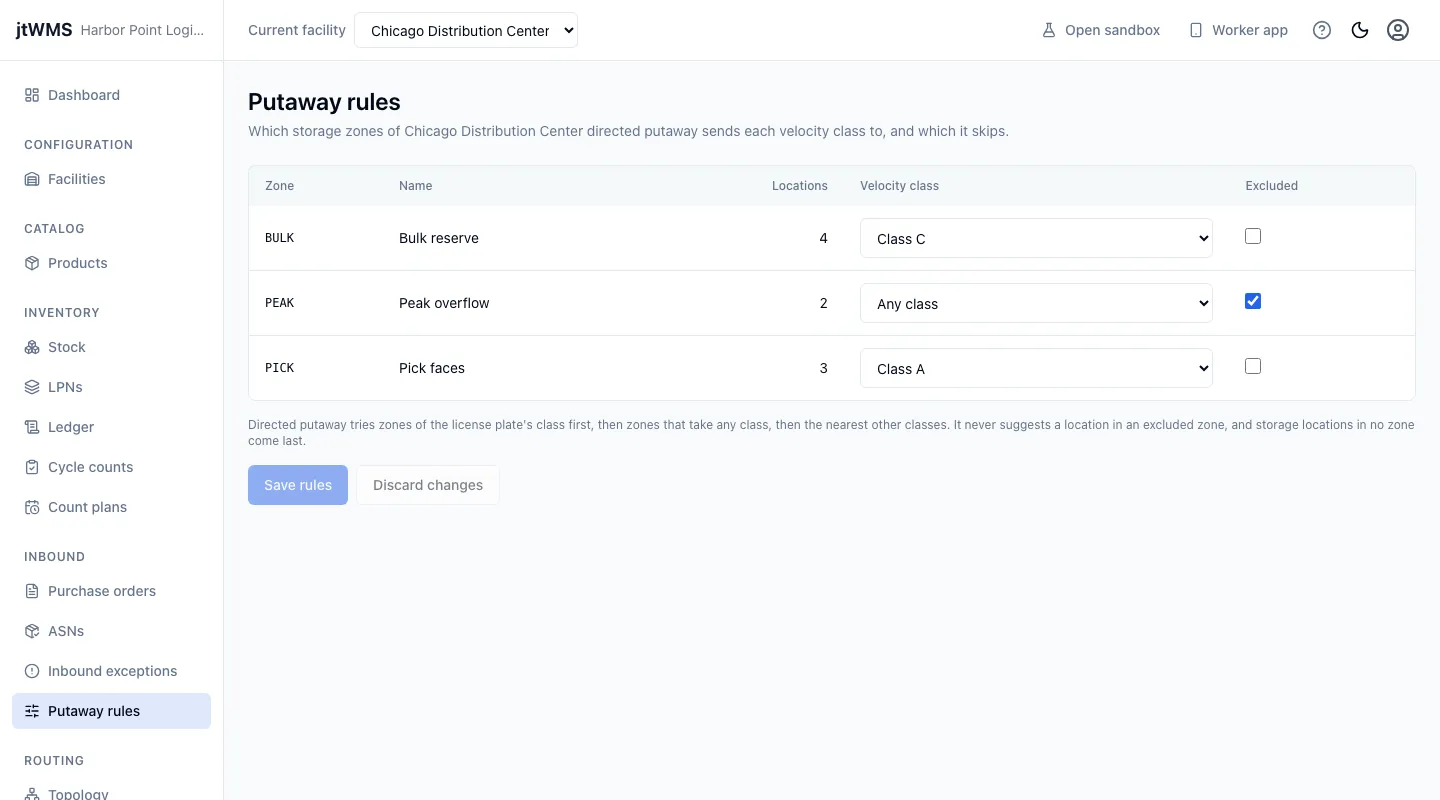
- Click Putaway rules in the sidebar. Each storage zone shows its code, Name and how many Locations it holds.
- For each zone, choose its Velocity class: Any class, Class A, Class B or Class C.
- Tick Excluded for a zone putaway should never suggest, such as an overflow area kept free for peak season.
- Click Save rules. Every zone is saved at once.
Save rules is available once something has changed, and Discard changes puts the form back to what is saved. The form starts from exactly what is saved, so a zone you don’t touch keeps its rule.
If someone else saves the rules first, yours are not saved: the page says the rules changed meanwhile. Click Reload to see them as they are now, then make your changes again. The page also offers Reload when the zones or their rules change while you are editing.
Without inbound.putaway_rules.manage, the page shows each zone’s class and whether it is excluded,
with nothing to change.
When there are no zones
Section titled “When there are no zones”The page says there are no storage zones to set rules for when the facility has no active zone profile, or its active profile has no Storage zones. Go to zone profiles opens the facility’s profiles to set them up. Rules of a profile that is not active are kept, and apply again when it is activated.
Related
Section titled “Related”- Zone profiles — create zones, assign their locations and activate a profile.
- Inbound exceptions — what departed from each delivery’s ASN.