Outbound settings
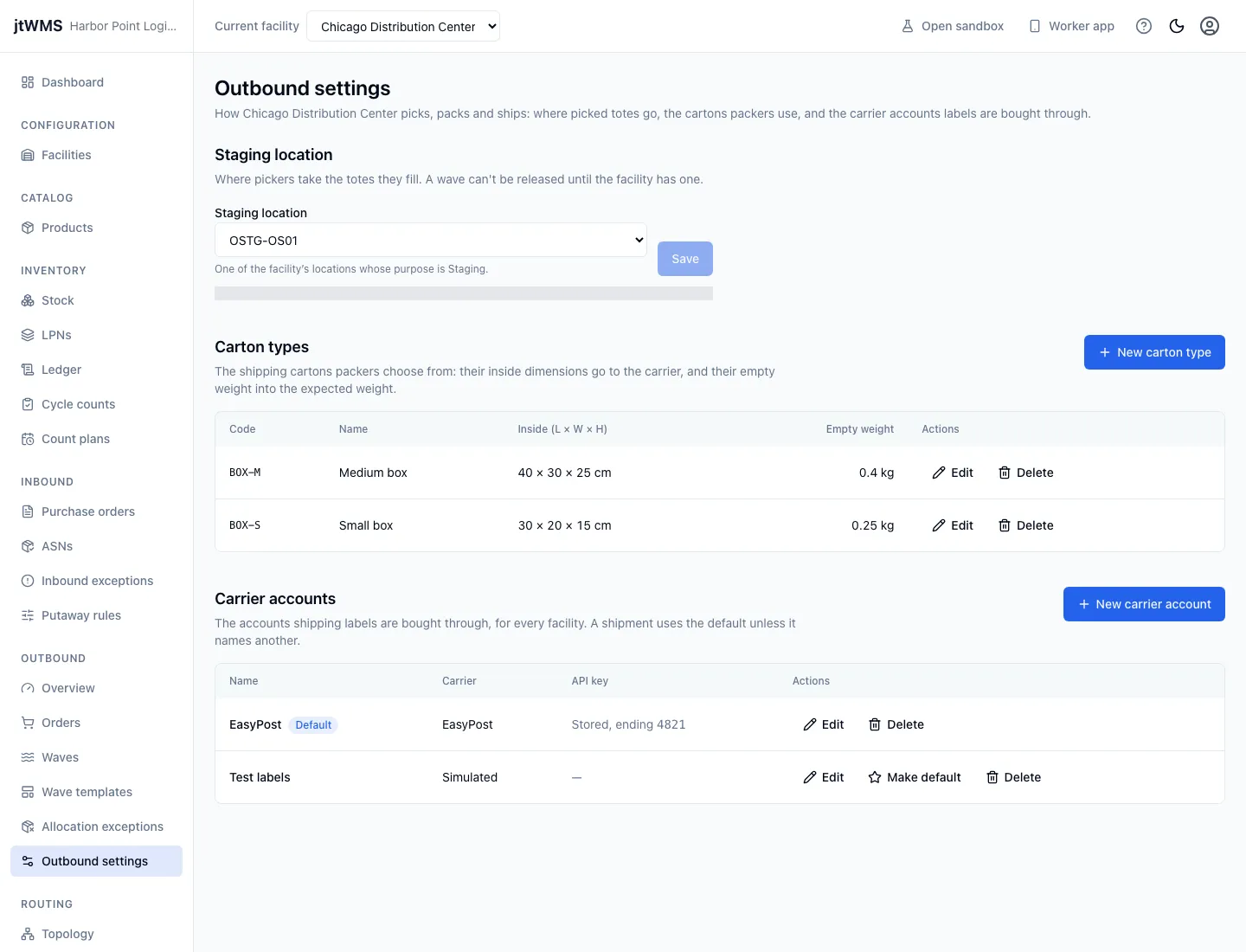
Outbound settings hold what picking, packing and shipping need: the facility’s staging location, its carton types, and your organisation’s carrier accounts. Open them from Outbound settings under Outbound in the sidebar.
Before you start
Section titled “Before you start”- Outbound settings come with the Outbound feature, on the Pro plan and above.
- To see them you need
outbound.orders.readoroutbound.orders.manage, which every standard role holds. To change them you needoutbound.settings.manage, held by Tenant Admin and Warehouse Manager. Without it the page shows the settings with nothing to change. - The staging location and carton types are per facility: the page shows the facility chosen in Current facility at the top of the page. Carrier accounts are shared by every facility.
Staging location
Section titled “Staging location”The staging location is where pickers take the totes they fill. A wave can’t be released until the facility has one.
- Under Staging location, choose one of the facility’s locations whose purpose is Staging. A location becomes one when its purpose is set to Staging on the facility’s storage topology.
- Click Save.
Choose None and save to unset it.
Carton types
Section titled “Carton types”Carton types are the shipping cartons packers choose from. Their inside dimensions are sent to the carrier as the parcel’s size, and their empty weight is added to the contents for the weight packers expect.
- Click New carton type, or Edit on one.
- Give it a Code, up to 32 letters, digits,
.,_and-, which no other carton type of the facility has, whatever its upper or lower case, and a Name. - Enter its inside Length, Width and Height, each above 0 with up to 3 decimals, and their Dimension unit.
- Enter its empty weight as Tare weight (0 or more) and its Weight unit.
- Click Create carton type (or Save changes).
Delete removes a carton type after you confirm, and its code can be used again. Cartons already packed keep the size and weight they were packed with.
Carrier accounts
Section titled “Carrier accounts”Shipping labels are bought through a carrier account. Until you add one, labels come from the built-in Simulated carrier, which makes test labels and sends nothing to a carrier.
- Click New carrier account, or Edit on one.
- Give it a Name no other account has.
- Choose its Carrier:
- EasyPost: labels are bought through your EasyPost account, from the carriers it holds. Enter its API key.
- Simulated: test labels, with no key.
- Tick Default account to make it the account shipments use unless they name another. Your first account is the default.
- Click Add account (or Save changes).
The API key is stored encrypted and never shown again: the list shows only its last four characters. When you edit an EasyPost account, leave API key blank to keep the stored key, or type a new one to replace it.
Make default moves the default to another account. Delete removes an account after you confirm; shipments already rated through it still buy their labels through it. If you delete the default while other accounts remain, there is no default until you make one, and every shipment must name the account it uses. If you delete your only account, labels come from the built-in Simulated carrier again, which becomes your default the next time a shipment is rated.