Sort at a put wall
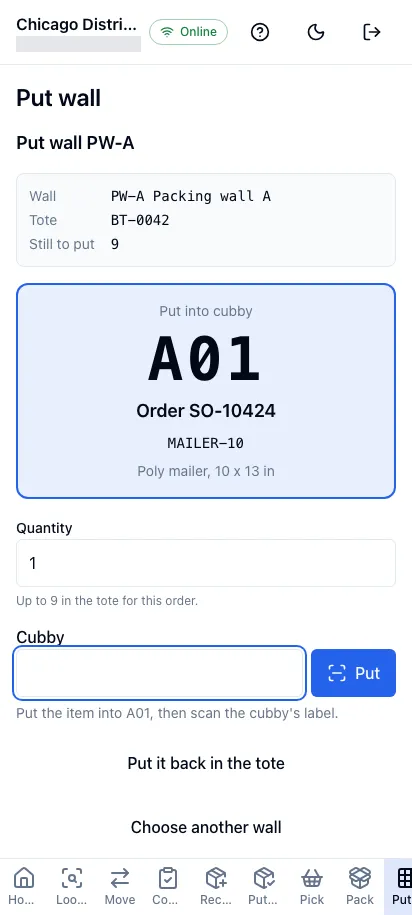
In the worker app, Put wall takes the totes of a batch pick and sorts them into the put wall’s cubbies, one cubby per order. You scan an item from the tote, the screen shows its order’s cubby in large type, you put the item there and scan the cubby’s label to confirm. Once everything picked for an order is in its cubby, the order is ready to pack.
Before you start
Section titled “Before you start”- Put walls come with the Outbound feature, on the Pro plan and above. Without it, the screen reads “Your plan doesn’t include Outbound”.
- Put wall appears in the bottom navigation for people who hold
outbound.picking.manage,outbound.putwalls.readandoutbound.orders.read(oroutbound.orders.manage). The Operator, Warehouse Manager and Tenant Admin roles hold them. - Bring the batch’s totes to the wall the batch pick screen names.
Choose the wall
Section titled “Choose the wall”Tap Put wall in the bottom navigation. Scan the wall’s code in Put wall, or tap it in the list of the facility’s active walls, which shows how many of each wall’s cubbies are ready for pack. Choose another wall takes you back to the list.
Sort a tote
Section titled “Sort a tote”- Tote: scan the tote’s label. It’s inducted at the wall: the screen shows how many items it still holds to put. A tote that is still being picked, or belongs to another wall’s batch, is refused with the reason.
- Item: take an item from the tote and scan its barcode or SKU. The screen shows the cubby to put it in, in large type, with its order. Start cubby means the order takes that cubby now, with its first item; Put into cubby means the order already has it. The most urgent order needing the item is filled first, then the oldest.
- Quantity: 1 by default. Change it to put several of the same item at once, up to what the tote holds for that order.
- Cubby: put the items into the cubby and scan its label. A different cubby is refused on the phone (“A02 isn’t the cubby. Put it into A01.”), before anything is sent. The screen confirms the put, and you scan the next item.
Put it back in the tote cancels an item before it’s put. When every item in the tote is put, the screen says so and asks for the next tote. Set tote … aside stops sorting a tote part way: it stays inducted at the wall, and scanning it again carries on.
An item only jtWMS hasn’t finished picking into the tote can’t be put yet: the screen says so, and you scan it again a moment later.
Ready for pack
Section titled “Ready for pack”Once everything picked for an order is in its cubby, and jtWMS has moved the stock, the cubby is ready for pack. The cubbies ready for pack are listed at the bottom of the screen. If you can pack orders, Pack opens the order straight in Pack and ship. When the order is packed, its cubby is freed for the next one.
Working offline
Section titled “Working offline”While you’re offline, inducting a tote, scanning an item and putting it are disabled, with a message saying why. Nothing is saved to send later.
Related
Section titled “Related”- Batch pick: pick the batch whose totes are sorted here
- Put walls: the walls and their cubbies in the admin app
- Pack and ship orders: pack the sorted orders