Importing data
Settings → Import data loads data you already have from CSV files: your storage locations, your product list, the stock already on your shelves, and the people to invite to your organisation. Every row is checked before anything is saved, and problems are listed by row and column so you can fix the file and try again.
Locations and starting stock go into one facility: the one chosen under Current facility in the header when you start the import, named under the import’s title. Choose the facility first; changing it afterwards takes you back to the list of imports, unless the import has started: its rows carry on into the facility you started with, and its progress and result stay on screen until you leave them.
A good order for a new warehouse is locations, then products, then starting stock, which needs both.
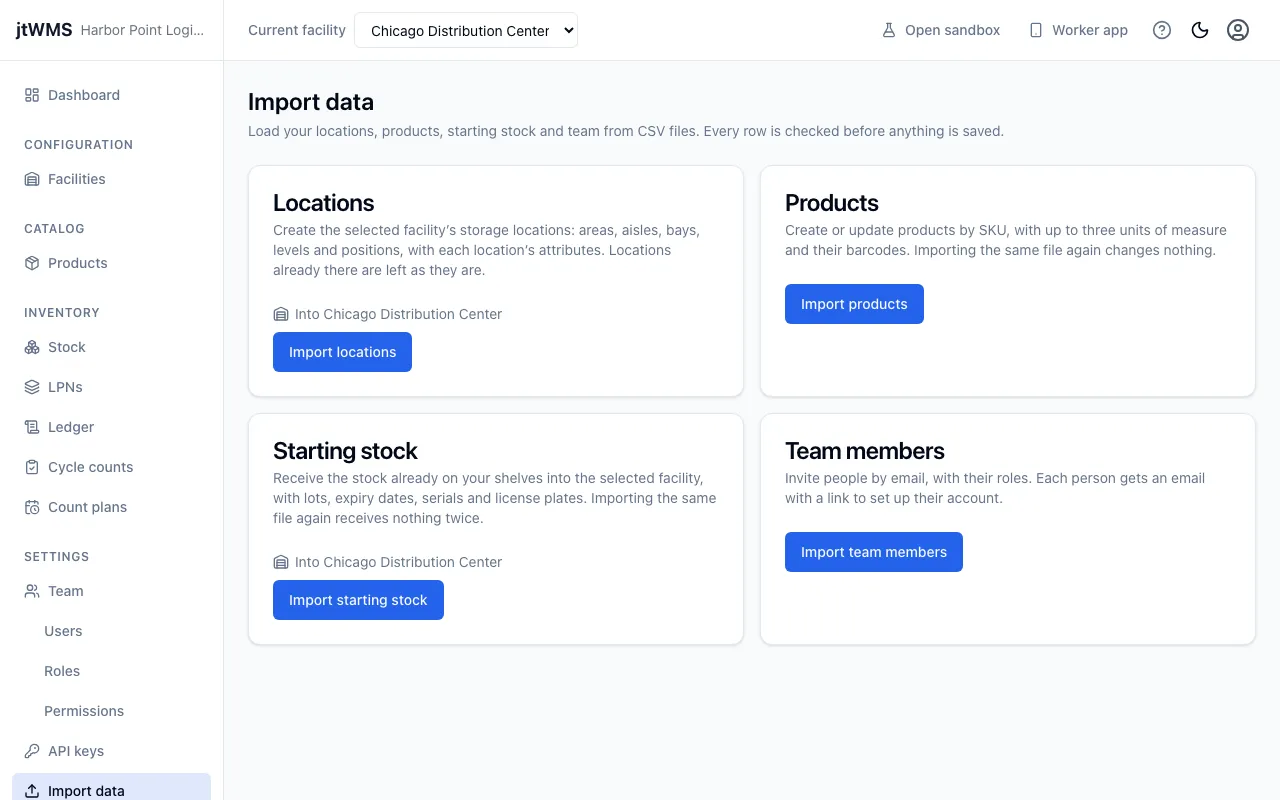
You see the imports you have the permission for:
- Locations needs
warehouseconfig.topology.manage. - Products needs
catalog.products.manage. - Starting stock needs
inventory.stock.manage, and a plan that includes inventory. - Team members needs
identity.users.manage.
Without any of them, the page says you don’t have access, and Import data isn’t in the sidebar.
How an import works
Section titled “How an import works”- On Import data, choose the import, for example Import products.
- Click Download template. The template’s header row names every column the import reads, with an example row. Fill it in with a spreadsheet app and save it as CSV.
- Under CSV file, choose your file. It can be up to 5 MB and 10,000 rows. Files with a byte order mark, Windows line endings, or values quoted because they contain commas are all fine, and the columns can be in any order.
- Match the columns. Columns whose header matches a column name are matched already, ignoring
case, spaces and punctuation (
Shelf life (days)matchesshelf_life_days). Choose the file’s column for any other, or leave it Not in the file. Required columns must be matched. - Click Check the rows. If any row has a problem, Fix these problems first lists each one with its row number (the header is row 1, as in a spreadsheet), its column and what’s wrong. Nothing has been saved: correct the file and click Upload a fixed file.
- When every row is fine, the page says how many are ready. Click the import button to start. A progress bar follows the rows as they’re saved, in batches.
- The Import summary shows what happened. Click Import another file to start again.
Locations
Section titled “Locations”Each row is one location: a position, with the codes of the area, aisle, bay and level it sits in. Aisle, bay and level can be left blank, so a position can sit straight under its area. The location’s code is made from these codes by the facility’s code pattern, as when you add positions in the storage tree.
| Column | What goes in it |
|---|---|
area (required) |
The area’s code |
aisle, bay, level |
Their codes, or blank |
position (required) |
The position’s code |
name |
The location’s name (blank is the position’s code) |
storage_type |
Pallet, Shelf, Bin, Floor or Flow, or blank |
temperature_class |
Ambient, Chilled or Frozen, or blank |
max_weight_kg, max_volume_liters |
Above 0 and up to 1,000,000, three decimal places at most, or blank |
max_units |
A whole number from 1 to 1,000,000, or blank |
Codes are letters, digits and -, up to 50 characters, and each code is unique across the
facility, at every level: two areas can’t both have an aisle 01. A code in the file always means
the same node, so:
- rows that share an area or aisle simply repeat its code;
- a code used under two different parents is a problem on the later row, which names the row it clashes with;
- a code the facility already has must be in the same place in the file: a problem says where it is.
After Check the rows, a Preview marks each row Will be created or Already there. Locations already there are left exactly as they are, attributes included, so importing a file again changes nothing. Rows in areas the facility doesn’t have yet are created together, all or nothing; rows in existing areas are created one by one, so if an import stops part way, run the same file again to finish it. The summary lists each location by its new code.
Products
Section titled “Products”Each row is one product, matched by SKU ignoring case:
- a SKU that’s new creates a product;
- a SKU that exists replaces that product’s details, keeping its status;
- a product that hasn’t changed is counted as Unchanged.
So importing the same file again changes nothing, and an import that stopped part way can simply be run again.
| Column | What goes in it |
|---|---|
sku (required) |
Up to 64 letters, digits, ., _, / or - |
name (required) |
Up to 200 characters |
description, category |
Optional text |
track_lots, track_serials, track_expiry |
yes or no (blank is no) |
shelf_life_days |
1 to 3,650, when tracking expiry |
rotation |
FIFO, LIFO or FEFO (blank is FIFO; FEFO needs expiry tracking) |
velocity |
A, B or C, or blank |
weight_unit, length_unit |
kg, g, lb, oz; cm, mm, m, in (blank is kg and cm) |
base_uom_code, base_uom_name |
The base unit (blank is EA, Each) |
base_weight, base_length, base_width, base_height |
One base unit’s measurements |
base_barcode |
The base unit’s barcode |
level2_code, level2_name, level2_quantity, level2_barcode |
A pack above the base, such as a case, and how many base units it holds |
level3_code, level3_name, level3_quantity, level3_barcode |
A pack above that, such as a pallet, and how many level 2 packs it holds |
A barcode of 8, 12, 13 or 14 digits is read as a GTIN, and its check digit must be right: a wrong one is a problem on that row. Anything else is saved as another kind of code. The same rules as the product form apply, and a SKU or barcode used on two rows of the file is a problem on the second.
Starting stock
Section titled “Starting stock”Each row is stock to receive into the selected facility, as when you receive stock by hand. Import your locations and products first.
| Column | What goes in it |
|---|---|
sku (required) |
The product’s SKU, matched ignoring case. The product must be active |
location (required) |
The location’s code in the facility. A code that differs only in case is used when the facility has no other like it. It must be active |
quantity (required) |
A whole number from 1 to 1,000,000, in the unit of measure |
uom |
One of the product’s unit codes, such as CS (blank is its base unit) |
lpn |
A license plate to receive onto, or blank for loose stock |
lpn_type |
Pallet, Case or Tote, for a plate the import creates (blank is Pallet) |
lot |
The lot, when the product tracks lots; blank otherwise |
expiry |
The expiry date as YYYY-MM-DD, when the product tracks expiry; blank otherwise |
serials |
Serial numbers separated by ;, one per base unit, when the product tracks serials; blank otherwise |
Each row follows its product’s tracking rules, checked before anything is sent: a lot, expiry date or serials the product needs and the row lacks (or has but the product doesn’t track) is a problem, and so is a serial count that isn’t one per base unit (2 cases of 12 need 24 serials). A serial on two rows, or one lot with two expiry dates, is a problem on the later row.
A license plate the facility already has must be at the row’s location. A plate it doesn’t have is
created at that location, which needs the inventory.movements.manage permission too.
Rows are received 100 at a time, each batch as one receipt in the ledger. Before a batch is sent, the ledger is checked for it, and a batch already received is skipped. So importing the same file again receives nothing twice, and the Preview marks rows already received as Already imported. If an import stops part way, fix the file and import it again: the batches received before the stop are skipped, as long as you don’t change their rows.
Right after you import products or locations, the stock service can take a moment to learn about them; the import waits and tries again for up to a minute.
Team members
Section titled “Team members”Each row is one person to invite. Each gets an email with a link to set up their account, as with Invite a user.
| Column | What goes in it |
|---|---|
email (required) |
The person’s email address |
roles |
Role names separated by ;, matched to your organisation’s roles ignoring case. Blank gives no role |
An email on two rows of the file is a problem on the second. After Check the rows, a Preview shows what would happen to each row before anyone is invited:
- Will be invited;
- Already in your organisation;
- Already has an invite waiting (the existing invite is left as it is);
- Has a jtWMS account elsewhere: the address belongs to another organisation’s account.
Click Send invites to invite everyone marked Will be invited. You can only give roles whose permissions you hold yourself. An organisation can send 200 invites a day: a file that would send more says so, and is imported in smaller files instead. If invites already sent today use up the rest of the day’s allowance, the import stops part way and says how many were sent; importing the same file again later skips the people already invited.
From the API
Section titled “From the API”Every import uses the API’s own endpoints, which a script can call directly. See Bulk import.