Dashboard
The dashboard is the admin app’s home page, and where you land after signing in if you can use the admin app. It shows today’s activity at the facility you’re working in, as tiles, and a summary of your organisation’s account.
Before you start
Section titled “Before you start”-
You only need to be signed in to open the dashboard.
-
The activity tiles show only what you can see elsewhere:
- the stock tiles need a plan that includes Inventory and
inventory.stock.read(orinventory.stock.manage); - the waves and pick task tiles need a plan that includes Outbound Operations (Pro and
Enterprise) and
outbound.orders.read(oroutbound.orders.manage); - the put wall tile needs a plan that includes Outbound Operations and
outbound.putwalls.read(oroutbound.putwalls.manage); - the ship sort and dock door tiles need a plan that includes Routing & Sortation (Enterprise)
and
routing.operations.read(orrouting.operations.manage).
You see the tiles you have access to, and no tiles without either. They also need a facility: choose one in Current facility at the top of the page.
- the stock tiles need a plan that includes Inventory and
Today’s activity
Section titled “Today’s activity”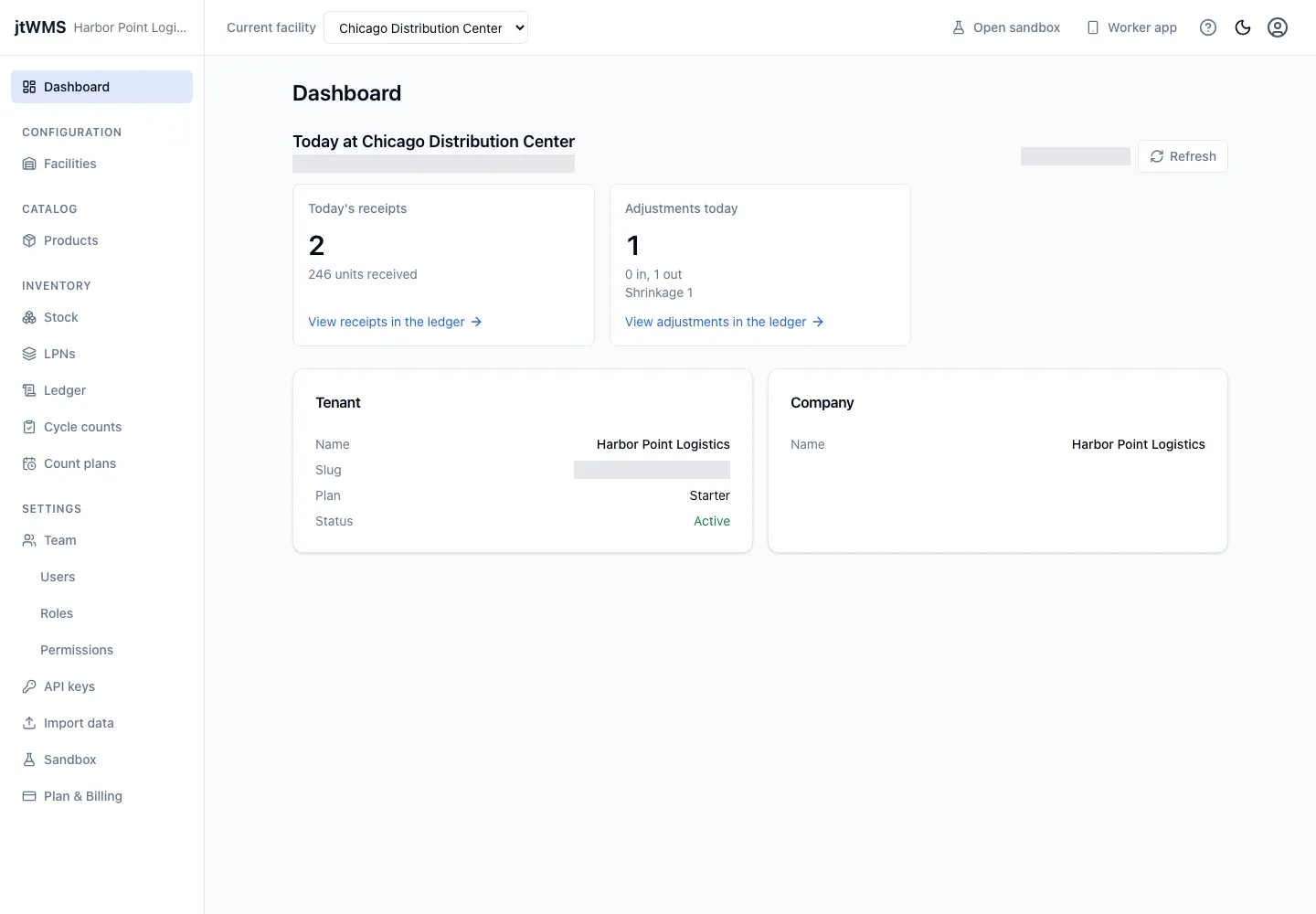
Today at facility shows the facility’s day so far, from midnight to midnight in the facility’s time zone, whatever your own time zone is. The line under the heading gives the date and the time zone.
| Tile | Shows |
|---|---|
| Today’s receipts | How many receipts were recorded, and the units they received |
| Adjustments today | How many adjustments were recorded, the units they put in and took out, and how many there were of each reason (approved cycle counts included) |
| Waves in progress | How many waves are releasing or released and not yet complete, and how many were released today |
| Open pick tasks | How many pick tasks are waiting to be picked, and how many were done today (shorted ones included) |
| Put walls | How many cubbies on the facility’s active put walls hold an order (those still being sorted, and those ready for pack), and how many enabled cubbies the walls have. A cubby disabled while it holds an order still counts as holding it |
| Ship sort today | How many containers reached a ship sort lane, the average per hour over the day so far (the first hour counts as a whole hour), and how many routing exceptions were raised |
| Dock doors in use | How many dock doors have an open load, of all the facility’s doors, and how many loads were closed today |
Units are the products’ base units. Each stock tile has a link to the stock ledger, filtered to that kind of transaction and to today, so you can see the transactions behind the figure. The ledger shows the day as a filter you can remove.
Ship sort today links to the facility’s journeys inducted
today. Dock doors in use links to the dock doors, which show
the load open at each door, or to the loads if your role can’t view the routing configuration
(routing.config.read). Waves in progress, Open pick tasks and Dock doors in use show the state now,
with what was released, done or closed today beside it. Put walls shows only the state now, and
links to the put walls. Waves in progress links to the released
waves; the pick task tile has no link. The
Outbound overview shows more of the day’s outbound figures.
The tiles are read again every 30 seconds, and when you click Refresh. Updated gives the time of the last read. At midnight in the facility’s time zone, the tiles move to the new day.
If a tile’s figures can’t be loaded, the tile says so, with Try again. The two stock tiles are read together, so they show an error together, and so are the waves and pick task tiles, and the ship sort and dock door tiles. The other tiles and the rest of the page are not affected.
Opening the ledger from a tile filters it once: the filters are then yours to change or remove. Switching facility or reloading the page doesn’t bring the link’s filters back.
View your organisation’s details
Section titled “View your organisation’s details”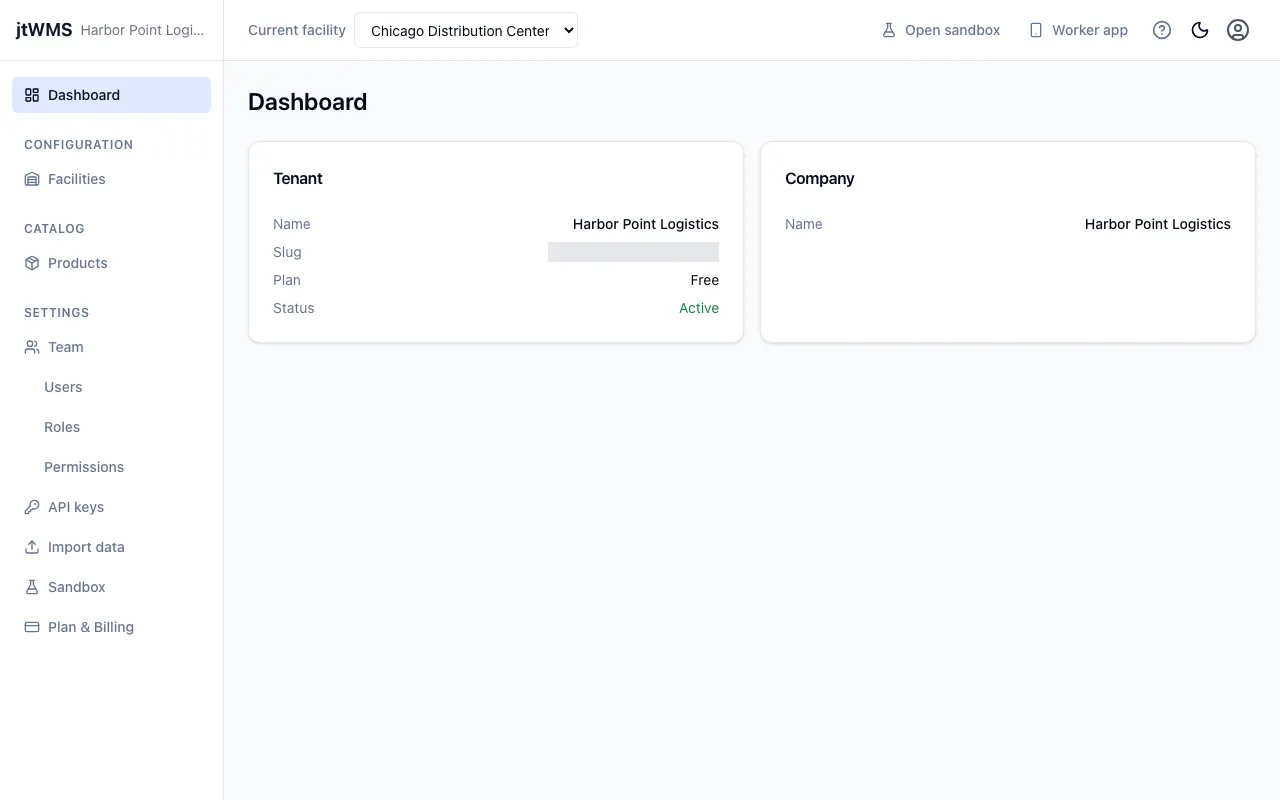
- In the sidebar, click Dashboard.
- The Tenant card shows your organisation’s Name, Slug, Plan and Status (Active or Inactive).
- The Company card shows the company Name and Country given at sign-up. It’s shown only when there are company details to show.
If the details can’t be loaded, the page shows the error with Try again.
To change your plan, use Plan & Billing in the sidebar’s Settings section.
The setup checklist
Section titled “The setup checklist”If you can create facilities, the dashboard opens with Set up your warehouse: the steps of the setup wizard, each marked Done when its data exists, with how many are done. Click To do beside a step to open the wizard at it, or Continue setup to open it at the first step still to do. A step your plan doesn’t include, or that needs a permission you don’t hold, says so instead. When every step is done, the card reads Your warehouse is set up.
Click Hide this checklist to hide it for yourself in this browser. Below the steps, Get help with setup offers our onboarding team’s help (see Help with setup).
In a sandbox
Section titled “In a sandbox”In a sandbox, the dashboard shows a Sample data card, which loads a demo warehouse to explore (see Load the sample data), and Try it out, a short guided path through it (see Try it out).