Put stock away
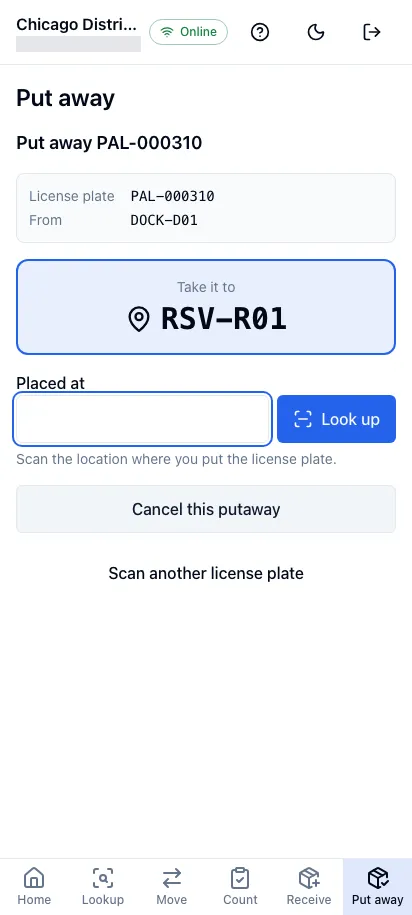
In the worker app, Put away takes license plates from the dock to storage. You scan a license plate that was received, jtWMS tells you which storage location to take it to, and you scan the location where you put it.
Before you start
Section titled “Before you start”- Putaway comes with the Inbound feature, on the Pro plan and above. Without it, the screen reads “Your plan doesn’t include Inbound”.
- Put away appears in the bottom navigation for people who hold
inbound.receiving.manage. The Operator, Warehouse Manager and Tenant Admin roles hold it. - A license plate can be put away once its receipt has posted to stock.
Where jtWMS sends a license plate
Section titled “Where jtWMS sends a license plate”jtWMS suggests an empty storage location: one whose purpose is Storage, that holds no stock and no license plate, and that no other putaway is heading for. It prefers the zones whose putaway rule matches the velocity class of the products on the license plate (fast movers in the zones for class A, for example), then zones for any class, then the nearest other class. Storage locations in no zone come last. Supervisors set each zone’s rule in the admin app.
Put a license plate away
Section titled “Put a license plate away”Tap Put away in the bottom navigation, then:
- Scan a license plate: scan its label in License plate. The screen shows where it is now and, in large type under Take it to, the storage location to take it to.
- Take the license plate there.
- Scan the location in Placed at:
- At the suggested location, the putaway is confirmed straight away.
- At another storage location, for example because the suggested one is full, choose why: The suggested location is full, The suggested location is damaged or Another reason, then tap Confirm at followed by the location’s code. A dock or staging location isn’t accepted.
- jtWMS moves the license plate in stock, which normally takes a moment (“Moving PAL-000310 to RSV-R01…”). When it’s done the screen reads, for example, “Put away PAL-000310 at RSV-R01.”, and Next license plate is ready for the next scan.
If the move is refused, for example because the location is blocked, the screen says why and the putaway is open again: scan where you placed the license plate to confirm again.
Cancel a putaway
Section titled “Cancel a putaway”To leave a license plate where it is, tap Cancel this putaway, then tap again to confirm. Its suggested location is freed for other putaways. Scanning the license plate again later directs it afresh.
Scan another license plate leaves the putaway open, keeping its suggested location for it: scanning the license plate again returns to the same putaway.
When a license plate can’t be put away
Section titled “When a license plate can’t be put away”Scanning a license plate shows why it can’t be put away yet, and keeps the code in the field so you can scan it again:
- No license plate was received with that code in this facility.
- A receipt is still posting to stock, or it failed: wait a moment, or retry the receipt (see Receive deliveries).
- It was already put away after it was last received.
- No storage location is free: every location it could go to is occupied or taken by another putaway. The message says how many locations each kind of zone held.
- Inventory couldn’t be asked which locations are free: scan it again.
Working offline
Section titled “Working offline”While you’re offline, the scan fields and the confirm and cancel buttons are disabled, with a message saying why (“You’re offline. Confirming a putaway needs a connection.”). What you’ve scanned and the reason you chose are kept, so when the connection returns you tap the button again. Nothing is saved to send later.
Related
Section titled “Related”- Receive deliveries: receive the license plates you put away
- Stock: see the stock at its storage location in the admin app
- Worker app: open the app and choose your facility