Purchase orders
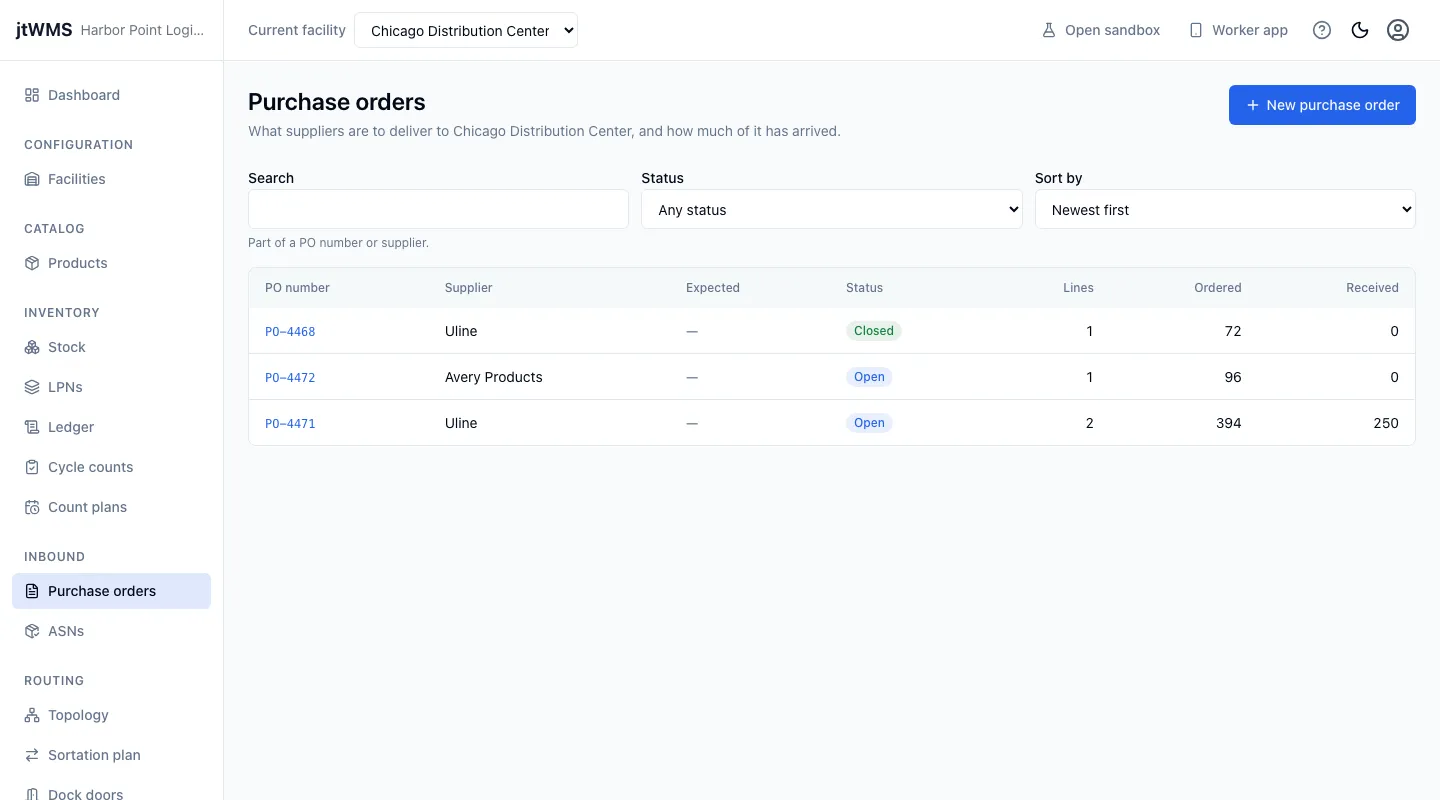
A purchase order records what a supplier is to deliver to a facility: an order number, the supplier, when delivery is expected, and a line for each product with the quantity ordered. Goods are never received against a purchase order directly. They are received against an ASN, the supplier’s notice of one delivery, which can be linked to the order; what posts to stock through its ASNs counts as received on the order. Open the orders from Purchase orders under Inbound in the sidebar.
Before you start
Section titled “Before you start”- Purchase orders come with the Inbound feature, on the Pro plan and above. On a plan without it, Inbound is hidden from the sidebar and the page reads “Your plan doesn’t include Inbound”. A Tenant Admin can change the plan under Plan & Billing.
- To see orders you need
inbound.orders.readorinbound.orders.manage. Every standard role holds the first. To create, edit, close, cancel and delete them, and to create an ASN from one, you needinbound.orders.manage, held by Tenant Admin and Warehouse Manager. Without it the page’s buttons are hidden. - A line’s product is found by its SKU or barcode, which needs
catalog.products.read. The product must be active in your catalog. - Orders are kept per facility: the page shows the facility chosen in Current facility at the top of the page.
Find orders
Section titled “Find orders”- Click Purchase orders in the sidebar. The list shows each order’s PO number, Supplier, Expected date and Status, how many lines it has, and how much was Ordered and Received across them, in base units.
- Narrow it with Search (part of a PO number or a supplier’s name, ignoring case) and Status (Open, Closed or Cancelled), and choose how it is sorted with Sort by. Newest first is the default.
- Click an order’s number to open its page.
Create an order
Section titled “Create an order”- Click New purchase order.
- Fill in the PO number, up to 50 characters. No other order of the facility can have the same number, whatever its upper or lower case, until that order is deleted.
- Optionally fill in the Supplier (up to 200 characters) and the Expected date.
- For each line, type or scan the product’s SKU or a barcode in Product, then press Enter or click Find. The product’s SKU and name appear under the field. A barcode on a case finds the product in cases.
- Fill in the Quantity, a whole number from 1 to 1,000,000, and choose its Unit of measure.
- Click Add line for another product, or the cross on a line to remove it. An order has 1 to 500 lines.
- Click Create purchase order. The app confirms with “Created PO number.” and opens the order.
If the order can’t be saved, the drawer says why next to the field concerned, such as a number already in use or a product that is no longer active.
Read an order
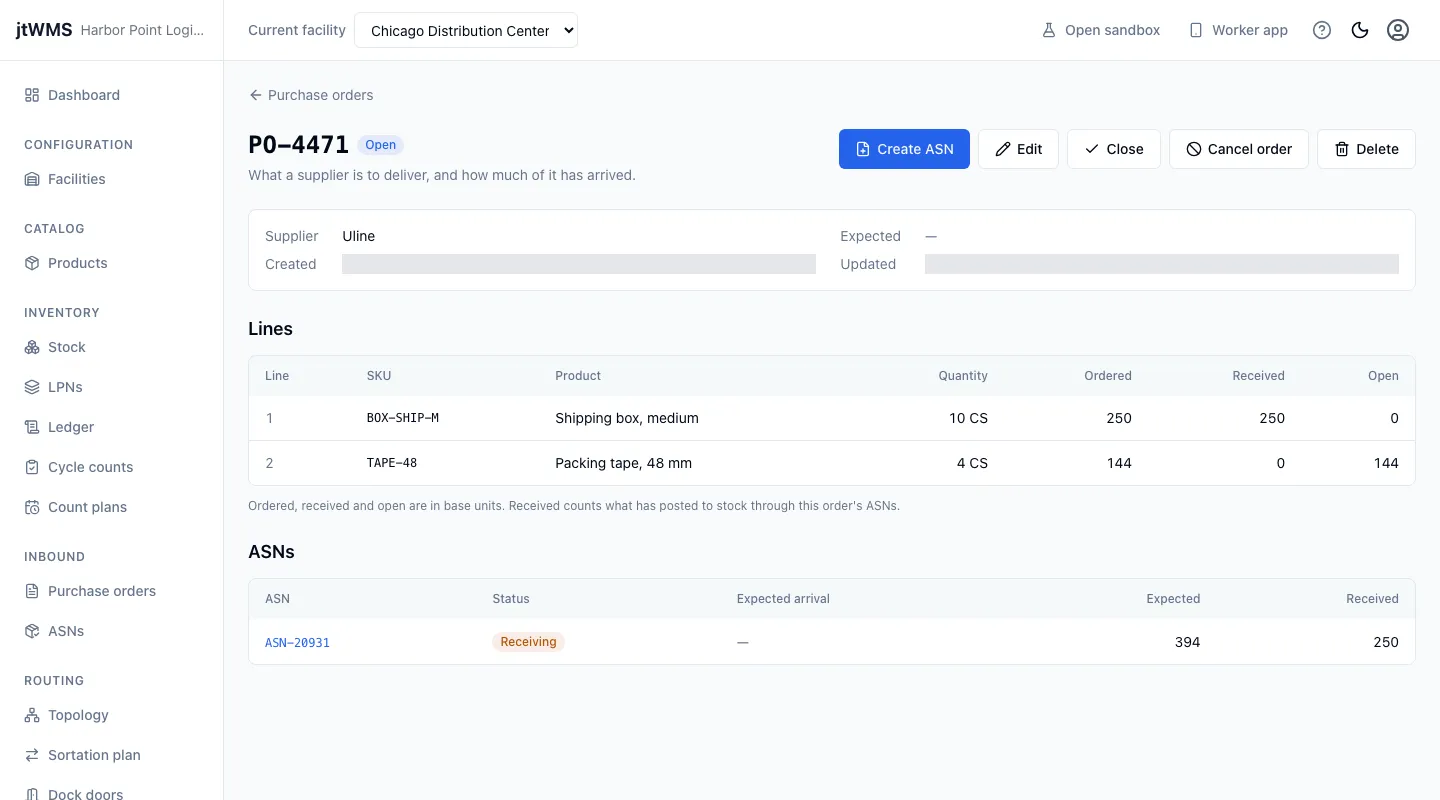
Section titled “Read an order”An order’s page shows its supplier, expected date and when it was created and last changed, then its Lines: each product with the quantity as entered, what was Ordered and Received in base units, and what is still Open. Below them, ASNs lists the ASNs made against the order with their status and what each expects and has received.
Change an order
Section titled “Change an order”While an order is Open, with inbound.orders.manage you can:
- Edit its number, supplier, expected date and lines. The lines you keep stay the same lines; a line you remove is deleted. A line already received against, or delivered by an ASN that is not cancelled, keeps its product, and can’t be ordered below what was received.
- Create ASN: give the new ASN a number, then click Create ASN. It expects what is still open on each line (ordered, less received, less what the order’s other open ASNs still expect), in base units, each line linked to the order’s, and its page opens. When nothing is open, the app says so.
- Close it: nothing more is expected against it.
- Cancel order: call it off.
Closing or cancelling is refused while any of the order’s ASNs is open or receiving: close or cancel the ASN first. Cancelling is refused too once anything was received against the order.
Delete removes an order from the lists after you confirm, and its number can be used again. Only an order nothing was received against can be deleted, and only once every ASN that references it is cancelled or deleted.
The buttons are unavailable while the order is being read, and when that read failed. Read it again first.